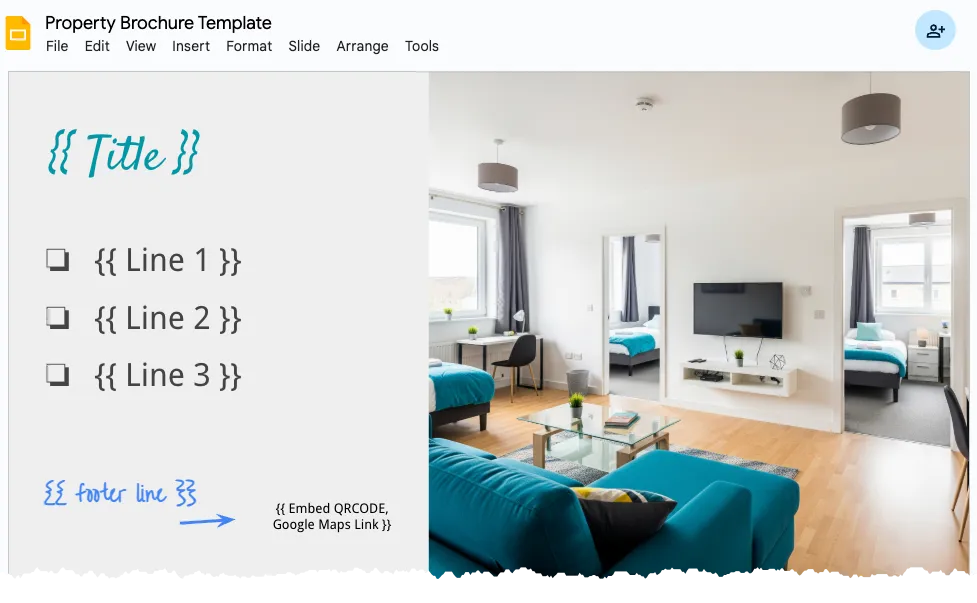
Angus owns a beautiful apartment near the university campus. With the new semester around the corner, he wants to create brochures to attract students as tenants.
But here’s the challenge: the university has students from all over the world who speak different languages. Angus needs to create brochures that speak to everyone—from students from Japan to those from France, and everywhere in between.
While he could create PDF brochures in multiple languages manually, that process would be both time-consuming and error-prone. This guide explains how you can automate it all with the help of Google Sheets, Google Slides and the Document Studio add-on.
Create Multi-language PDF Brochures
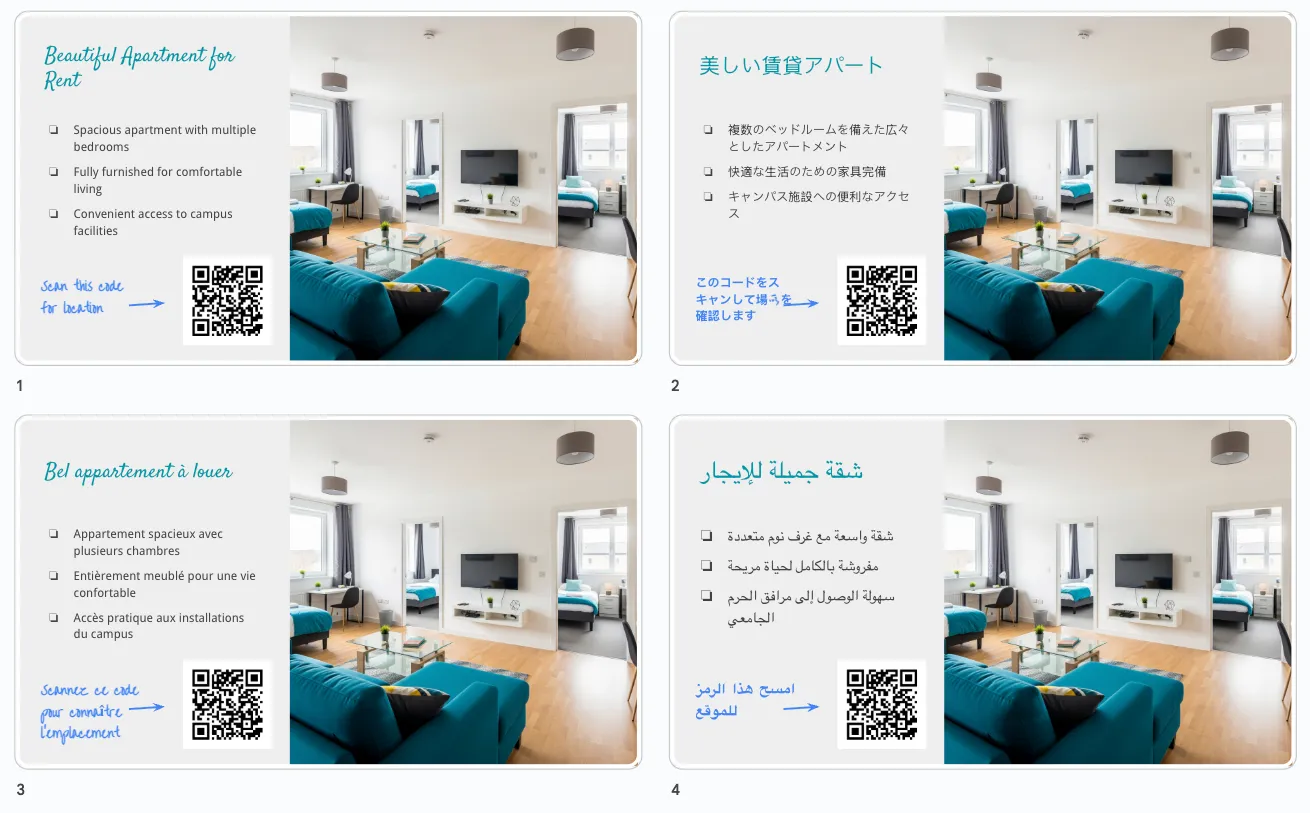
Here’s a sample PDF brochure in multiple languages generated using this approach.
Step 1: Create Google Slides Template
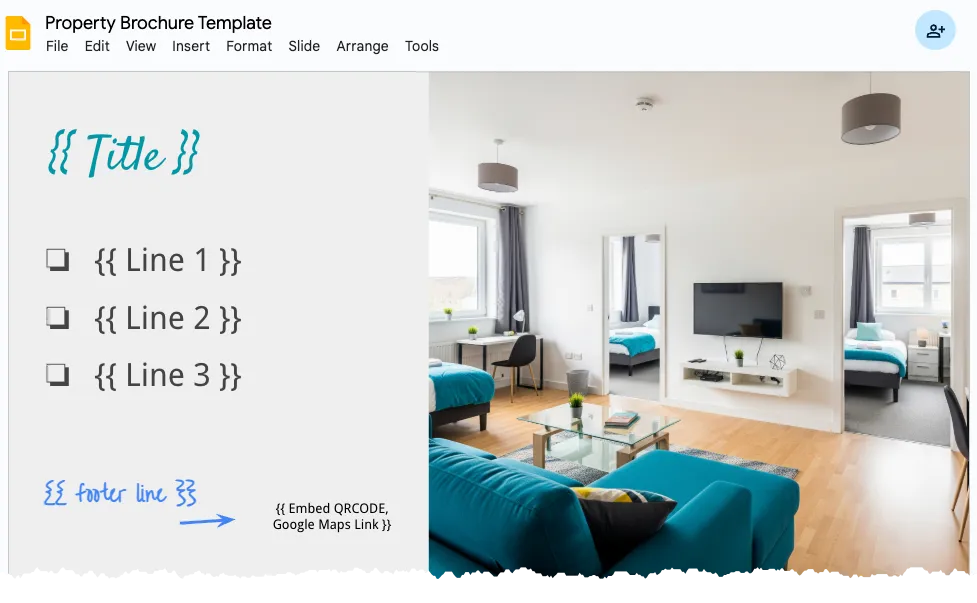
We’ll use Google Slides to create a brochure template like the one below.
The markers like {{ Title }} or {{ Line 1 }} are placeholders that will be replaced with the translated text from the Google Sheet. The {{ Embed QRCODE }} is a special marker that will be replaced with a QR code image that on scanning will take the user to the apartment’s location on Google Maps.
Step 2: Add data to Google Sheet
Next, we’ll create a Google Sheet where each row represents a different language version of your brochure. The first column contains the language code (like fr for French or es for Spanish), while the remaining columns hold the translated content that will populate your Slides template.
We are using the built-in GOOGLETRANSLATE function to automatically translate the text from English to the other languages. Thus, when you edit the text in the source language row, the other rows will be automatically updated with the translated text.
=GOOGLETRANSLATE(B$2,$A$2,$A3)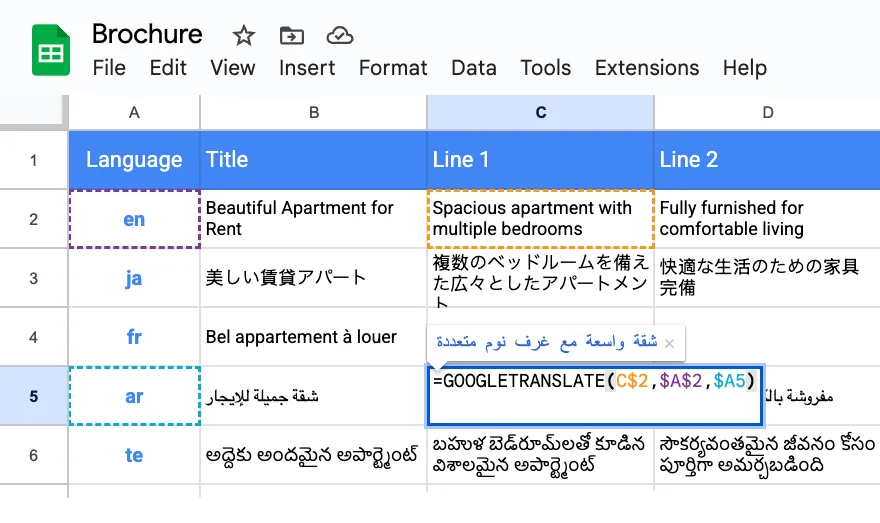
Step 3: Configure Document Studio Workflow
Now that we have the Google Slides template and the Google Sheet with the data, we can use Document Studio to generate the PDF brochures in multiple languages.
Inside the Google Sheet, go to the Extensions menu and launch Document Studio.
Give your workflow a name, select the Google Sheet that contains your translated language pairs. From the tasks panel, select the Append task – this will add the slides for each language one after another into a single presentation, making it perfect for printing.
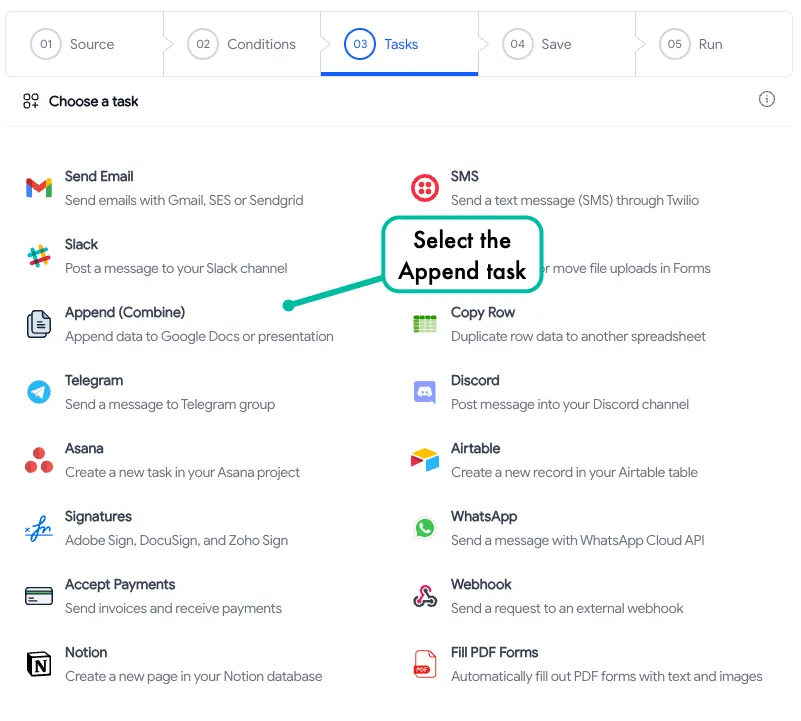
If you would like to generate separate PDF files for each language, use the
Create Filetask but we’ll go with Append as that will make it easier to send the PDF to the printer.
Next, select the Google Slides template that we created in the previous step. Run the workflow and you’ll have a new file in your Google Drive containing the multilingual brochure.
With just a single Google Slides template and a Google Sheet, Document Studio makes it easy to generate multilingual brochures at scale. Whether you’re building real estate flyers, school notices, or marketing materials to target international audience, this approach dramatically reduces translation effort and eliminates manual formatting – letting you deliver accurate, print-ready documents in minutes.
Author

prakhar@affmantra.com
Related Posts

How to Add Speech Recognition to your Website
Table of Contents 1. Add Voice Recognition to your Website Open the Google website on your desktop computer and you’ll find a...
Read out all
How to Handle OAuth Permissions in Google Add-ons
- 0
- 714 words
Table of Contents 1. How to Check for Required OAuth Scopes 1.1 The “Authorization Catch-22” Problem 1.2 How to Reset the Permissions...
Read out all
How to Recover Permanently Deleted Files and Folders in Google Drive
- 0
- 326 words
Table of Contents When you delete any file or folder in your Google Drive, it is moved to the trash folder. The...
Read out all
Simple URL Tricks for Google Drive You Should Know
- 0
- 374 words
Table of Contents 1. Google Drive URL Tricks 1.1 Google Drive Web Viewer 1.2 Reader Mode for Google Drive Files 1.3 Embed...
Read out all
How to Extract URLs from HYPERLINK Function in Google Sheets
- 0
- 201 words
The HYPERLINK formula of Google Sheets lets you insert hyperlinks into your spreadsheets. The function takes two arguments: The full URL of...
Read out all
Find and Remove Inactive Users in your Google Workspace Domain
- 0
- 388 words
Table of Contents 1. Find the inactive users in Google Workspace domain You can use Google Apps Script to find all the...
Read out all