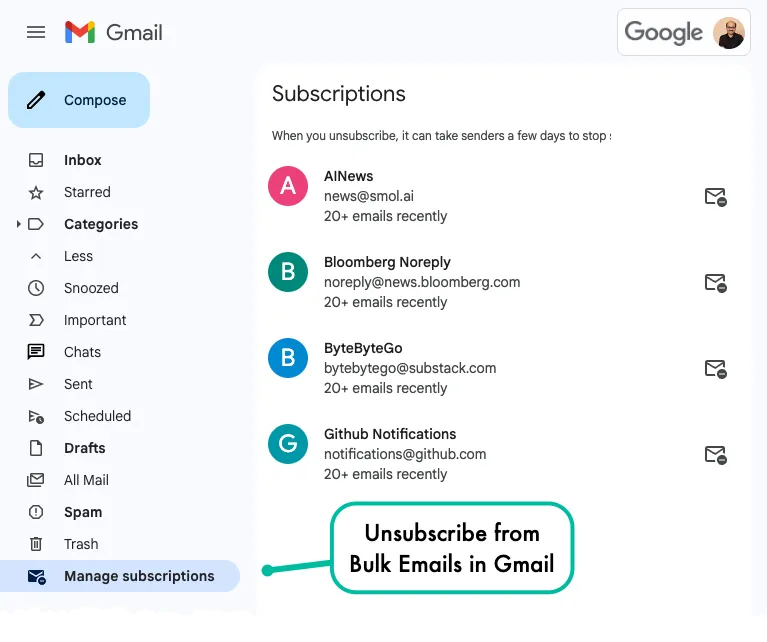
The Gmail Unsubscriber is a Google Script that automatically unsubscribes you from email newsletters and other bulk messages in Gmail. I wrote this script in 2017 and it even won the Lifehack of the Year award from Product Hunt.
While the Gmail Unsubscriber script still works, you may no longer need it as Gmail now has built-in functionality to handle unsubscribing from junk email newsletters.
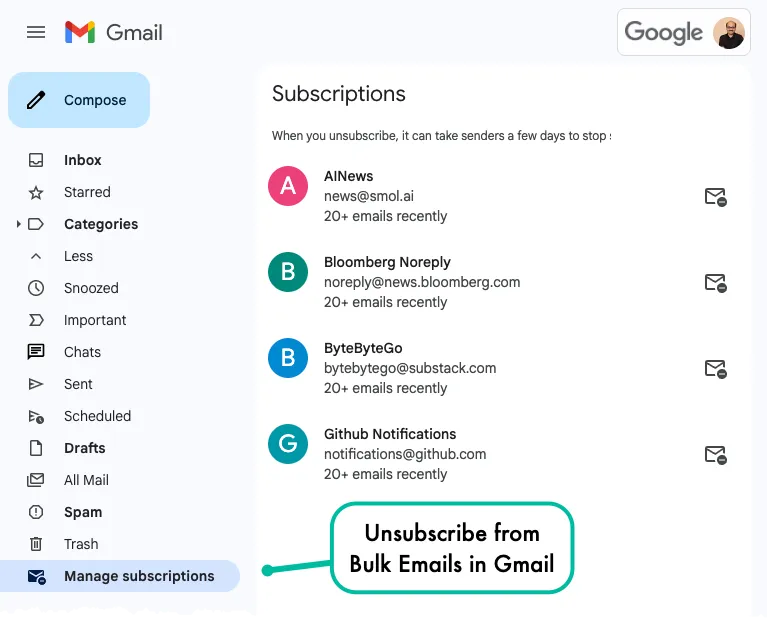
They’ve added a new tab in Gmail sidebar called Manage Subscription that shows all the newsletters and other bulk messages that were found in your inbox. You can click on the Unsubscribe button to quickly unsubscribe from the newsletter. The options is available on both the Gmail website and the Gmail mobile app.
Your email subscriptions are sorted by the most frequent senders. If you click on the sender’s name, you’ll also see a list of all email messages that were sent by that sender.
Also see: Find Bulk Emails in your Gmail Inbox
The Limitation
While the built-in unsubscribe functionality is useful, there’s one limitation. You can only unsubscribe from newsletters one by one. If you have a lot of newsletters to unsubscribe from, the original Gmail Unsubscriber script may still be good way to automate the process.
How to Unsubscribe from Email Newsletters in Gmail
Unroll.me is a free online service that lets you easily unsubscribe from email newsletters and other bulk messages in Gmail. You, however, will have to grant complete access to your Gmail mailbox and to your Google Contacts for Unroll.me to automatically remove your email address from various mailing lists.
This morning, it was revealed that Unroll.me is silently scraping your Gmail mailbox and selling the data to Uber. Maybe it is hidden somewhere in the terms of service that the app can share your data with other companies but who actually reads the fine print. If this worries you, here’s a simple guide on how to block the app from accessing your Gmail emails in future.
Christian Heilmann’s tweet – Feature request for Gmail: automatically find and follow the unsubscribe link in all highlighted emails – prompted me to build an automated system for unsubscribing your Gmail address from the bulk senders. Here’s how it looks like:
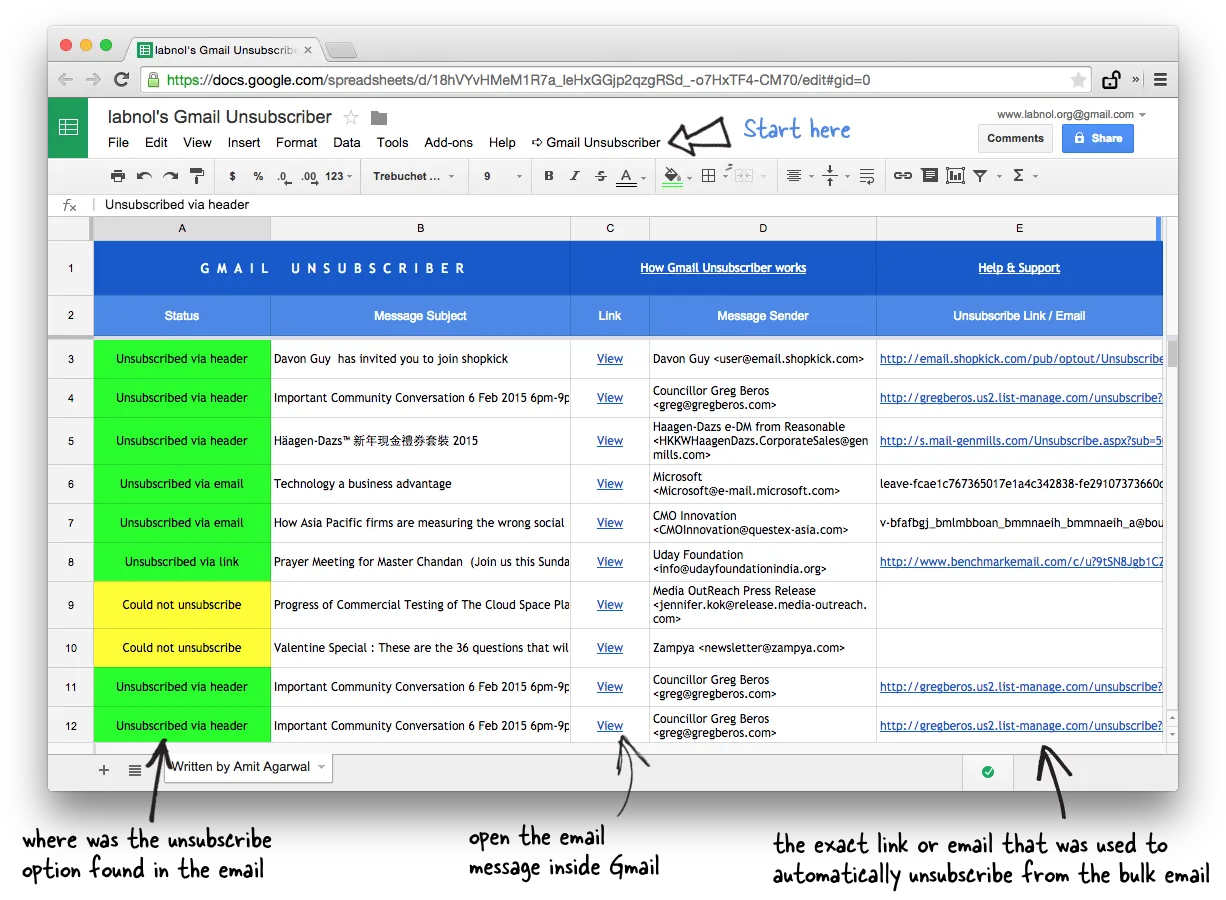
Gmail Unsubscriber with Google Script
What I have now is a simple Google Script that parses the content of bulk emails and finds the unsubscribe link. If an unsubscribe link is found, the script opens the link and your email is automatically unsubscribed. In some cases, the bulk sender would require you to send a message to a special email address to unsubscribe and our Google script can do that as well.
The big advantage is that don’t have to grant access to your Gmail account to any third-party service and you can add subscription emails to the unsubscribe queue from any email client including desktop and mobile apps. Let’s get started:
- Click here to copy the Gmail Unsubscriber sheet to your Google Drive.
- Go to the Gmail menu in the Google Sheet (see screenshot above) and choose Configure. Allow the script to access to your Gmail account. It is an open source Google Script that runs does not store or upload a single byte of your data.
- In the inbox box, enter a name of your Gmail label (the default is Unsubscribe) and all emails marked with this label will be unsubscribed. Save your changes.
The Gmail Unsubscriber program is now initialized and running in the background. You can now apply the Unsubscribe label to any email message in Gmail and you’ll be automatically unsubscribed in 10-15 minutes. Everything is logged in the Google Sheet so you know what’s happening behind the scenes. Give it a try!
Also, the solution works everywhere – you can apply the label to unwanted subscription newsletters on the Gmail website, mobile apps for Gmail on iPhone & Android or even third-party email clients like Microsoft Outlook (move the email to the Unsubscribe folder) or Apple Mail.
How Gmail Unsubscribes from Mailing Lists
All legitimate bulk email senders include a List-Unsubscribe field in the message header that contains an URL or email address for unsubscribing from a mailing list. Here’s a screenshot:
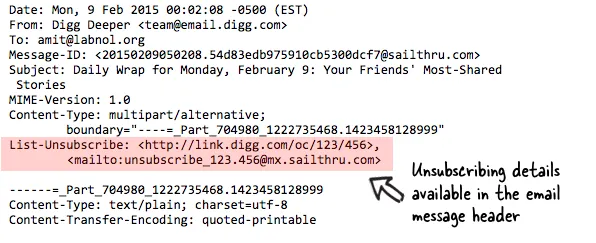
You can view these details by opening any bulk message inside Gmail and choosing “Show Original” from the menu. In other cases, the unsubscribe link may be included in the message body with the anchor text like “click here to unsubscribe” – the script is smart enough to recognize all such links, it opens them for you and removes your email address from the mailing list.
Author

prakhar@affmantra.com
Related Posts

How to Add Speech Recognition to your Website
Table of Contents 1. Add Voice Recognition to your Website Open the Google website on your desktop computer and you’ll find a...
Read out all
How to Handle OAuth Permissions in Google Add-ons
- 0
- 714 words
Table of Contents 1. How to Check for Required OAuth Scopes 1.1 The “Authorization Catch-22” Problem 1.2 How to Reset the Permissions...
Read out all
How to Recover Permanently Deleted Files and Folders in Google Drive
- 0
- 326 words
Table of Contents When you delete any file or folder in your Google Drive, it is moved to the trash folder. The...
Read out all
Simple URL Tricks for Google Drive You Should Know
- 0
- 374 words
Table of Contents 1. Google Drive URL Tricks 1.1 Google Drive Web Viewer 1.2 Reader Mode for Google Drive Files 1.3 Embed...
Read out all
How to Extract URLs from HYPERLINK Function in Google Sheets
- 0
- 201 words
The HYPERLINK formula of Google Sheets lets you insert hyperlinks into your spreadsheets. The function takes two arguments: The full URL of...
Read out all
Find and Remove Inactive Users in your Google Workspace Domain
- 0
- 388 words
Table of Contents 1. Find the inactive users in Google Workspace domain You can use Google Apps Script to find all the...
Read out all