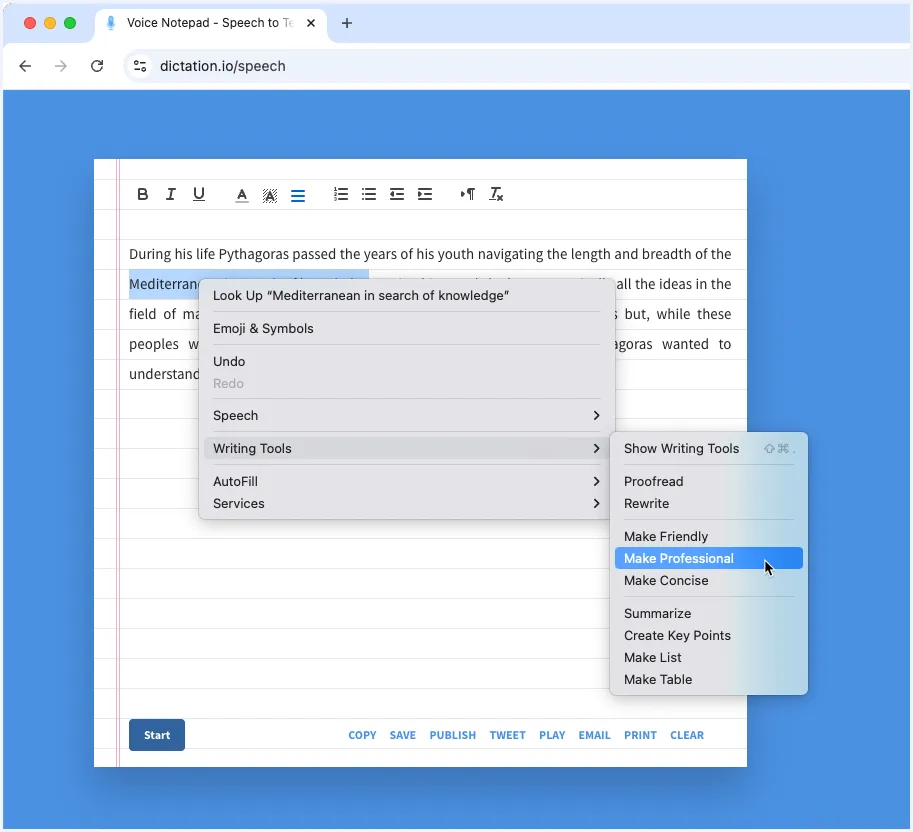
The recent release of Apple Intelligence has added a new set of helpful AI writing tools to your Mac. You can proofread emails, summarize documents and, the most useful of all, rewrite emails in professional or casual tone. You can access the writing tools wherever you type text on your Mac – in the Mail app, Gmail, Safari browser, and any other text editor.
Apple Intelligence is available on Macs running macOS Sequoia 15.1 and the device language is set to US English. The built-in AI integration means you can enhance your writing directly in your current app, without jumping back and forth between ChatGPT or Copilot in a separate window.
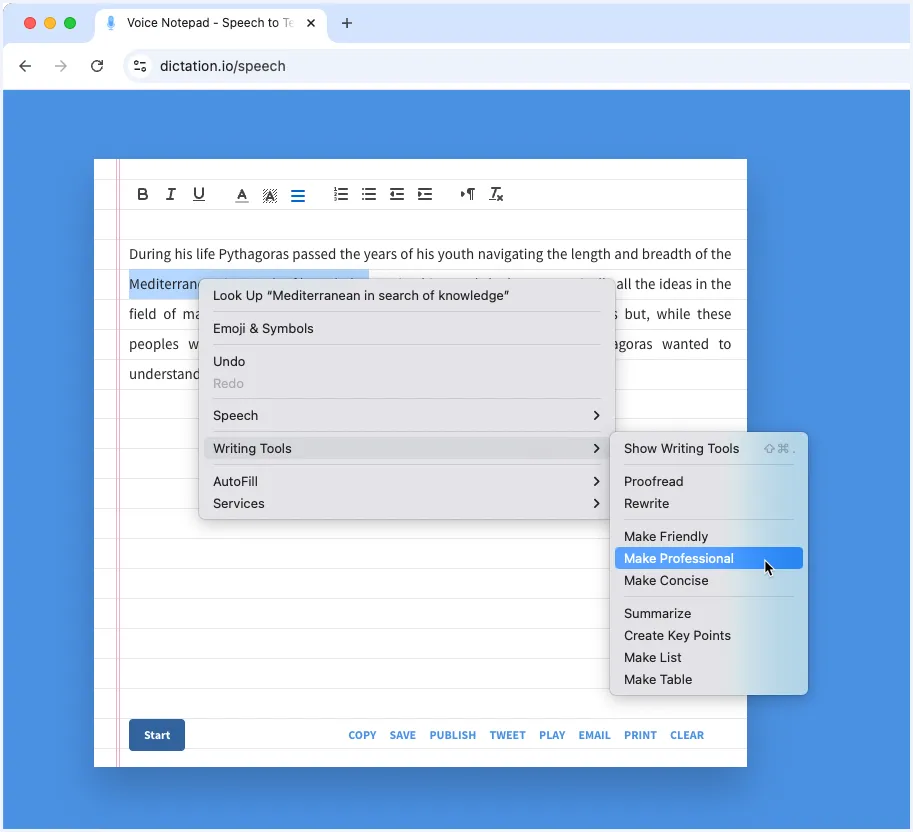
To access the AI writing tools inside your current app, you can select the text you want to edit, right-click and select Writing Tools > Show Writing Tools from the context menu.
Launch AI Writing Tools with a Keyboard Shortcut
If you prefer to use a keyboard shortcut to launch the writing tools on your Mac, here’s how you can do it.
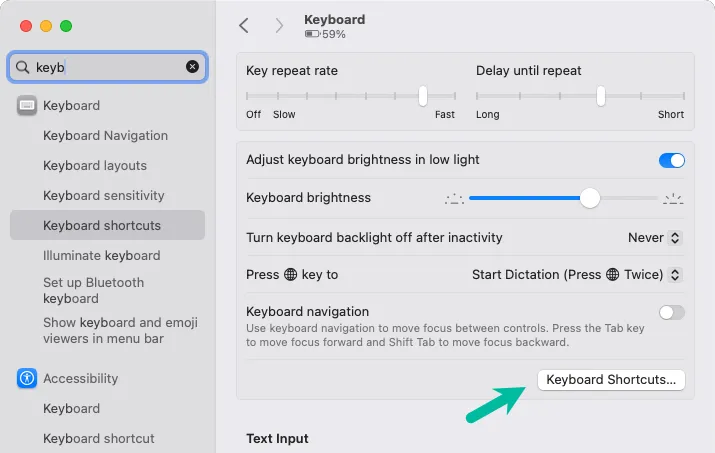
- Launch the
Settingsapp on your Mac and selectKeyboard. Click theKeyboard Shortcutsbutton.
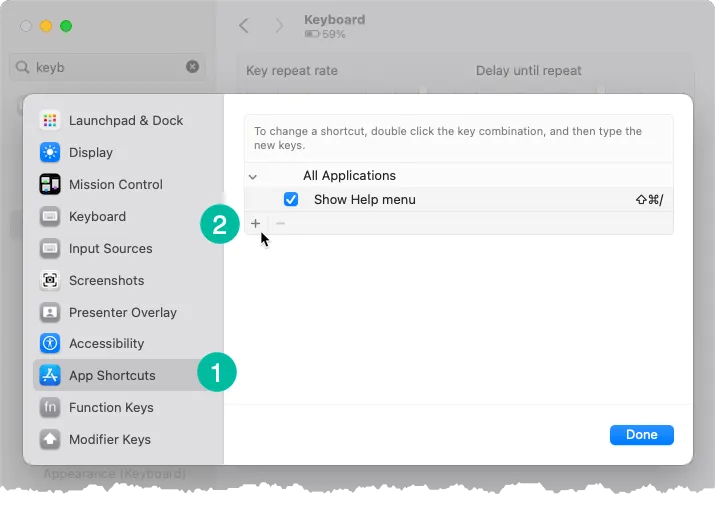
- Go to the
App Shortcutssection and click the+button to create a new shortcut.
- In the
Menu Titlefield, enterShow Writing Toolswhile the Application field is set to All applications. In theKeyboard Shortcutfield, pressCommand Shift .(period key). ClickAdd.
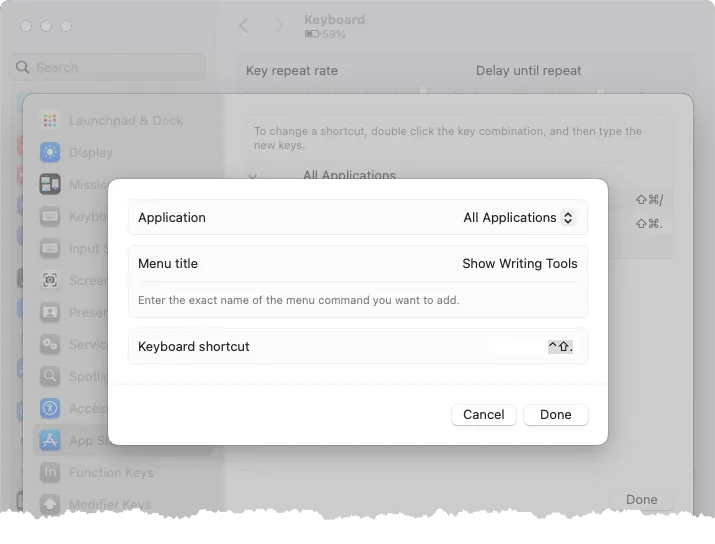
That’s it. Restart your current app and select the text you want to edit. Press Command Shift . to launch the writing tools without touching the mouse.
Author

prakhar@affmantra.com
Related Posts

How to Add Speech Recognition to your Website
Table of Contents 1. Add Voice Recognition to your Website Open the Google website on your desktop computer and you’ll find a...
Read out all
How to Handle OAuth Permissions in Google Add-ons
- 0
- 714 words
Table of Contents 1. How to Check for Required OAuth Scopes 1.1 The “Authorization Catch-22” Problem 1.2 How to Reset the Permissions...
Read out all
How to Recover Permanently Deleted Files and Folders in Google Drive
- 0
- 326 words
Table of Contents When you delete any file or folder in your Google Drive, it is moved to the trash folder. The...
Read out all
Simple URL Tricks for Google Drive You Should Know
- 0
- 374 words
Table of Contents 1. Google Drive URL Tricks 1.1 Google Drive Web Viewer 1.2 Reader Mode for Google Drive Files 1.3 Embed...
Read out all
How to Extract URLs from HYPERLINK Function in Google Sheets
- 0
- 201 words
The HYPERLINK formula of Google Sheets lets you insert hyperlinks into your spreadsheets. The function takes two arguments: The full URL of...
Read out all
Find and Remove Inactive Users in your Google Workspace Domain
- 0
- 388 words
Table of Contents 1. Find the inactive users in Google Workspace domain You can use Google Apps Script to find all the...
Read out all