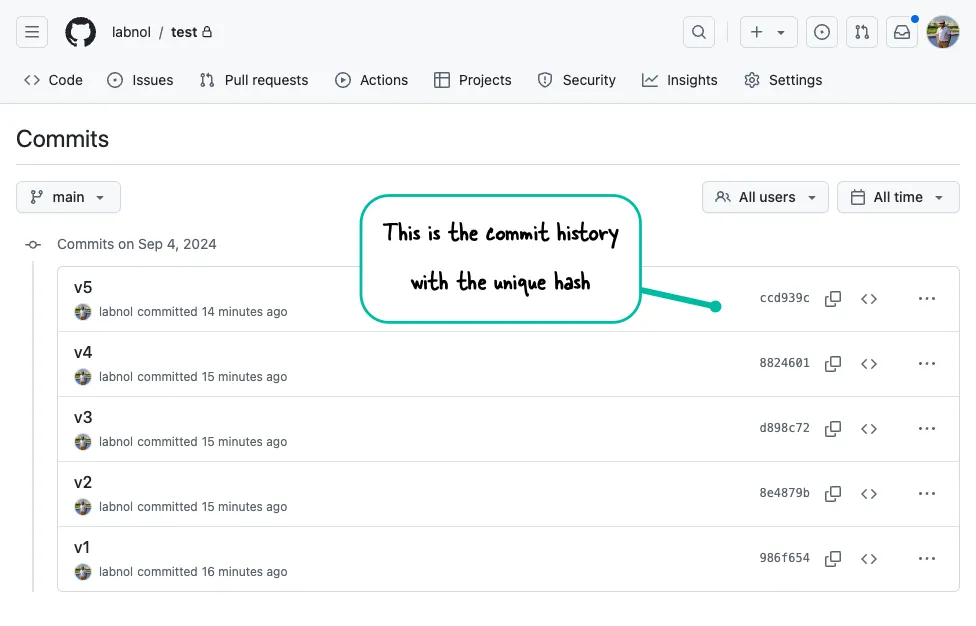
Let’s say you have a Github repository where you push all your code changes. Each commit has a unique commit hash, and you can use this hash to restore the code to a specific commit or a particular time.
It is advisable that you take a backup of your current code before proceeding.
Find the Commit Hash
To get started, open your repository on Github and find the commit you want to restore. You can do this by clicking on the “Commits” tab and finding the commit in the list. If you want to restore to a particular date, you can use the calendar dropdown to see all the commits for that day and find the one you want.
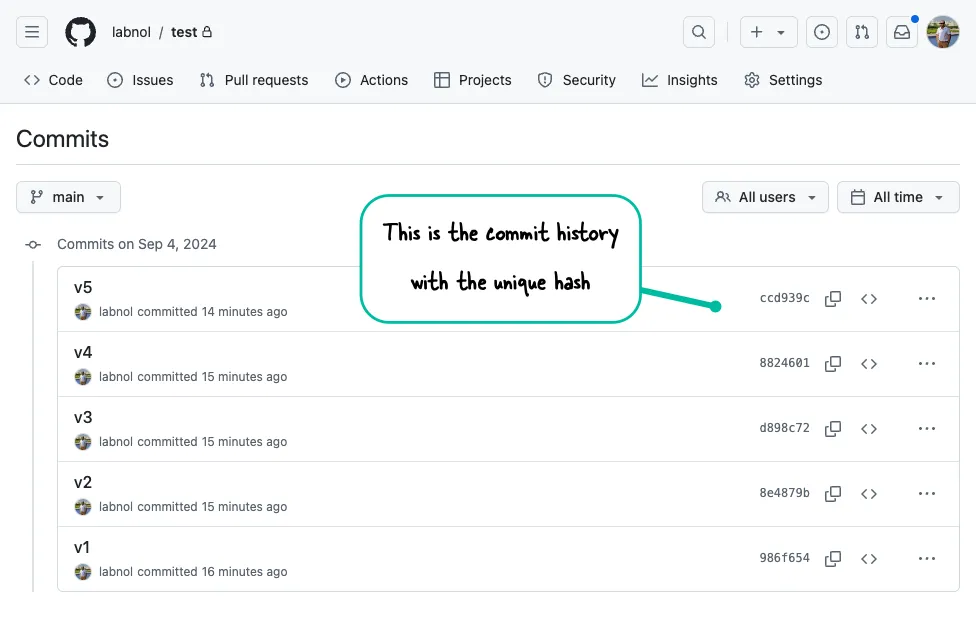
You may also use the command line to find the commit hash.
git log --onelineOnce you have found the commit you want to restore, you can create a new branch at that commit. Let’s call this branch working-branch.
git checkout -b working-branch <commit-hash>This git command will create a new branch named working-branch pointing to the specified commit and switches to that branch.
Next, you can force push the new branch to the remote repository.
git push -f origin working-branchRollback to a Specific Commit
Now that you have a new branch with the code at the specific commit, you can update the main branch to this restored state.
git checkout main
git reset --hard working-branch
git push -f origin main
⚠️ Please be careful when using these git commands since it will permanently delete all code changes made after the commit you are restoring.
Author

prakhar@affmantra.com
Related Posts

How to Add Speech Recognition to your Website
Table of Contents 1. Add Voice Recognition to your Website Open the Google website on your desktop computer and you’ll find a...
Read out all
How to Handle OAuth Permissions in Google Add-ons
- 0
- 714 words
Table of Contents 1. How to Check for Required OAuth Scopes 1.1 The “Authorization Catch-22” Problem 1.2 How to Reset the Permissions...
Read out all
How to Recover Permanently Deleted Files and Folders in Google Drive
- 0
- 326 words
Table of Contents When you delete any file or folder in your Google Drive, it is moved to the trash folder. The...
Read out all
Simple URL Tricks for Google Drive You Should Know
- 0
- 374 words
Table of Contents 1. Google Drive URL Tricks 1.1 Google Drive Web Viewer 1.2 Reader Mode for Google Drive Files 1.3 Embed...
Read out all
How to Extract URLs from HYPERLINK Function in Google Sheets
- 0
- 201 words
The HYPERLINK formula of Google Sheets lets you insert hyperlinks into your spreadsheets. The function takes two arguments: The full URL of...
Read out all
Find and Remove Inactive Users in your Google Workspace Domain
- 0
- 388 words
Table of Contents 1. Find the inactive users in Google Workspace domain You can use Google Apps Script to find all the...
Read out all