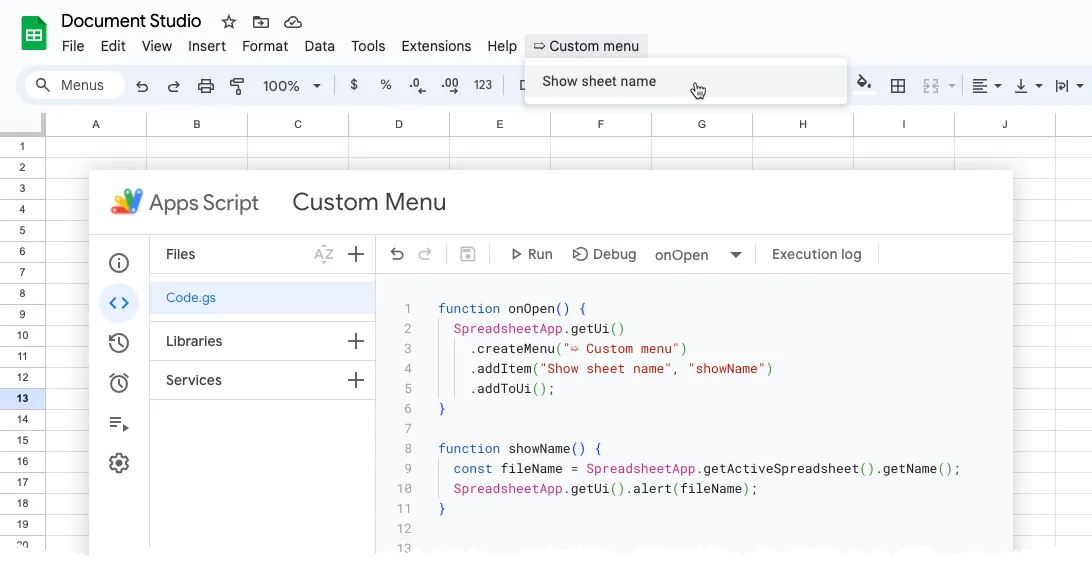
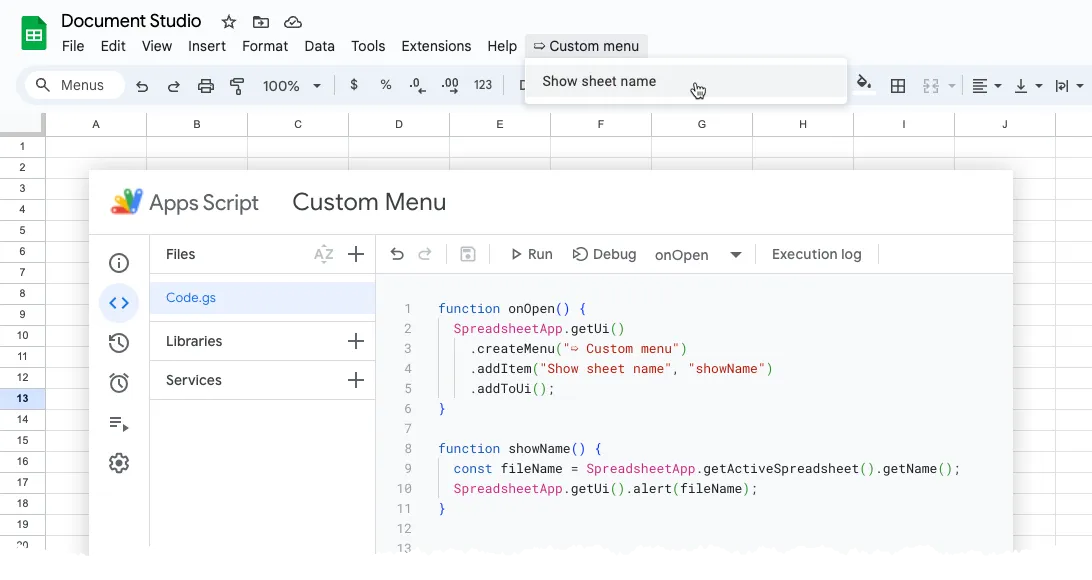
Adding a custom menu in Google Sheets, Docs, Slides, and Forms using Google Apps Script is straightforward.
As an illustration, the following code snippet adds a custom menu to the parent Google Sheet that reveals the spreadsheet name upon clicking.
function onOpen() {
  const ui = SpreadsheetApp.getUi();
  const menu = ui.createMenu('➯ Custom menu');
  menu.addItem('Show spreadsheet name', 'showName');
  menu.addToUi();
}

function showName() {
  const fileName = SpreadsheetApp.getActiveSpreadsheet().getName();
  SpreadsheetApp.getUi().alert(fileName);
}
The above code defines two functions: onOpen which executes when the app opens, and showName which is triggered when the menu item is clicked.
This approach can be applied to create custom menus in other Google Workspace apps, including Forms, Slides, and Google Docs.
The code above is specific to Google Sheets and will not work if you use it to add custom menus in Google Forms or Slides. That’s because you need to call SpreadsheetApp.getUi() to get the sheet’s UI instance while the Google Form’s UI can be accessed through a different FormApp.getUi() method.
This can be a problem because some Google add-ons, Document Studio for example, can be launched from multiple Google Workspace apps. How do you identify the currently active Workspace application (Sheets, Docs, Slides, or Forms) and add menu items that are specific to that app?
Identify the Current Workspace App
The getContainer function is your secret weapon for identifying the currently active Google Workspace application. It works by iterating through a list of known app classes, like DocumentApp and SpreadsheetApp.
For each class, it attempts to access the UI object. If the call is successful and doesn’t throw an exception, it indicates that the corresponding app is active and returns that app class.
const getContainer = () => {
  const apps = [DocumentApp, SpreadsheetApp, FormApp, SlidesApp];
  const activeApp = apps.find((app) => {
    try {
      app.getUi();
      return true;
    } catch (f) {
      return false;
    }
  });

  return activeApp;
};
Now that you know the current Workspace application, we can modify the onOpen function to create a dynamic universal menu. The menu title contains the name of the active application and includes a menu item to display the app-specific file name.
const onOpen = () => {
  const app = getContainer();
  const ui = app.getUi();
  const appName = String(app).replace('App', '');
  const menu = ui.createMenu(`Custom menu in ${appName}`);
  menu.addItem(`Show ${appName} name`, 'showAppName');
  menu.addToUi();
};
The showAppName function uses a switch statement to determine the appropriate method for retrieving the file name based on the active app.
const showAppName = () => {
  const app = getContainer();
  let fileName;
  if (app === DocumentApp) {
    fileName = DocumentApp.getActiveDocument().getName();
  } else if (app === SpreadsheetApp) {
    fileName = SpreadsheetApp.getActiveSpreadsheet().getName();
  } else if (app === SlidesApp) {
    fileName = SlidesApp.getActivePresentation().getName();
  } else if (app === FormApp) {
    fileName = FormApp.getActiveForm().getTitle();
  }
  app.getUi().alert(`You are looking at ${fileName}`);
};Author

prakhar@affmantra.com
Related Posts

How to Add Speech Recognition to your Website
Table of Contents 1. Add Voice Recognition to your Website Open the Google website on your desktop computer and you’ll find a...
Read out all
How to Handle OAuth Permissions in Google Add-ons
- 0
- 714 words
Table of Contents 1. How to Check for Required OAuth Scopes 1.1 The “Authorization Catch-22” Problem 1.2 How to Reset the Permissions...
Read out all
How to Recover Permanently Deleted Files and Folders in Google Drive
- 0
- 326 words
Table of Contents When you delete any file or folder in your Google Drive, it is moved to the trash folder. The...
Read out all
Simple URL Tricks for Google Drive You Should Know
- 0
- 374 words
Table of Contents 1. Google Drive URL Tricks 1.1 Google Drive Web Viewer 1.2 Reader Mode for Google Drive Files 1.3 Embed...
Read out all
How to Extract URLs from HYPERLINK Function in Google Sheets
- 0
- 201 words
The HYPERLINK formula of Google Sheets lets you insert hyperlinks into your spreadsheets. The function takes two arguments: The full URL of...
Read out all
Find and Remove Inactive Users in your Google Workspace Domain
- 0
- 388 words
Table of Contents 1. Find the inactive users in Google Workspace domain You can use Google Apps Script to find all the...
Read out all