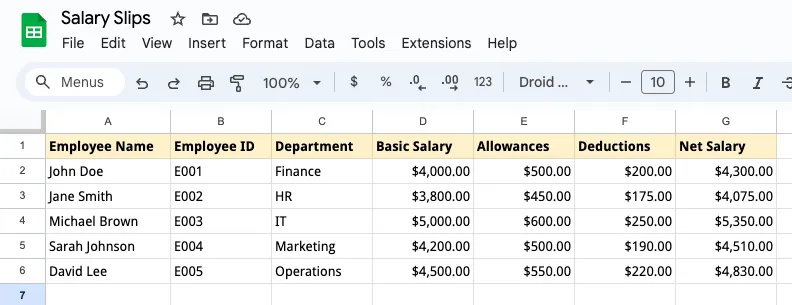
The Document Studio add-on helps you create personalized PDF documents from Google Sheets. You can generate invoices, certificates, agreements, offer letters, student ID cards and other documents in bulk and save them to Google Drive.
Additionally, Document Studio now offers the option to protect the generated PDF documents with a password.
This functionality is particularly valuable in scenarios where the generated documents contain sensitive information that require extra protection to stop unauthorized access. For instance, you may generate invoices, or financial reports and protect them with a password before sharing them with clients or employees.
Add Passwords to PDF Documents
Let’s walk through the steps of adding passwords to PDF documents generated from Google Sheets using Document Studio.
Prepare Salary Data in Google Sheets
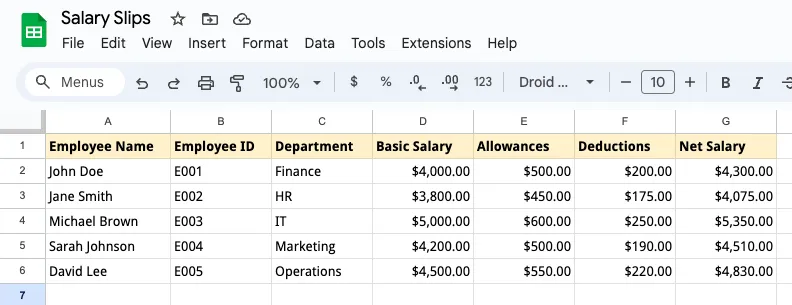
We have a Google Sheet that contains the employee’s name, and the salary amount. We’ll use Document Studio to generate individual PDF salary slips for each employee and then add a password to each PDF document before saving them to Google Drive.
Create Template in Google Docs
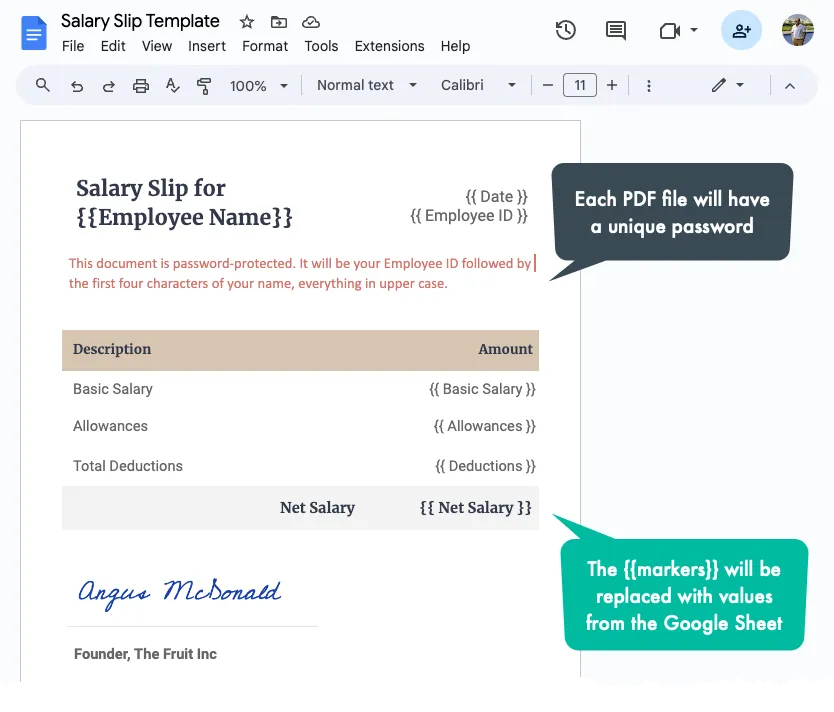
We have created a salary slip template in Google Docs that contains placeholders for the employee’s name and the salary amount. The data from Google Sheet will be merged into this template to generate individual PDF documents for each employee.
Password Protect PDF Documents
Launch Document Studio in Google Sheets and create a new workflow. If you are new here, please refer to the step-by-step guide or watch this video tutorial to get started.
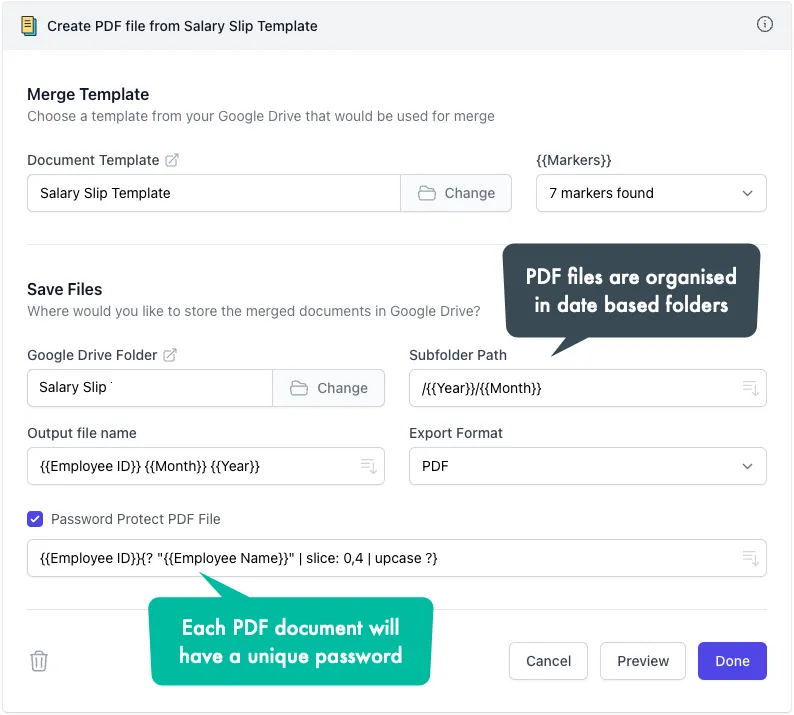
Inside the workflow, choose the Google Sheet that contains the employee data and the Google Docs template that you have prepared for the salary slips. Next, select the folder in Google Drive where the generated PDF documents will be saved.
Set the export format to PDF and enable the Password Protect PDF checkbox.
Unique Password for Each PDF Document
You can choose to use a common password for all the PDF documents or, for added security, set a unique password for each document. For this example, we’ll define a unique password for each PDF document using the employee ID and the first four letters of the employee’s name, all in uppercase.
For instance, if the employee ID is E345 and the employee’s name is Angus, the password for the corresponding PDF document will be E345ANGU.
We’ll make use of Scriptlets to derive a unique password for each PDF document dynamically.
{{ Employee ID }}{? "{{ Employee Name }}" | slice: 0,4 | upcase ?}The scriptlet above concatenates the employee ID with the first four characters of the employee’s name, converted to uppercase.
Generate PDF Documents
Save the workflow and run it to generate the PDF salary slips for all employees. The generated PDF documents will be saved to the specified Google Drive folder and each document will be protected with a unique password.
Author

prakhar@affmantra.com
Related Posts

How to Add Speech Recognition to your Website
Table of Contents 1. Add Voice Recognition to your Website Open the Google website on your desktop computer and you’ll find a...
Read out all
How to Handle OAuth Permissions in Google Add-ons
- 0
- 714 words
Table of Contents 1. How to Check for Required OAuth Scopes 1.1 The “Authorization Catch-22” Problem 1.2 How to Reset the Permissions...
Read out all
How to Recover Permanently Deleted Files and Folders in Google Drive
- 0
- 326 words
Table of Contents When you delete any file or folder in your Google Drive, it is moved to the trash folder. The...
Read out all
Simple URL Tricks for Google Drive You Should Know
- 0
- 374 words
Table of Contents 1. Google Drive URL Tricks 1.1 Google Drive Web Viewer 1.2 Reader Mode for Google Drive Files 1.3 Embed...
Read out all
How to Extract URLs from HYPERLINK Function in Google Sheets
- 0
- 201 words
The HYPERLINK formula of Google Sheets lets you insert hyperlinks into your spreadsheets. The function takes two arguments: The full URL of...
Read out all
Find and Remove Inactive Users in your Google Workspace Domain
- 0
- 388 words
Table of Contents 1. Find the inactive users in Google Workspace domain You can use Google Apps Script to find all the...
Read out all