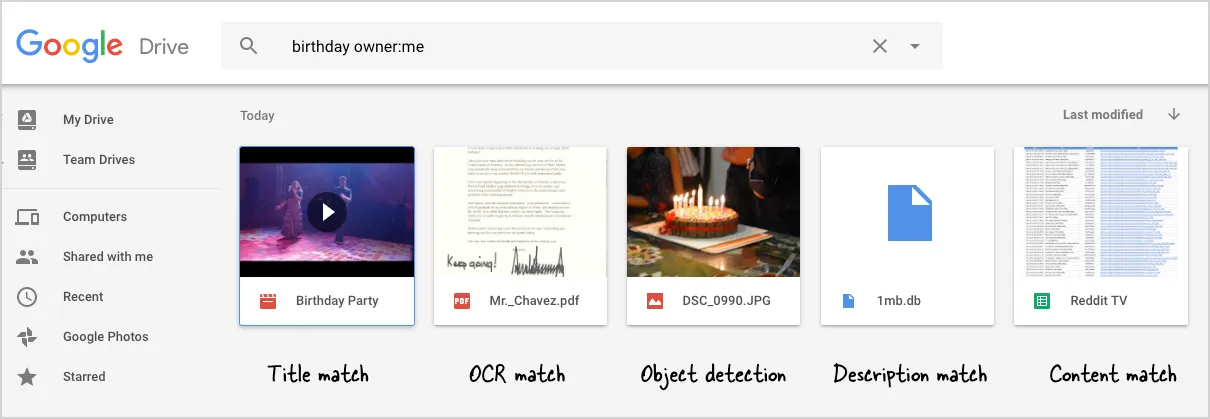
You have lots of files in your Google Drive and it can take some effort to find that elusive file you’ve been looking for. For instance, how do you quickly find the sales presentation that Kristin shared with you last week? Or how do you locate a specific resume among the hundreds of other PDF files in your Google Drive folders?
Like Gmail and Twitter, Google Drive supports a plethora of advanced search operators that will help you quickly find the exact file you’ve been looking for. You can use search operators on the Google Drive website and the Drive mobile apps. Chrome users can type drive.google.com in the search bar, press tab and enter the search query.
How Search Works in Google Drive
Google Drive, by default, will return files where the search query matches the file’s title, the content or the file’s description. It can also identify objects inside photos so a search for “birthday” may retrieve images of cakes in your Drive.
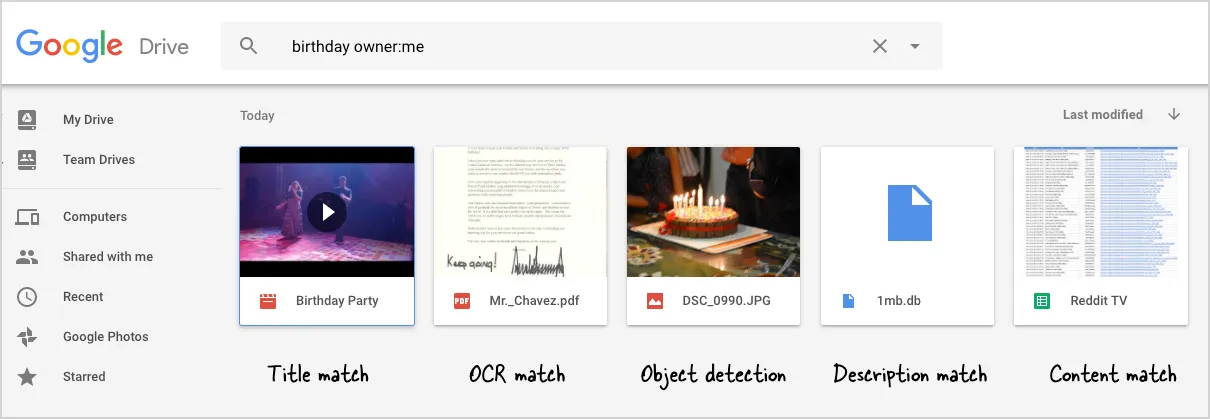
Drive will also perform a OCR and search for text inside images and scanned PDFs. I have stored a scanned copy of my Aadhaar card in Google Drive. I only remember the first few digits of my Aadhaar number but that is sufficient to locate the scanned image of the card in Drive.
How to Find Files in your Google Drive
You can use search operators to filter your search results in Google Drive. Multiple search operators can be combined with boolean operators like AND or OR (in capitals) to further narrow down your results and find the exact file or document you’ve been looking for.

Google Drive Search Tips & Tricks
Find Google spreadsheets shared by your colleague James
type:spreadsheet from:James
Find Photos or Images containing photos of cakes
type:image owner:me cakes
Find files in trash that were modified today
is:trashed after:2020-07-28
Find PDF files that are shared with me
type:pdf -owner:me
Find files that are shared with me and added to my Google Drive
in:myFiles -owner:me
Find all folders in my Google Drive that are created by me
type:folder -owner:me
Find presentations that I’ve shared with my secretary
type:presentation to:secretary@domain.com
Tip: You can also use the Google Drive Auditor add-on to generate a detailed list of users who can access your Google Drive files.
Find all files that I’ve recently viewed or added in Google Drive Click “Recent” in the sidebar or use this link
Bonus Tip: Find the biggest files in Google Drive
Gmail offers the larger_than and smaller_than search operator to find all the space-hogging emails in your account. Google Drive offers no search by size operator buy you can use this special link – drive.google.com/#quota – to sort files by size and the ones taking the most space would be listed at the top.
Author

prakhar@affmantra.com
Related Posts

How to Add Speech Recognition to your Website
Table of Contents 1. Add Voice Recognition to your Website Open the Google website on your desktop computer and you’ll find a...
Read out all
How to Handle OAuth Permissions in Google Add-ons
- 0
- 714 words
Table of Contents 1. How to Check for Required OAuth Scopes 1.1 The “Authorization Catch-22” Problem 1.2 How to Reset the Permissions...
Read out all
How to Recover Permanently Deleted Files and Folders in Google Drive
- 0
- 326 words
Table of Contents When you delete any file or folder in your Google Drive, it is moved to the trash folder. The...
Read out all
Simple URL Tricks for Google Drive You Should Know
- 0
- 374 words
Table of Contents 1. Google Drive URL Tricks 1.1 Google Drive Web Viewer 1.2 Reader Mode for Google Drive Files 1.3 Embed...
Read out all
How to Extract URLs from HYPERLINK Function in Google Sheets
- 0
- 201 words
The HYPERLINK formula of Google Sheets lets you insert hyperlinks into your spreadsheets. The function takes two arguments: The full URL of...
Read out all
Find and Remove Inactive Users in your Google Workspace Domain
- 0
- 388 words
Table of Contents 1. Find the inactive users in Google Workspace domain You can use Google Apps Script to find all the...
Read out all