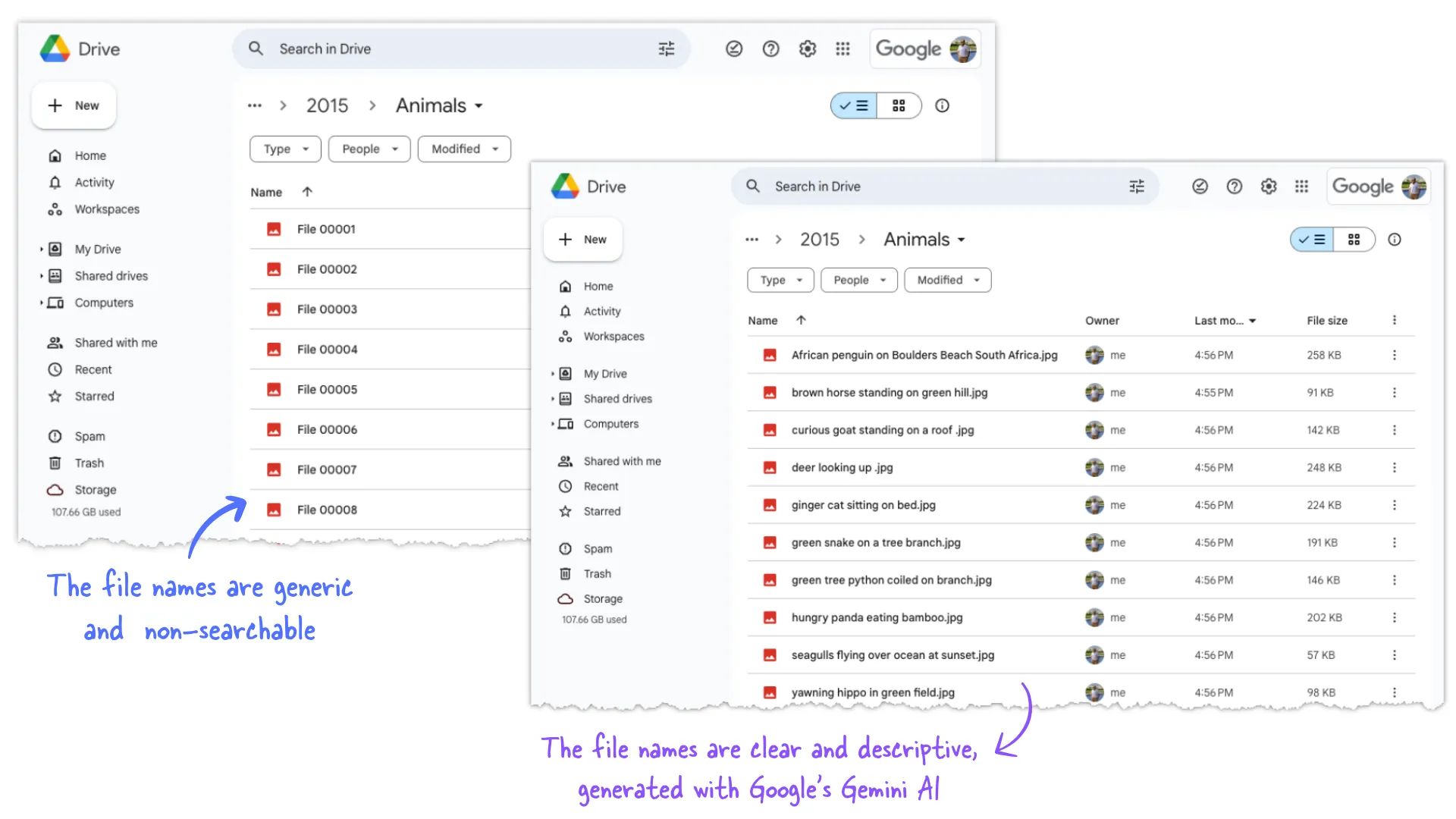
Do you have image files in your Google Drive with generic names like IMG_123456.jpg or Screenshot.png that offer no context about what the image is about? Wouldn’t it be nice if you had an assistant that could look at these images and automatically suggest descriptive filenames for the images?
Rename Files in Google Drive with AI
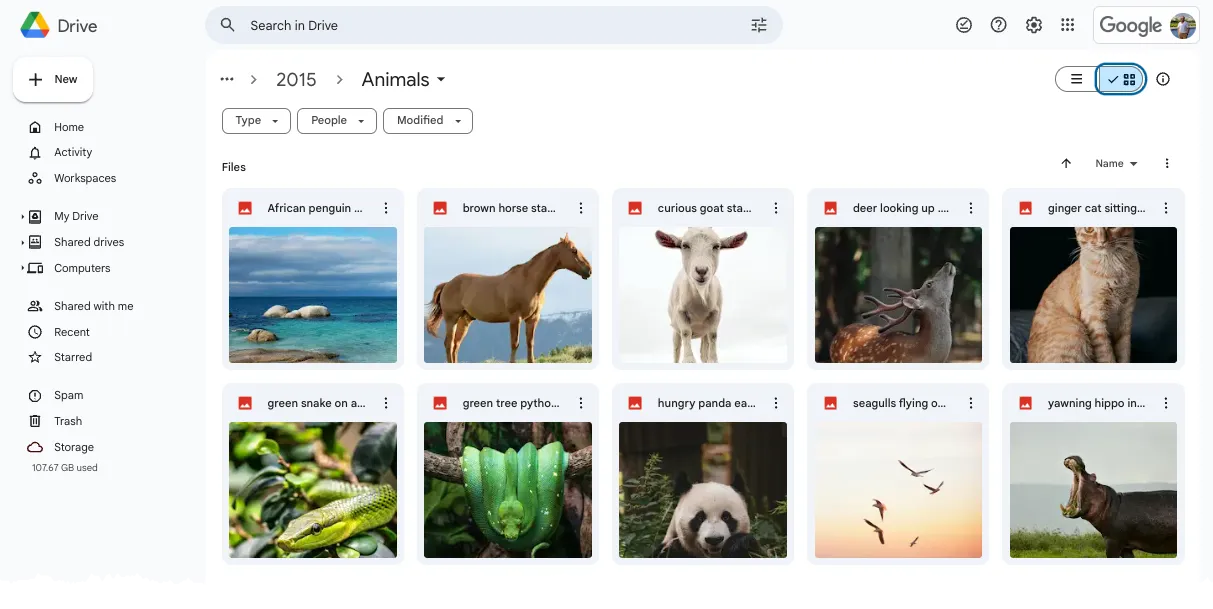
Well, you can use Google’s Gemini AI and Google Apps Script to automatically rename your files in Google Drive in bulk with a descriptive name based on the image content.
The following example uses Google’s Gemini AI but the steps can be easily adapted to OpenAI’s GPT-4 Vision or other AI models.
To get started, open script.new to create a new Google Script and copy-paste the following code snippets in the editor. You may also want to enable the Advanced Drive API from the Google Script editor under the Resources menu.
1. Get the list of files in a folder
The first step is to get the list of files in a folder. We will use the Drive.Files.list method to get the list of files in a folder. The search query contains the mimeType parameter to filter the results and only return Drive files that are image formats supported by the Google Gemini AI.
const getFilesInFolder = (folderId) => {
  const mimeTypes = ['image/png', 'image/jpeg', 'image/webp'];
  const { files = [] } = Drive.Files.list({
    q: `'${folderId}' in parents and (${mimeTypes.map((type) => `mimeType="${type}"`).join(' or ')})`,
    fields: 'files(id,thumbnailLink,mimeType)',
    pageSize: 10
  });
  return files;
};
2. Get the file thumbnail as Base64
The files returned by the Drive.Files.list method contain the thumbnailLink property that points to the thumbnail image of the file. We will use the UrlFetchApp service to fetch the thumbnail image and convert it into a Base64 encoded string.
const getFileAsBase64 = (thumbnailLink) => {
  const blob = UrlFetchApp.fetch(thumbnailLink).getBlob();
  const base64 = Utilities.base64Encode(blob.getBytes());
  return base64;
};
3. Get the suggested filename from Google Gemini AI
We’ll use the Google Gemini API to analyze the visual content of an image and suggest a descriptive filename for the image. Our text prompt looks something like this:
Analyze the image content and propose a concise, descriptive filename in 5-15 words without providing any explanation or additional text. Use spaces for file names instead of underscores.
You’d need an API key that you can generate from Google AI Studio.
const getSuggestedFilename = (base64, fileMimeType) => {
  try {
    const text = `Analyze the image content and propose a concise, descriptive filename in 5-15 words without providing any explanation or additional text. Use spaces instead of underscores.`;
    const apiUrl = `https://generativelanguage.googleapis.com/v1beta/models/gemini-pro-vision:generateContent?key=${GEMINI_API_KEY}`;

    const inlineData = {
      mimeType: fileMimeType,
      data: base64
    };

    // Make a POST request to the Google Gemini Pro Vision API
    const response = UrlFetchApp.fetch(apiUrl, {
      method: 'POST',
      headers: {
        'Content-Type': 'application/json'
      },
      payload: JSON.stringify({
        contents: [{ parts: [{ inlineData }, { text }] }]
      })
    });

    // Parse the response and extract the suggested filename
    const data = JSON.parse(response);
    return data.candidates[0].content.parts[0].text.trim();
  } catch (f) {
    return null;
  }
};
4. Automatically rename files in Google Drive
The final step is to put all the pieces together. We will get the list of files in a folder, fetch the thumbnail image of each file, analyze the image content with Google Gemini AI, and rename the file in Google Drive with the suggested filename.
const renameFilesInGoogleDrive = () => {
  const folderId = 'Put your folder ID here';
  const files = getFilesInFolder(folderId);
  files.forEach((file) => {
    const { id, thumbnailLink, mimeType } = file;
    const base64 = getFileAsBase64(thumbnailLink);
    const name = getSuggestedFilename(base64, mimeType);
    Drive.Files.update({ name }, id);
  });
};
Google Scripts have a 6-minute execution time limit but you can setup a time-drive trigger so that the script runs automatically at a specific time interval (say every 10 minutes). You may also extend the script to move the files to a different folder after renaming them so that they are not processed again.
The full source code is available on GitHub
Author

prakhar@affmantra.com
Related Posts

How to Add Speech Recognition to your Website
Table of Contents 1. Add Voice Recognition to your Website Open the Google website on your desktop computer and you’ll find a...
Read out all
How to Handle OAuth Permissions in Google Add-ons
- 0
- 714 words
Table of Contents 1. How to Check for Required OAuth Scopes 1.1 The “Authorization Catch-22” Problem 1.2 How to Reset the Permissions...
Read out all
How to Recover Permanently Deleted Files and Folders in Google Drive
- 0
- 326 words
Table of Contents When you delete any file or folder in your Google Drive, it is moved to the trash folder. The...
Read out all
Simple URL Tricks for Google Drive You Should Know
- 0
- 374 words
Table of Contents 1. Google Drive URL Tricks 1.1 Google Drive Web Viewer 1.2 Reader Mode for Google Drive Files 1.3 Embed...
Read out all
How to Extract URLs from HYPERLINK Function in Google Sheets
- 0
- 201 words
The HYPERLINK formula of Google Sheets lets you insert hyperlinks into your spreadsheets. The function takes two arguments: The full URL of...
Read out all
Find and Remove Inactive Users in your Google Workspace Domain
- 0
- 388 words
Table of Contents 1. Find the inactive users in Google Workspace domain You can use Google Apps Script to find all the...
Read out all