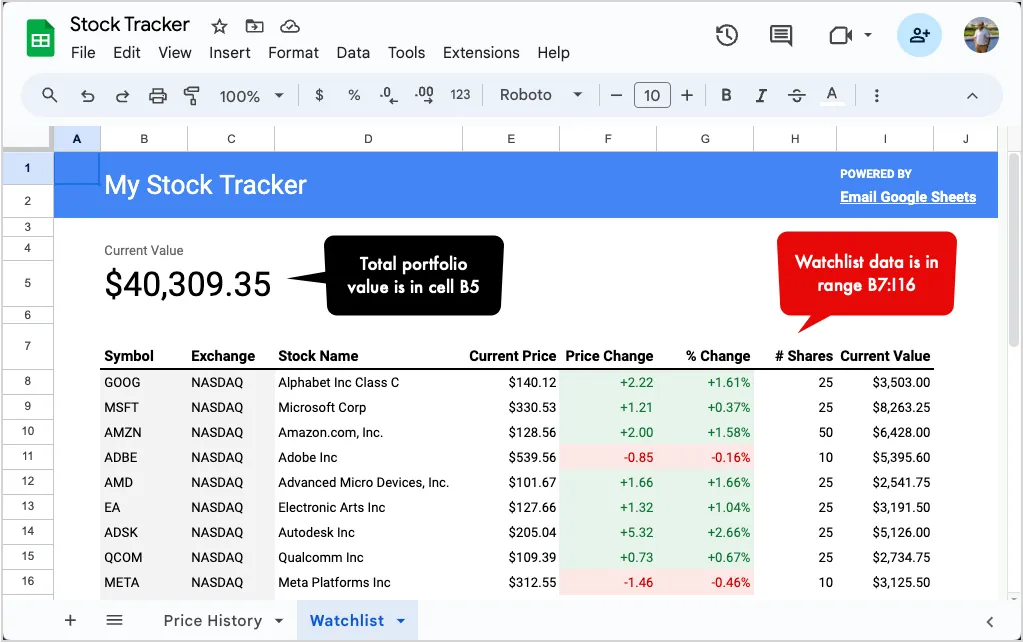
I have a Stock tracker spreadsheet built inside Google Sheets that keeps track of my fictional stock portfolio. The stock prices in the Google Sheet are updated automatically using the GOOGLEFINANCE function.
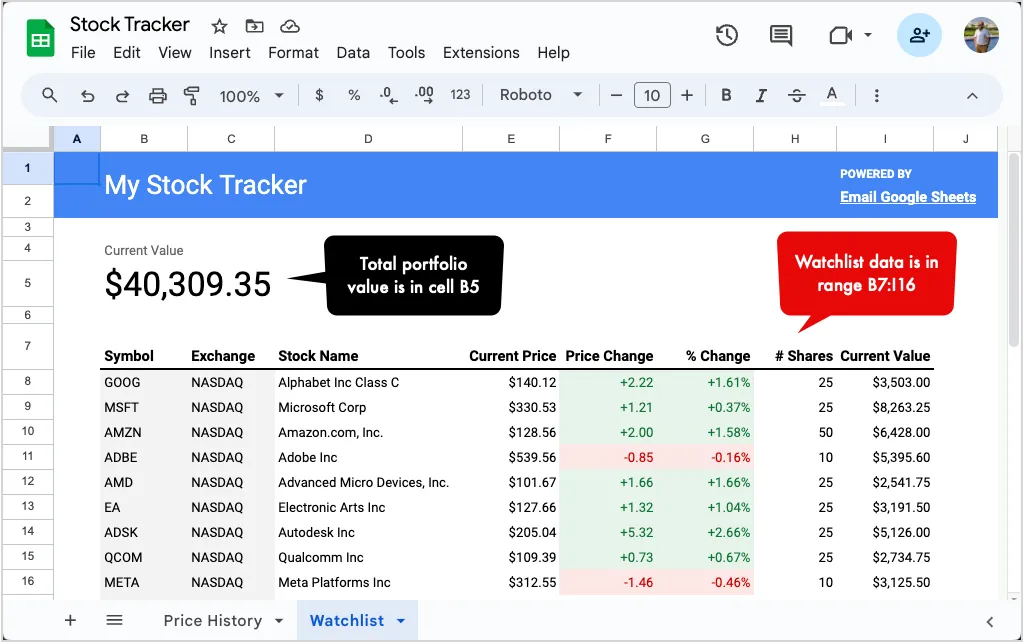
I would like to set up a daily trigger that runs every day at, say 4pm, and sends me an email with the screenshot of the spreadsheet. This way I can keep track the performance of my stocks without having to open the spreadsheet every day. Let’s see how this process can be easily automated with the help of Email Google Sheets add-on.
Inside your Google Sheet, go to Extensions > Email Google Sheets > Open to launch the app. Click on the Create Workflow button to create a new automation workflow that will send you an email with the screenshot of the spreadsheet.
Go to the Email step of the workflow and put the email address of the recipients in the To, Cc and Bcc fields. You can then add a custom subject and message in the email to include values from the spreadsheet.
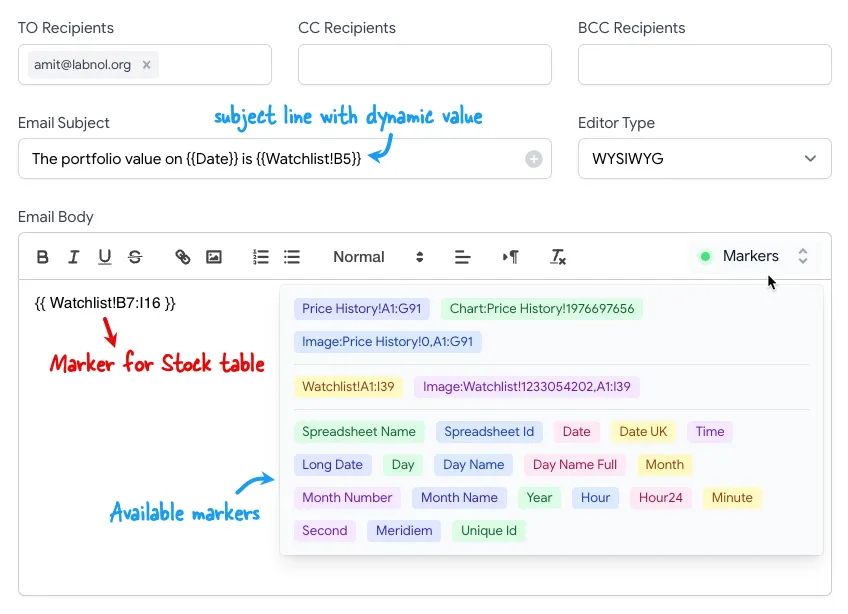
For example, in our workflow, the subject line says The portfolio value on {{Date}} is {{Watchlist!B5}} which will be replaced by the current date and the value of the cell B5 in the Watchlist sheet.
The message body of the email includes {{ Watchlist!B7:I16 }} which will be replaced by the cell range B7
in the Watchlist sheet. All the formatting of the cells will be preserved in the email. You can click the Markers button to see the list of all the available markers that you can use in the email.
Once the message is ready, click the Preview button to send a test email to yourself.
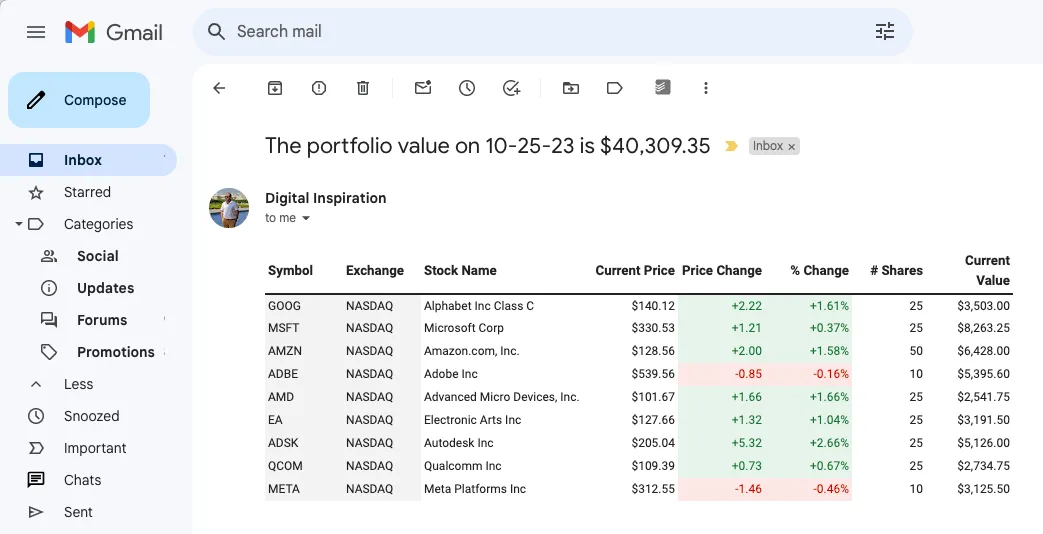
Here’s what the email looks like in my Gmail inbox. All the formatting of the cells is preserved in the email. If you prefix the marker with Image:, the marker will be replaced by a high-resolution screenshot image of the cell range.
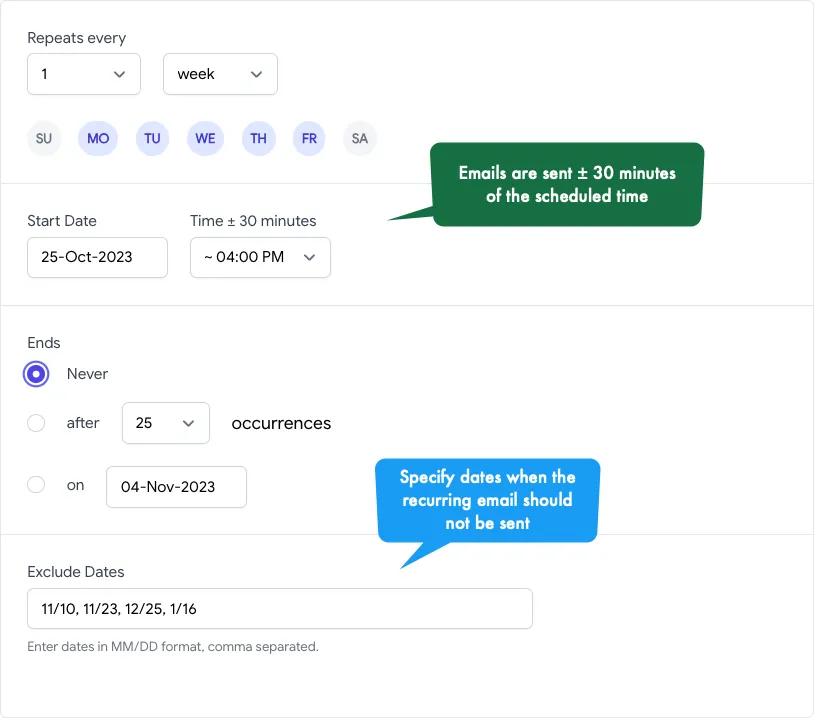
If everything looks good, click the Continue button to move to the next step. Here you can choose the frequency of the workflow. You can set it to run daily, weekly, monthly or even on a custom schedule.
That’s it. Your workflow is now set up and will run automatically around the time you have specified.
Also see:
Author

prakhar@affmantra.com
Related Posts

How to Add Speech Recognition to your Website
Table of Contents 1. Add Voice Recognition to your Website Open the Google website on your desktop computer and you’ll find a...
Read out all
How to Handle OAuth Permissions in Google Add-ons
- 0
- 714 words
Table of Contents 1. How to Check for Required OAuth Scopes 1.1 The “Authorization Catch-22” Problem 1.2 How to Reset the Permissions...
Read out all
How to Recover Permanently Deleted Files and Folders in Google Drive
- 0
- 326 words
Table of Contents When you delete any file or folder in your Google Drive, it is moved to the trash folder. The...
Read out all
Simple URL Tricks for Google Drive You Should Know
- 0
- 374 words
Table of Contents 1. Google Drive URL Tricks 1.1 Google Drive Web Viewer 1.2 Reader Mode for Google Drive Files 1.3 Embed...
Read out all
How to Extract URLs from HYPERLINK Function in Google Sheets
- 0
- 201 words
The HYPERLINK formula of Google Sheets lets you insert hyperlinks into your spreadsheets. The function takes two arguments: The full URL of...
Read out all
Find and Remove Inactive Users in your Google Workspace Domain
- 0
- 388 words
Table of Contents 1. Find the inactive users in Google Workspace domain You can use Google Apps Script to find all the...
Read out all