Whether you are looking to write emails in Gmail, create tables with custom data in Google Sheets or design a presentation in Google Slides, Duet AI for Google Workspace can do the work for you in few easy steps.
How to Enable Duet AI
Duet AI is now available for Google Workspace but you need to take the following steps to start using the AI capabilities of Duet AI in your Gmail and other Google apps.

1. Purchase the Duet AI add-on
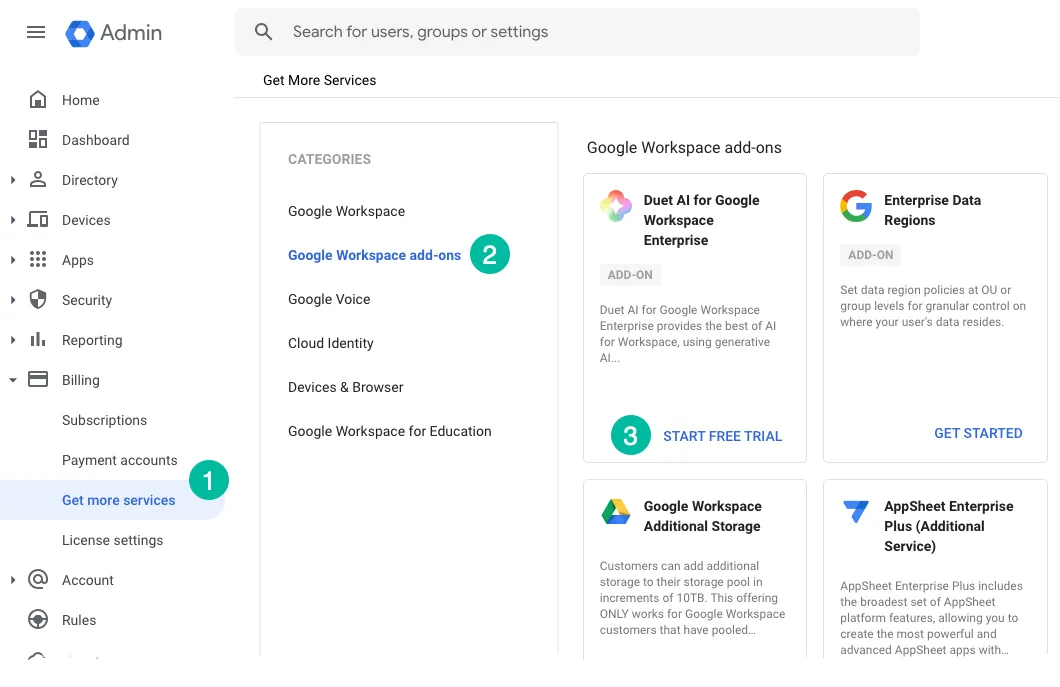
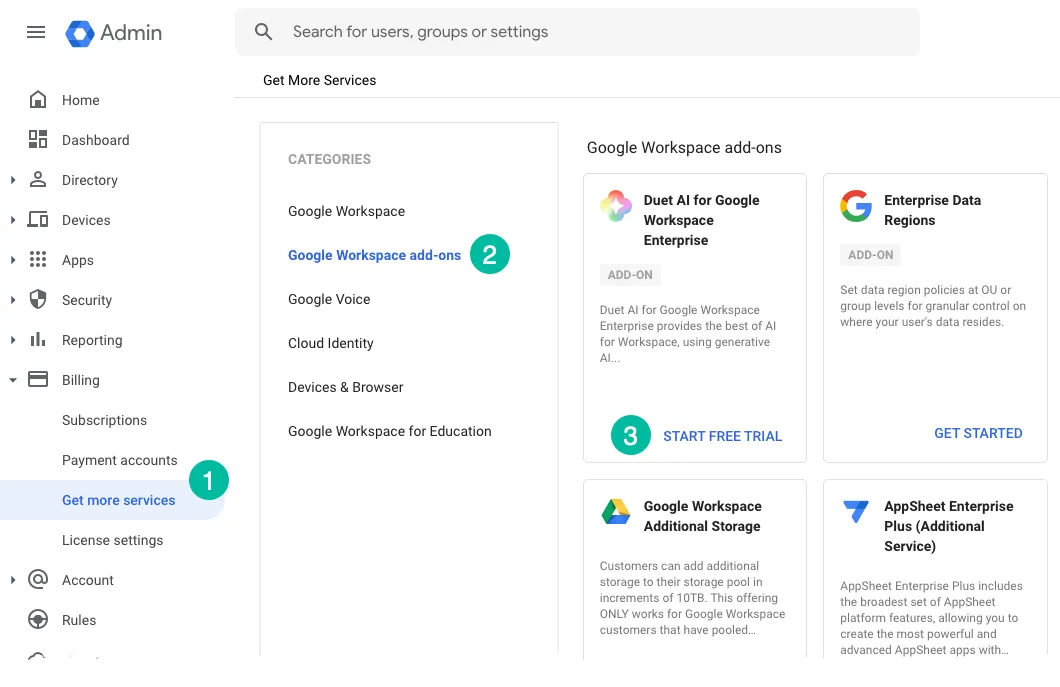
Open admin.google.com and sign in to your Google Workspace account as an administrator. Inside the dashboard, navigate to Billing > Get more services > Google Workspace add-ons.
Here, look for the Duet AI for Google Workspace Enterprise card and cick the Start Free Trial link to subscribe to the Duet AI service. You can use the Duet AI add-on without payment for a period of 14 days.
2. Assign Duet AI licenses
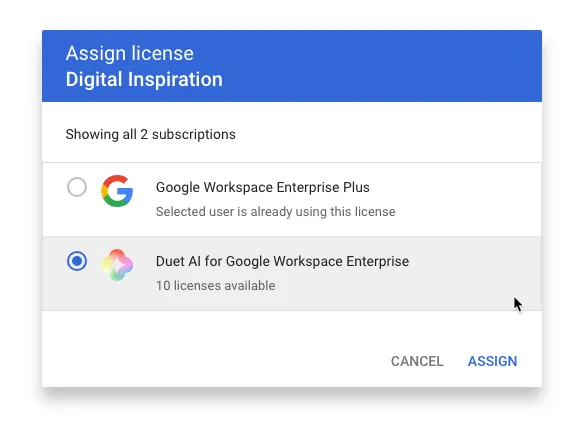
Once you’ve successfully activated Duet AI, it’s time to share its benefits with your team. Go to Directory > Users and select one or more users and click Assign Licenses. Select Duet AI for Google Workspace from the list of available subscription and click Assign.
Please note that Duet AI is not compatible with Google Workspace Business Starter edition. Additionally, it’s important to ensure that your Workspace users have English set as their preferred language in their Google account settings to access Duet AI.
You may visit the Workspace help center to learn more about Duet AI.
Author

prakhar@affmantra.com
Related Posts

How to Add Speech Recognition to your Website
Table of Contents 1. Add Voice Recognition to your Website Open the Google website on your desktop computer and you’ll find a...
Read out all
How to Handle OAuth Permissions in Google Add-ons
- 0
- 714 words
Table of Contents 1. How to Check for Required OAuth Scopes 1.1 The “Authorization Catch-22” Problem 1.2 How to Reset the Permissions...
Read out all
How to Recover Permanently Deleted Files and Folders in Google Drive
- 0
- 326 words
Table of Contents When you delete any file or folder in your Google Drive, it is moved to the trash folder. The...
Read out all
Simple URL Tricks for Google Drive You Should Know
- 0
- 374 words
Table of Contents 1. Google Drive URL Tricks 1.1 Google Drive Web Viewer 1.2 Reader Mode for Google Drive Files 1.3 Embed...
Read out all
How to Extract URLs from HYPERLINK Function in Google Sheets
- 0
- 201 words
The HYPERLINK formula of Google Sheets lets you insert hyperlinks into your spreadsheets. The function takes two arguments: The full URL of...
Read out all
Find and Remove Inactive Users in your Google Workspace Domain
- 0
- 388 words
Table of Contents 1. Find the inactive users in Google Workspace domain You can use Google Apps Script to find all the...
Read out all