Imagine you’re working with a lengthy Google Document, or a Google Slides presentation, and you need to extract all the embedded images from the text and save them as individual files.
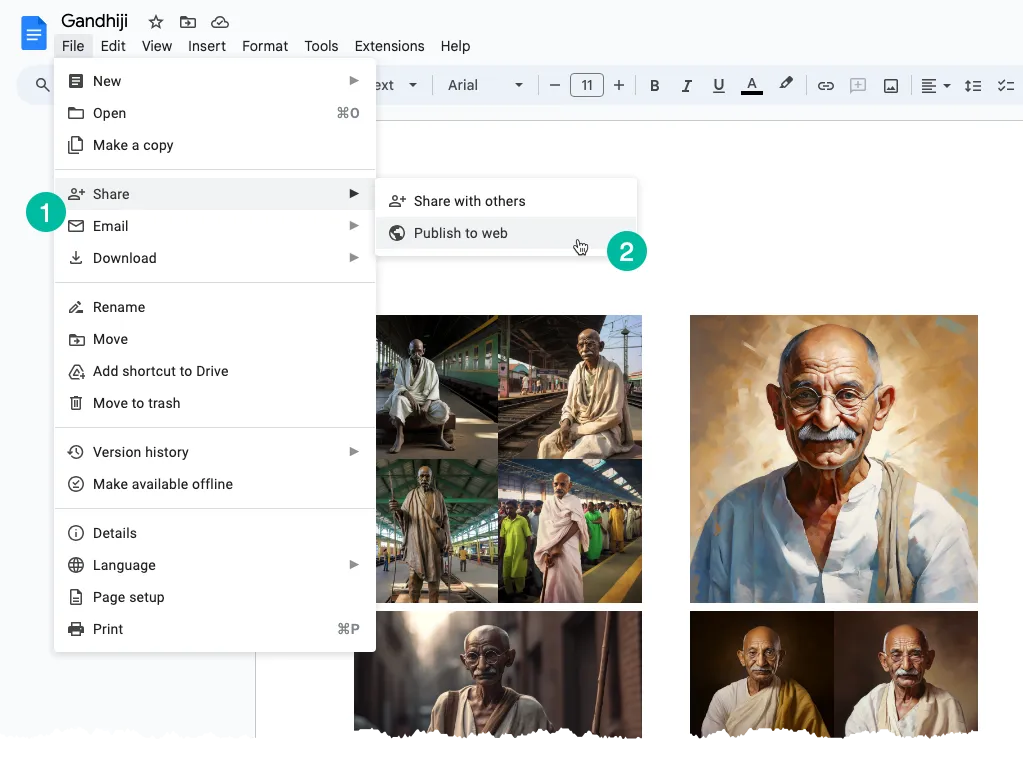
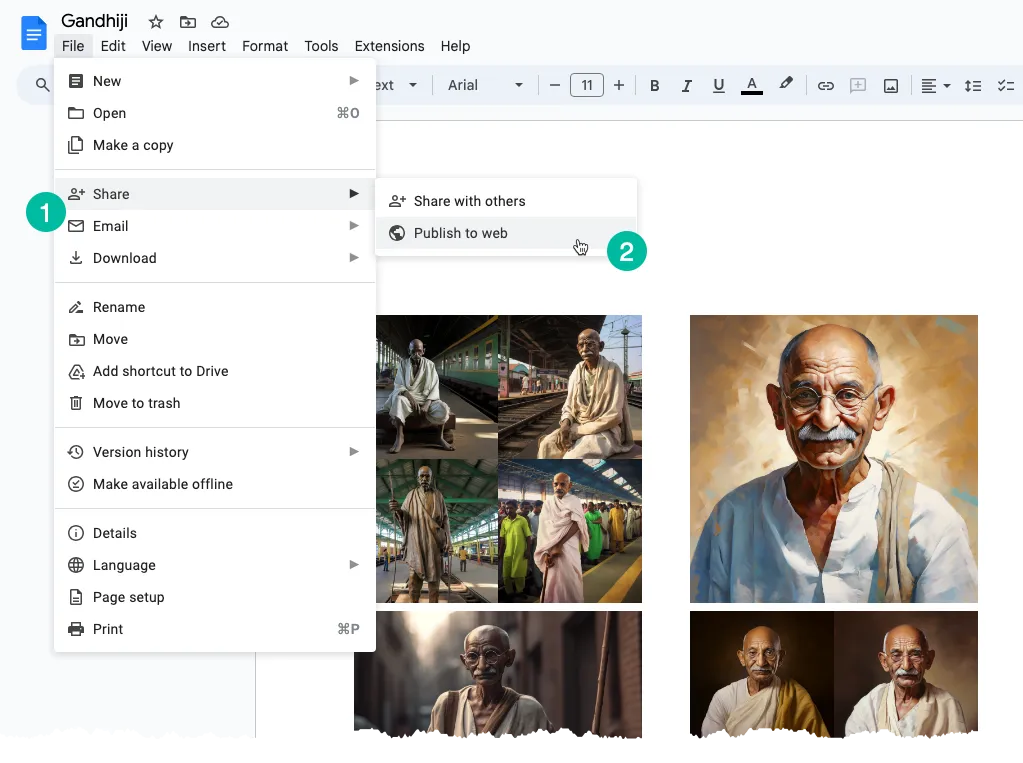
A simple solution to address this issue is as follows: convert your Google Document or Google Slide into a web page. Here’s how you can do it:
Go to the “File” menu. Select the “Share” submenu and then choose “Publish to Web.” It will generate a public web page that contains all the images from your document or slide. You can simply right-click an image on the page and select the “Save Image” option download it to your local disk.
What we have just discussed is a manual process but we can easily automate this with the help of Google Apps Script.
Open your Google Document containing the images, go to the Extensions menu and choose Apps Script. Copy-paste the code below and run the saveGoogleDocsImages function to download all images to a specific folder in your Google Drive.
The images are sequentially numbered and the file extension is the same as that of the embedded inline image.
function saveGoogleDocsImages() {
  // Define the folder name where the extracted images will be saved
  const folderName = 'Document Images';

  // Check if a folder with the specified name already exists
  const folders = DriveApp.getFoldersByName(folderName);

  // If the folder exists, use it; otherwise, create a new folder
  const folder = folders.hasNext() ? folders.next() : DriveApp.createFolder(folderName);

  // Get all the images in the document's body and loop through each image
  DocumentApp.getActiveDocument()
    .getBody()
    .getImages()
    .forEach((image, index) => {
      // Get the image data as a Blob
      const blob = image.getBlob();

      // Extract the file extension from the Blob's content type (e.g., 'jpeg', 'png')
      const [, fileExtension] = blob.getContentType().split("https://www.labnol.org/");

      // Generate a unique file name for each image based on its position in the document
      const fileName = `Image #${index + 1}.${fileExtension}`;

      // Set the Blob's name to the generated file name
      blob.setName(fileName);

      // Create a new file in the specified folder with the image data
      folder.createFile(blob);

      // Log a message indicating that the image has been saved
      Logger.log(`Saved ${fileName}`);
    });
}
The Apps Script code to download images from a Google Slides presentation is similar. The function iterates over the slides in the presentation and then for each slide, the function iterates over the images in that slide.
function extractImagesFromSlides() {
  // Define the folder name where the extracted images will be saved
  const folderName = 'Presentation Images';

  // Check if a folder with the specified name already exists
  const folders = DriveApp.getFoldersByName(folderName);

  // If the folder exists, use it; otherwise, create a new folder
  const folder = folders.hasNext() ? folders.next() : DriveApp.createFolder(folderName);

  // Iterate through each slide in the active presentation
  SlidesApp.getActivePresentation()
    .getSlides()
    .forEach((slide, slideNumber) => {
      // Retrieve all images on the current slide
      slide.getImages().forEach((image, index) => {
        // Get the image data as a Blob
        const blob = image.getBlob();

        // Extract the file extension from the Blob's content type (e.g., 'jpeg', 'png')
        const fileExtension = blob.getContentType().split("https://www.labnol.org/")[1];

        const fileName = `Slide${slideNumber + 1}_Image${index + 1}.${fileExtension}`;

        // Set the Blob's name to the generated file name
        blob.setName(fileName);

        // Create a new file in the specified folder with the image data
        folder.createFile(blob);

        Logger.log(`Saved ${fileName}`);
      });
    });
}Author

prakhar@affmantra.com
Related Posts

How to Add Speech Recognition to your Website
Table of Contents 1. Add Voice Recognition to your Website Open the Google website on your desktop computer and you’ll find a...
Read out all
How to Handle OAuth Permissions in Google Add-ons
- 0
- 714 words
Table of Contents 1. How to Check for Required OAuth Scopes 1.1 The “Authorization Catch-22” Problem 1.2 How to Reset the Permissions...
Read out all
How to Recover Permanently Deleted Files and Folders in Google Drive
- 0
- 326 words
Table of Contents When you delete any file or folder in your Google Drive, it is moved to the trash folder. The...
Read out all
Simple URL Tricks for Google Drive You Should Know
- 0
- 374 words
Table of Contents 1. Google Drive URL Tricks 1.1 Google Drive Web Viewer 1.2 Reader Mode for Google Drive Files 1.3 Embed...
Read out all
How to Extract URLs from HYPERLINK Function in Google Sheets
- 0
- 201 words
The HYPERLINK formula of Google Sheets lets you insert hyperlinks into your spreadsheets. The function takes two arguments: The full URL of...
Read out all
Find and Remove Inactive Users in your Google Workspace Domain
- 0
- 388 words
Table of Contents 1. Find the inactive users in Google Workspace domain You can use Google Apps Script to find all the...
Read out all