This video tutorial explains how you can automatically send Slack messages from Google Forms with the help of Document Studio.
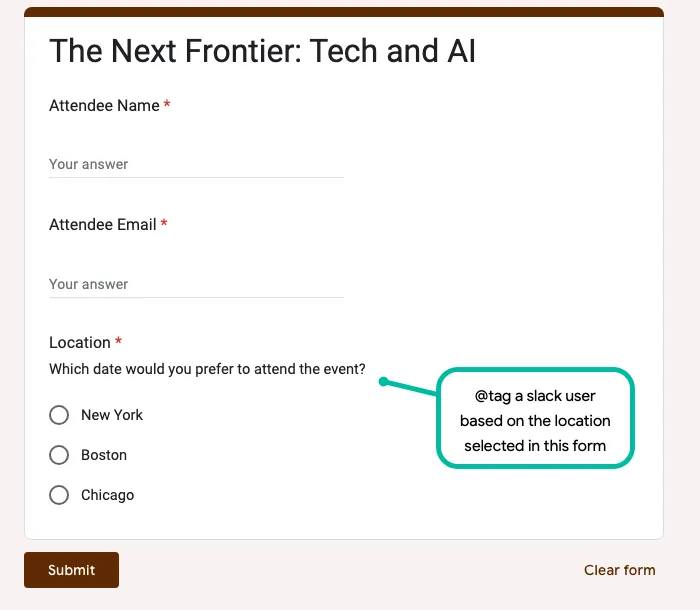
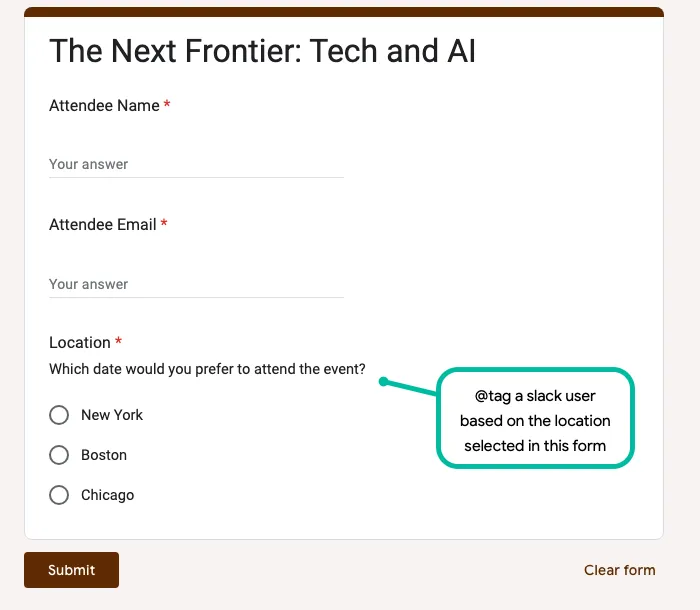
For this example, we have an event registration form created with Google Forms. When a participant completes the form and clicks the submit button, a message is instantly posted in the company’s Slack channel with details of the attendee like their name and email address.
The Google Form has a “Preferred Location” question as well and based on this answer, a specific member of the team will be tagged or mentioned in the Slack message. For instance, if the attended selects New York as the location in the form, the internal Slack message will tag @Angus since they takes care of New York registrations.
Send Slack Messages on Google Form Submit
Go to your Google Form and launch Document Studio. Create a new workflow and add a Slack task.
Connect your Google Account to your Slack account and you’ll be presented with a list of #channels available in the Slack workspace that you have linked with your account.
Select the relevant Slack channel where you wish to post messages and specify the message template that will be sent to Slack on new form submissions.
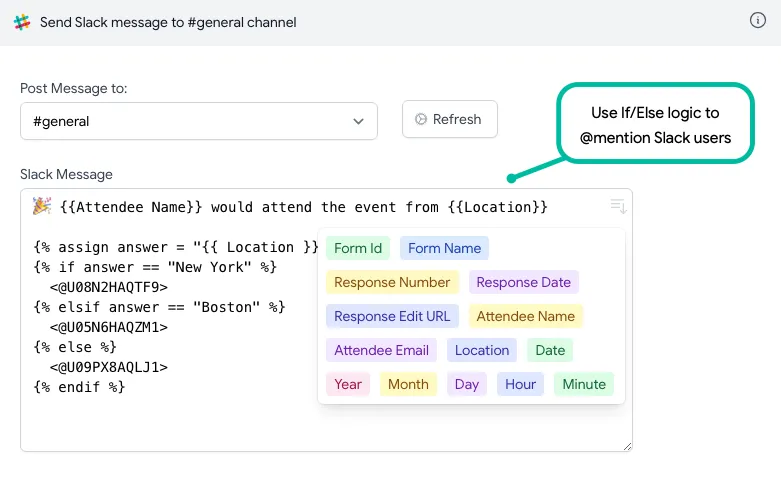
The template message includes variables like {{ Attendee Name }} which will be replaced with the values from the form submission. It also includes a scriptlet to add conditional content in the Slack message.
The Scriptlet looks at the Location entered in the Google Form and, based on the answer, a specific user gets tagged in the Slack message. You can learn more about the syntax of Scriptlets here.
🎉 {{Attendee Name}} would attend the event from {{Location}}

{% assign answer = "{{ Location }}" %}
{% if answer == "New York" %}
  <@U08N2HAQTF9>
{% elsif answer == "Boston" %}
  <@U05N6HAQZM1>
{% else %}
  <@U09PX8AQLJ1>
{% endif %}
How to @Mention a Slack User
Slack assigns a unique ID to each account and we put this ID in the Slack message to mention / tag that user in the message.
To obtain the User ID of a Slack account, follow these steps:
- Open
slack.com, navigate to your Slack channel and find any @mention of the user you’re interested in. - Right-click the @mention, and from the contextual menu, select “Copy link.”
The user link you’ve copied will have the following format:
labnol.slack.com/team/U05N6HAQZM1
In this link, the portion starting with U… represents the User ID of the Slack user.
If you want to @mention this user in your Slack message, enclose the User ID inside angle brackets and prefix it with the @ symbol, like this:
How are you <@UABC123> 🎉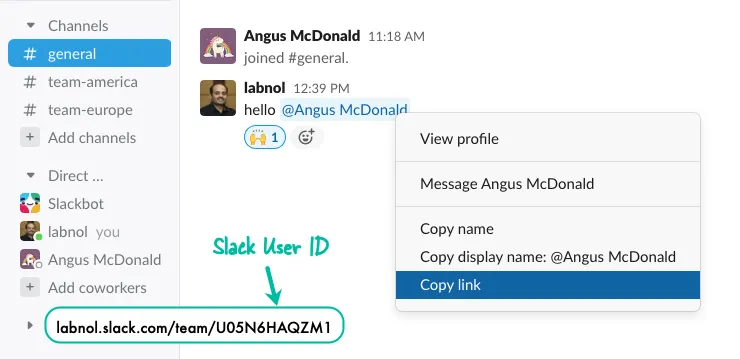
Author

prakhar@affmantra.com
Related Posts

How to Add Speech Recognition to your Website
Table of Contents 1. Add Voice Recognition to your Website Open the Google website on your desktop computer and you’ll find a...
Read out all
How to Handle OAuth Permissions in Google Add-ons
- 0
- 714 words
Table of Contents 1. How to Check for Required OAuth Scopes 1.1 The “Authorization Catch-22” Problem 1.2 How to Reset the Permissions...
Read out all
How to Recover Permanently Deleted Files and Folders in Google Drive
- 0
- 326 words
Table of Contents When you delete any file or folder in your Google Drive, it is moved to the trash folder. The...
Read out all
Simple URL Tricks for Google Drive You Should Know
- 0
- 374 words
Table of Contents 1. Google Drive URL Tricks 1.1 Google Drive Web Viewer 1.2 Reader Mode for Google Drive Files 1.3 Embed...
Read out all
How to Extract URLs from HYPERLINK Function in Google Sheets
- 0
- 201 words
The HYPERLINK formula of Google Sheets lets you insert hyperlinks into your spreadsheets. The function takes two arguments: The full URL of...
Read out all
Find and Remove Inactive Users in your Google Workspace Domain
- 0
- 388 words
Table of Contents 1. Find the inactive users in Google Workspace domain You can use Google Apps Script to find all the...
Read out all