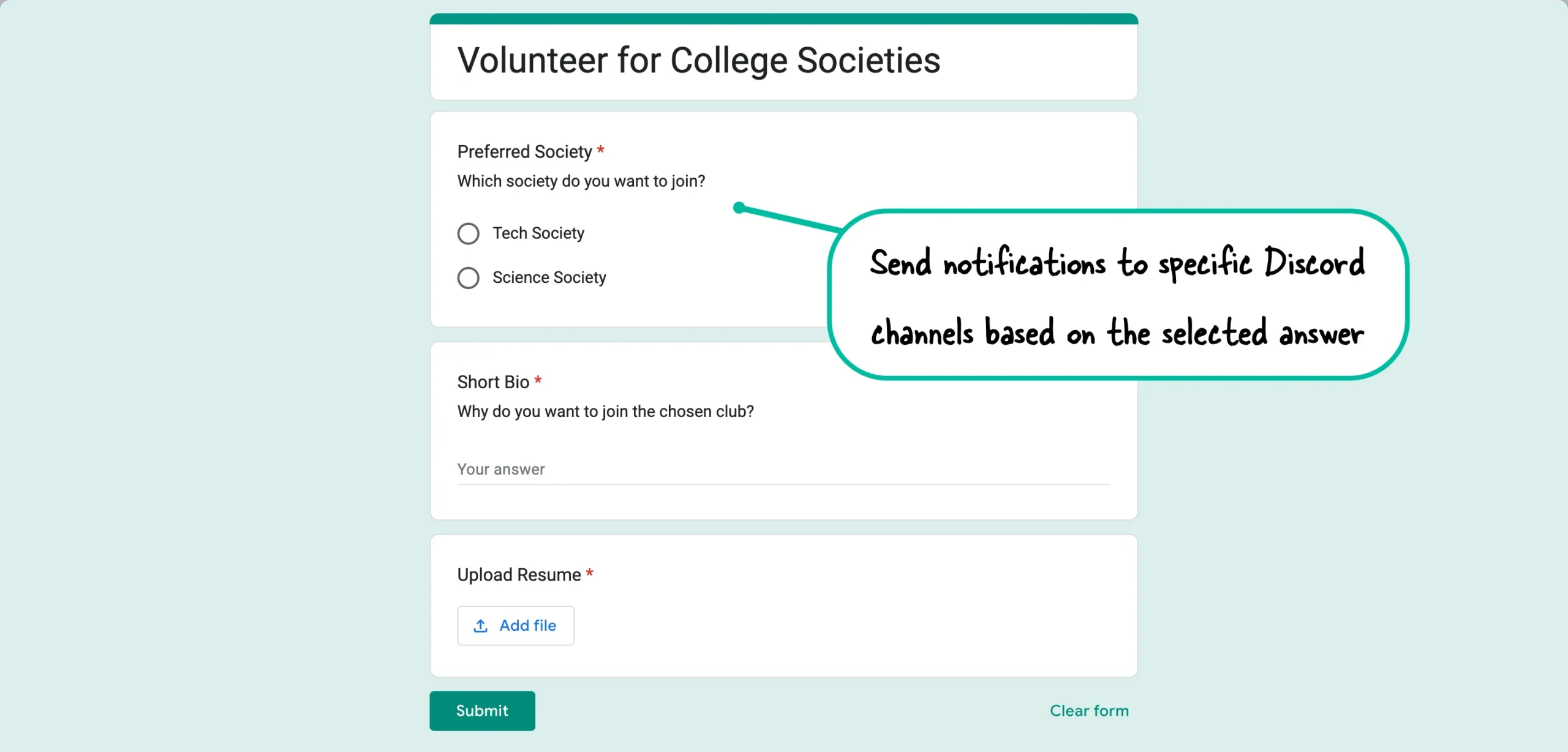
Discord is a popular instant messaging and group-chatting platform, used by millions of people. Notably, it has gained significant traction within colleges and gaming communities. This tutorial shows how you can automatically post Google Form responses to a specific Discord channel with the help of Document Studio.
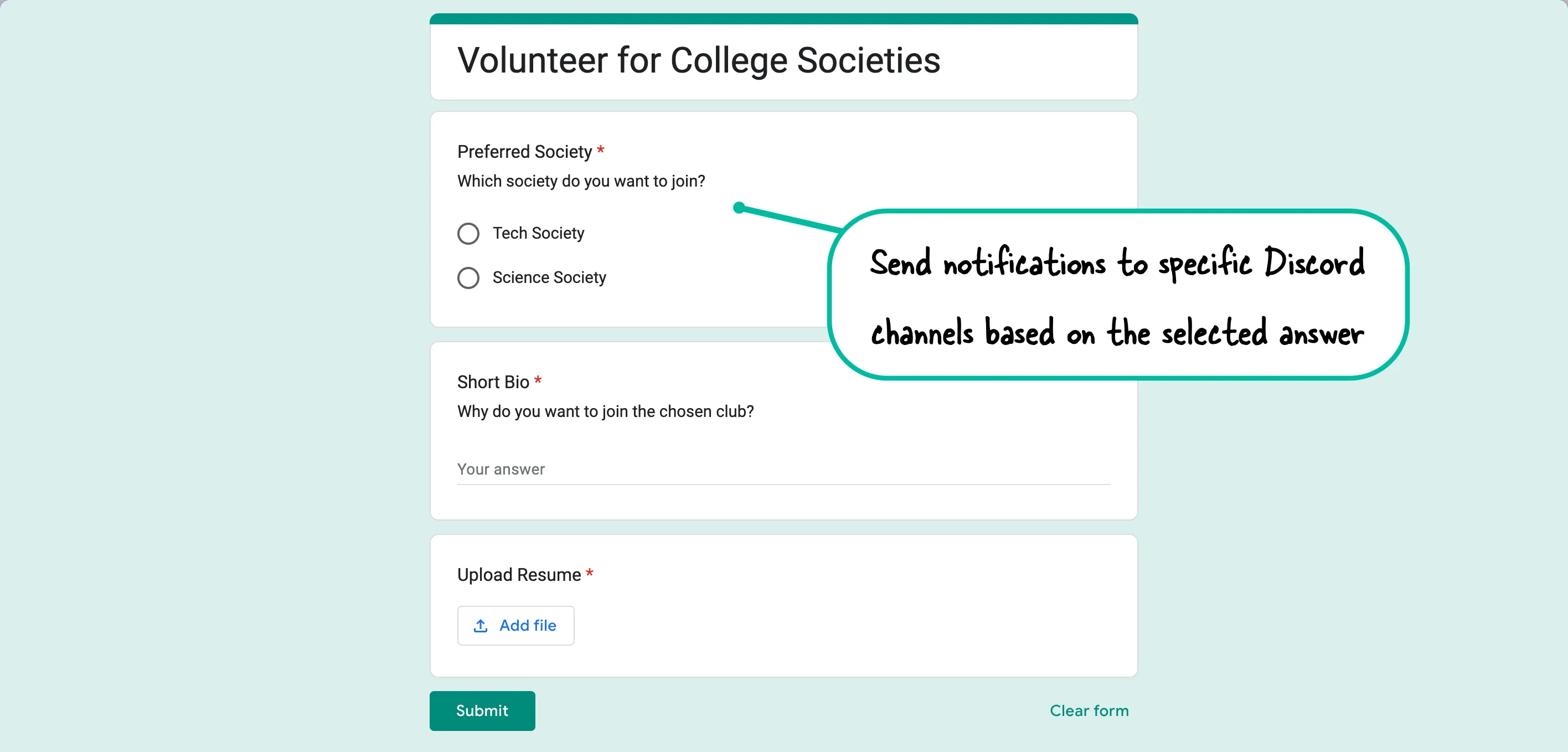
Send Google Form Responses to Discord
Imagine a college Discord server with dedicated #tech and #science channels for different societies. Student volunteers can fill in a Google Form and indicate which society they would like be a part of. When the respondent submits the Google Form, an instant notification is sent to the respective Discord channel.
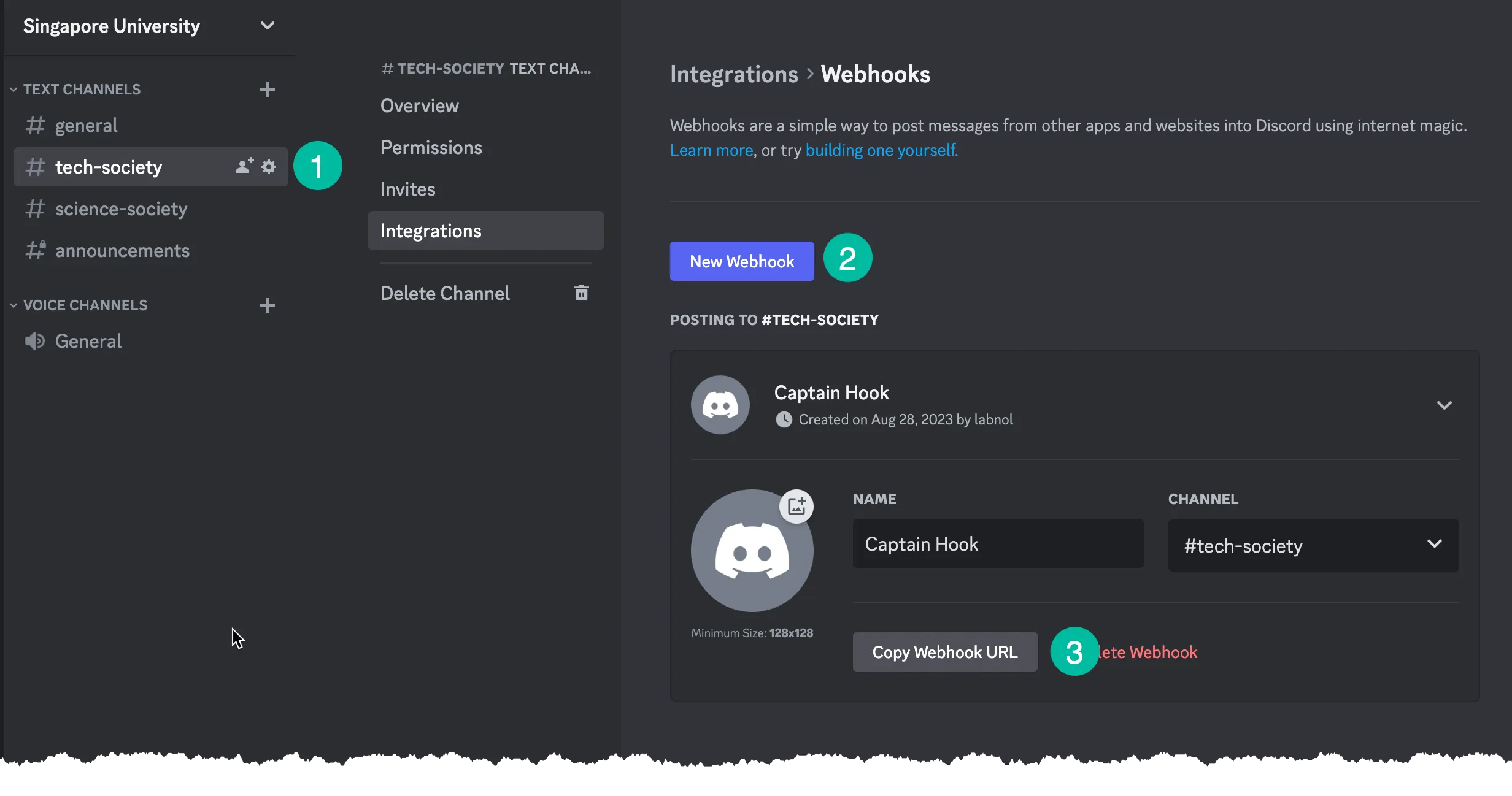
To get started, go to the Discord channel where the Google Form notifications should be delivered and click the Settings icon to copy the webhook URL for that channel.
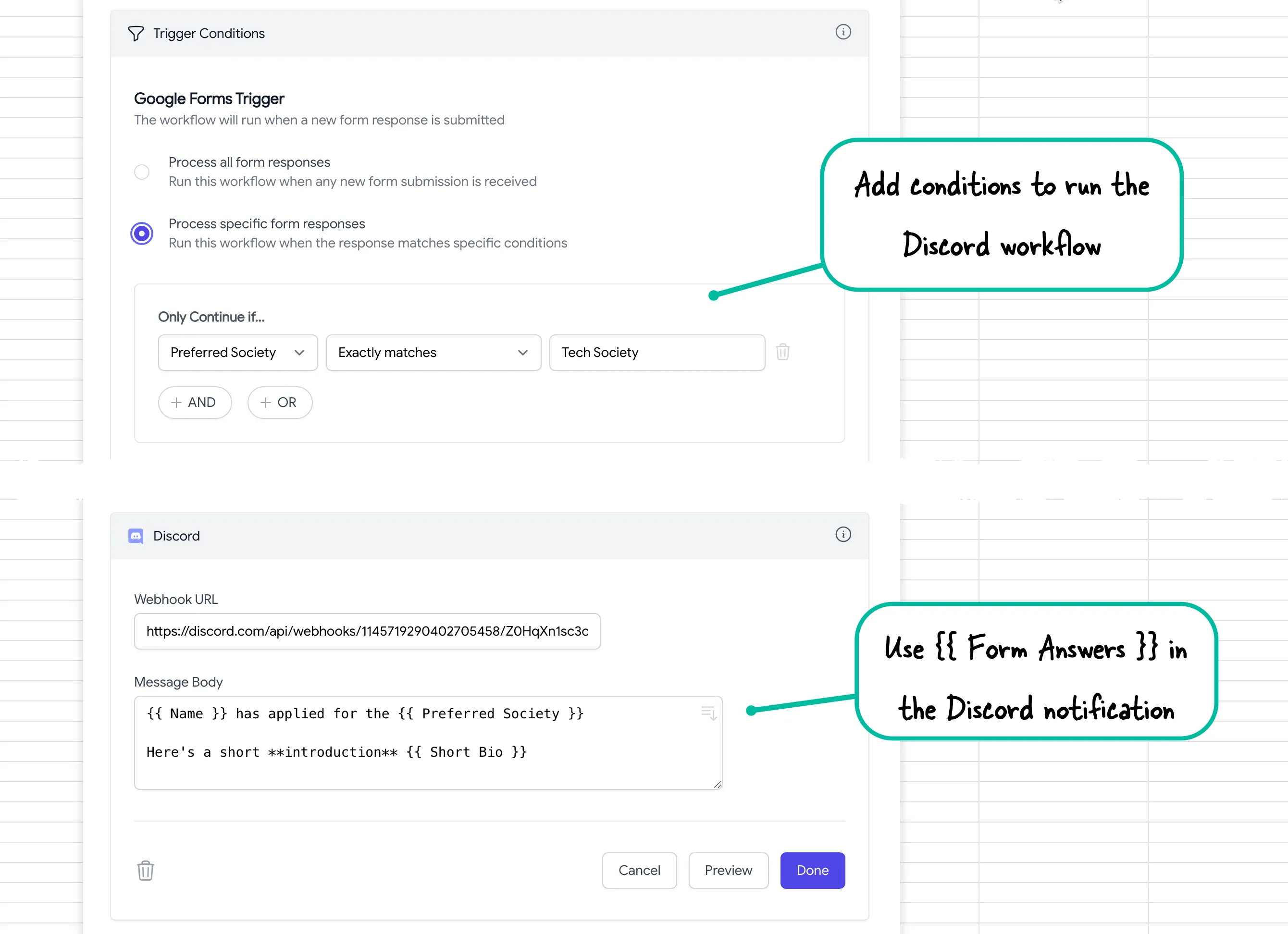
Now that you have generated the Discord webhook URL, go to your Google Form and create a new workflow in Document Studio. On the Conditions tab, specify the condition Preferred Society Exactly Match Tech Society since we want to notify a different Discord channel for each society.
On the Tasks tab, add the Discord task and add the webhook URL that you’ve generated in the previous step. For the message body, you can use any question title from the Google Form and these will be replaced with actual users submitted by the Google Form respondent.
Save the workflow and you’ll automatically receive notifications in Discord when the form is submitted.
Send to Discord with Apps Script
If you are curious to know how these messages are posted to Discord from Google Forms, the answer is Google Apps Script.
The script will transform the Google Form response into a JSON message and then make an HTTP POST request to the webhook URL to post a message to the Discord channel.
Here’s a simplified snippet of the script:
const postMessageToDiscord = (formData) => {
  var discordUrl = 'https://discordapp.com/api/webhooks/labnol/123';

  var params = {
    headers: {
      'Content-Type': 'application/x-www-form-urlencoded'
    },
    method: 'POST',
    payload: JSON.stringify({ content: formData }),
    muteHttpExceptions: true
  };

  var response = UrlFetchApp.fetch(discordUrl, params);

  Logger.log(response.getContentText());
};
Also see: Send Google Forms to Slack
Author

prakhar@affmantra.com
Related Posts

How to Create Photo Stickers in Canva
Table of Contents This quick tutorial will walk you through the steps to create your own custom stickers from photos in Canva....
Read out all
How to Add Speech Recognition to your Website
Table of Contents 1. Add Voice Recognition to your Website Open the Google website on your desktop computer and you’ll find a...
Read out all
How to Handle OAuth Permissions in Google Add-ons
- 0
- 714 words
Table of Contents 1. How to Check for Required OAuth Scopes 1.1 The “Authorization Catch-22” Problem 1.2 How to Reset the Permissions...
Read out all
How to Recover Permanently Deleted Files and Folders in Google Drive
- 0
- 326 words
Table of Contents When you delete any file or folder in your Google Drive, it is moved to the trash folder. The...
Read out all
Simple URL Tricks for Google Drive You Should Know
- 0
- 374 words
Table of Contents 1. Google Drive URL Tricks 1.1 Google Drive Web Viewer 1.2 Reader Mode for Google Drive Files 1.3 Embed...
Read out all
How to Extract URLs from HYPERLINK Function in Google Sheets
- 0
- 201 words
The HYPERLINK formula of Google Sheets lets you insert hyperlinks into your spreadsheets. The function takes two arguments: The full URL of...
Read out all