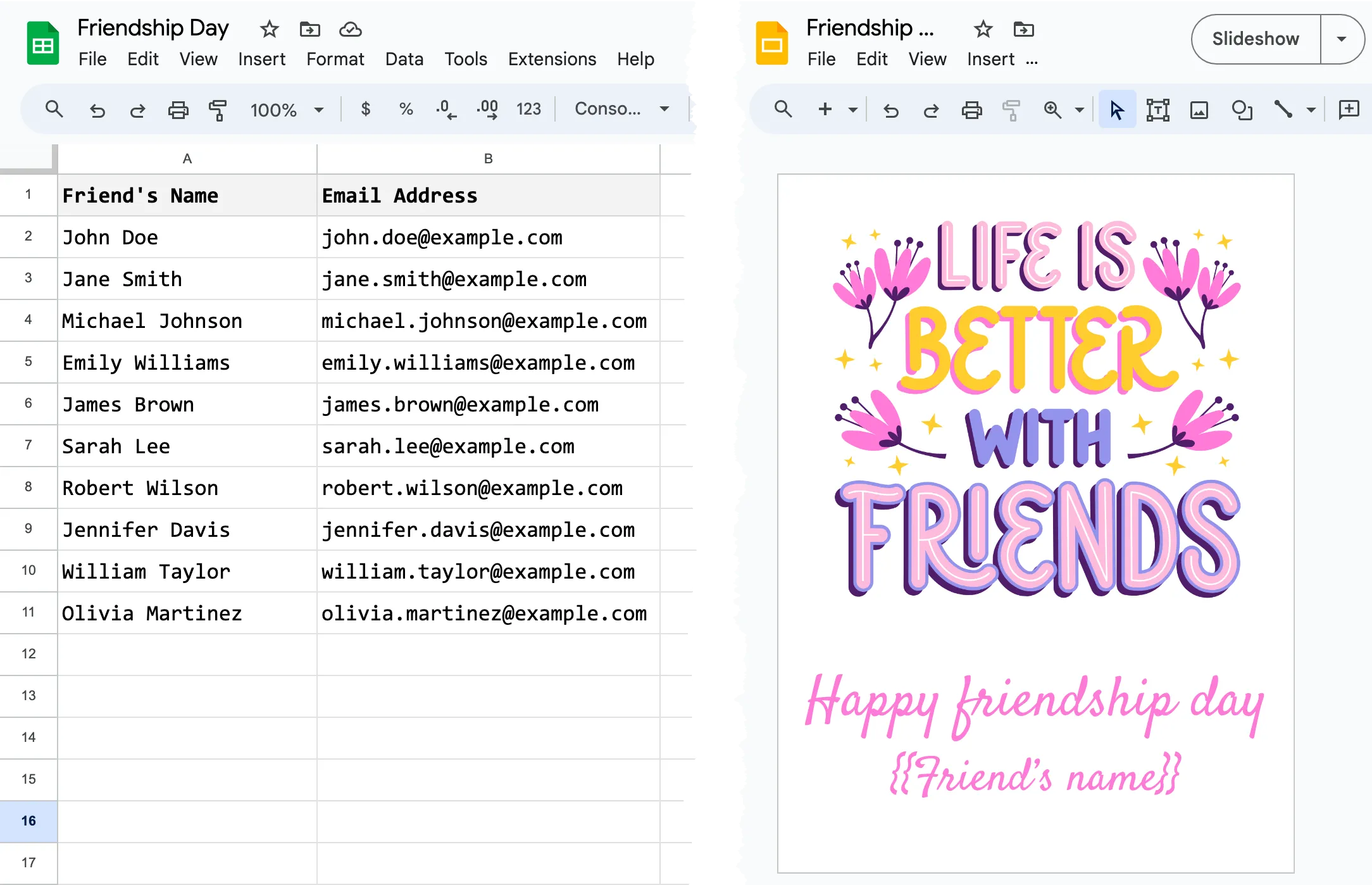
Yesterday marked Friendship Day, and to celebrate, I sent a personalized image to each of my friends via WhatsApp. The images were created in bulk, but each graphic had the person’s name, making the greetings unique and heartfelt.
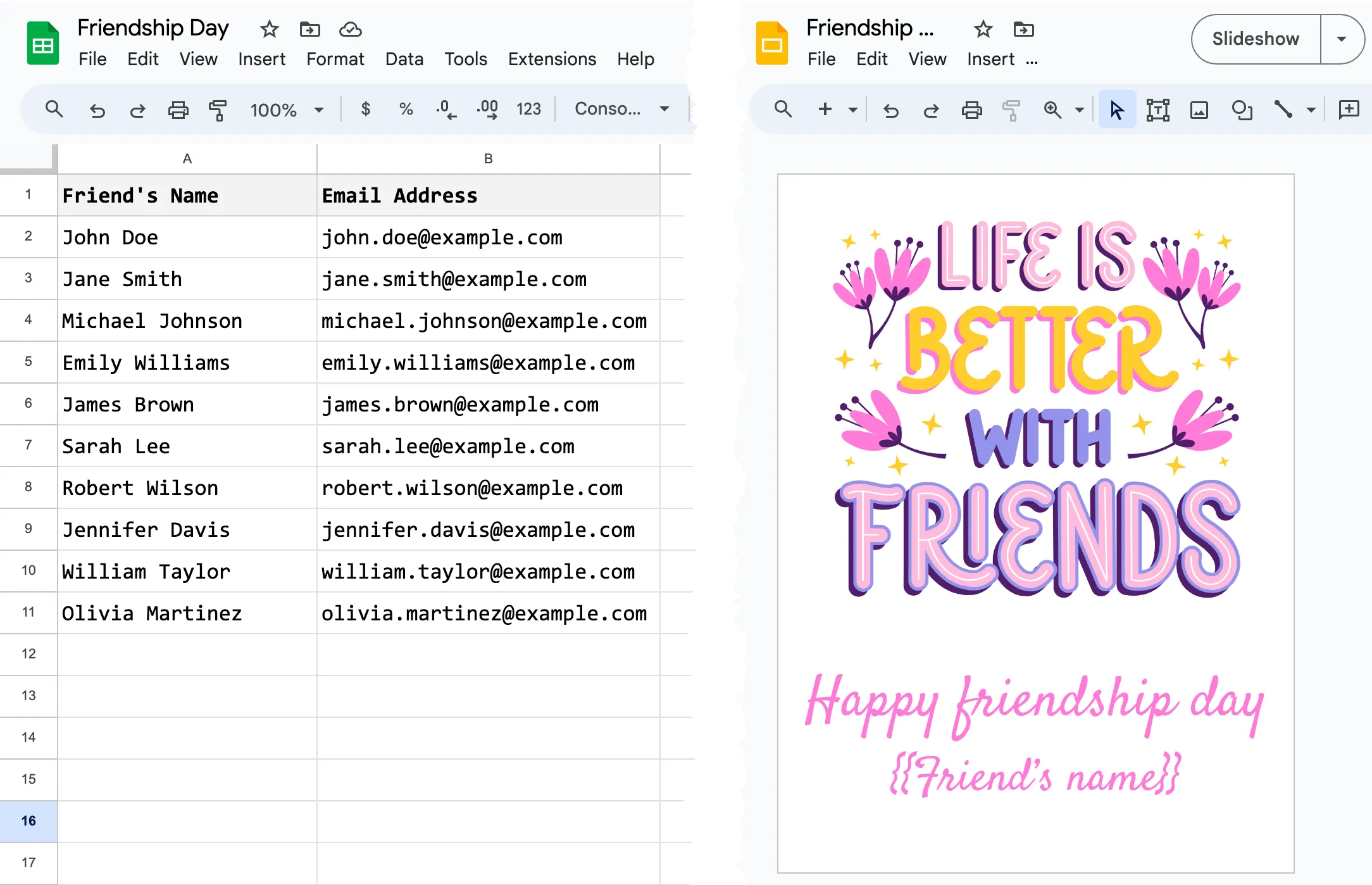
To achieve this, I did employ some automation. First, I gathered the names of my friends in a Google Sheet. Then, I designed a graphic template in Canva and imported the design in Google Slides. The template had a placeholder – {{Friend's Name}} – that would be replaced with actual values from the Google Sheet.
The Source Template
Here’s the source data and the image template. The placeholder {{Friend's Name}} in a graphic was replaced with actual values from the Google Sheet.
The Generated Graphic
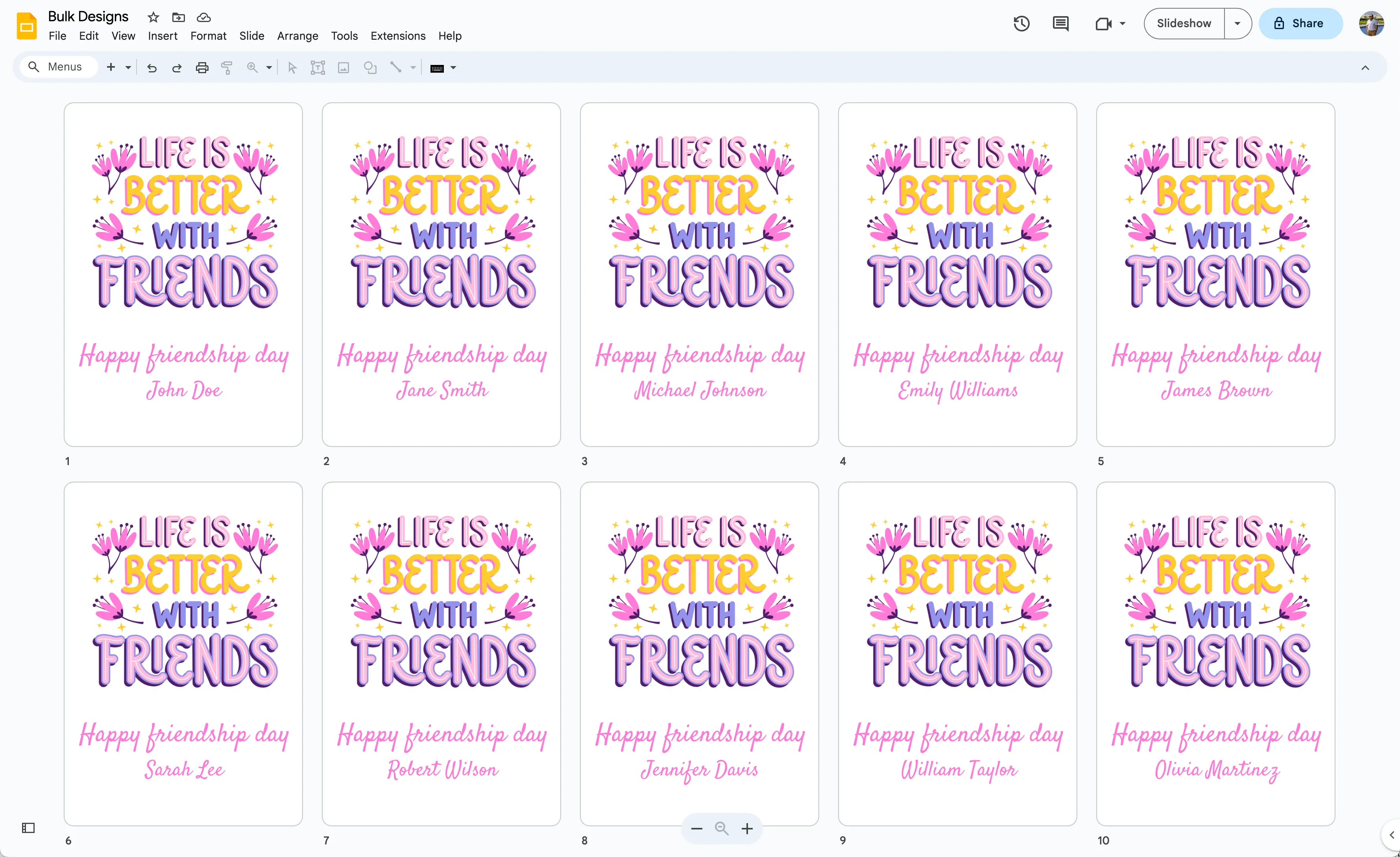
And here is the completed deck in Google Slides, where each slide is generated from individual rows of the Google Sheet. You may notice that the names are distinct on every slide for personalization.
The best part is that the customization options aren’t just limited to text – you can also add unique QR Codes, profile pictures and more for more personalization.
How to Auto-Generate Images in Bulk
For those interested in creating personalized images, it’s a simple process.
Start by creating a template with a single slide in Google Slides, adjusting the deck size to match your desired output image size. Then, populate a Google Sheet with the personalization data. Each row of the sheet will generate a unique image.
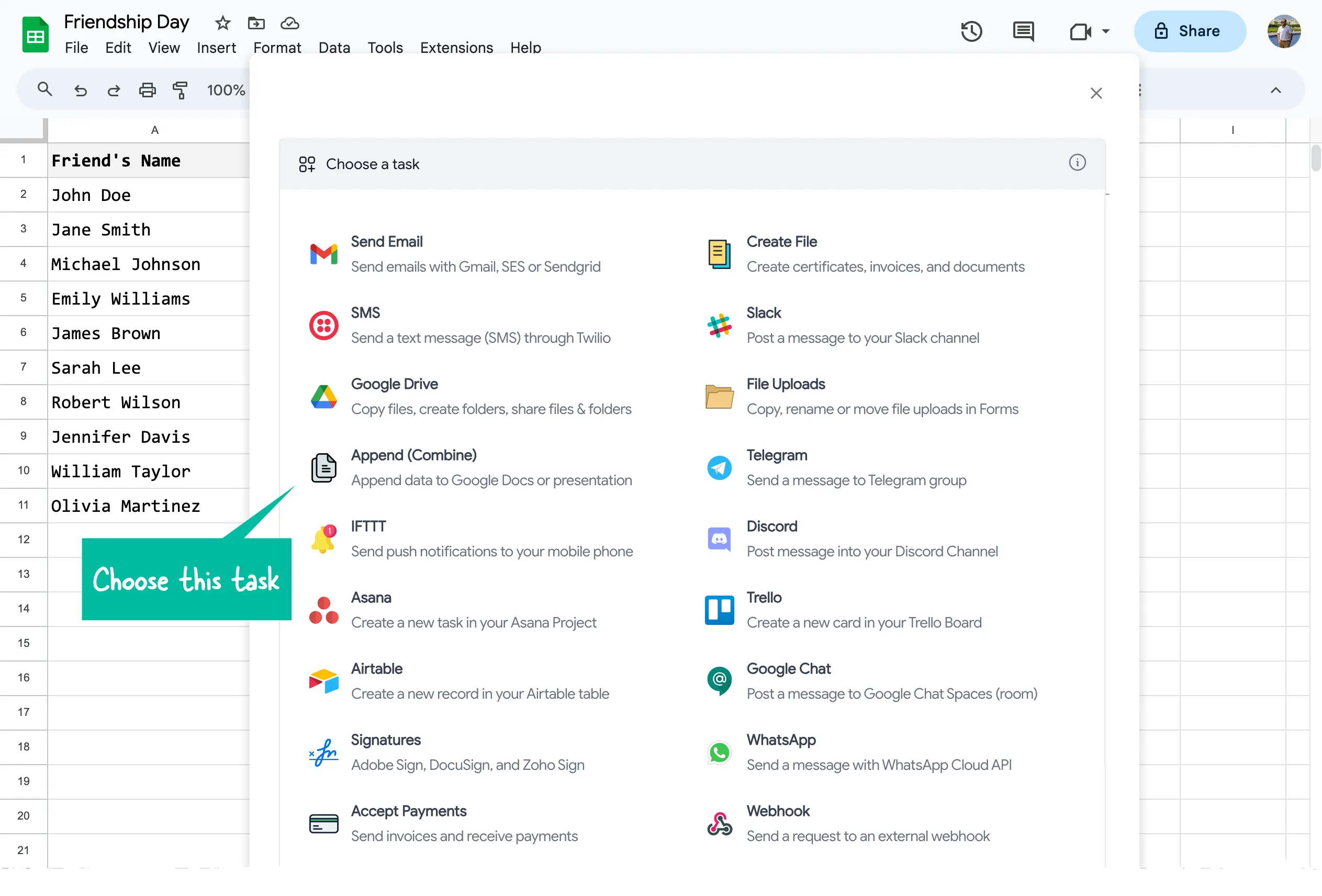
Install the Document Studio add-on and follow the getting started guide to create a new workflow. For this particular task, I selected the Append (Combine) task, as it allowed me to generate a combined deck containing all the personalized images.
- Next, select the Google Slides template from your Google Drive that contains your base design. Document Studio will automatically create a new deck to house your auto-generated designs but you can also pick an existing deck from the target presentation field.
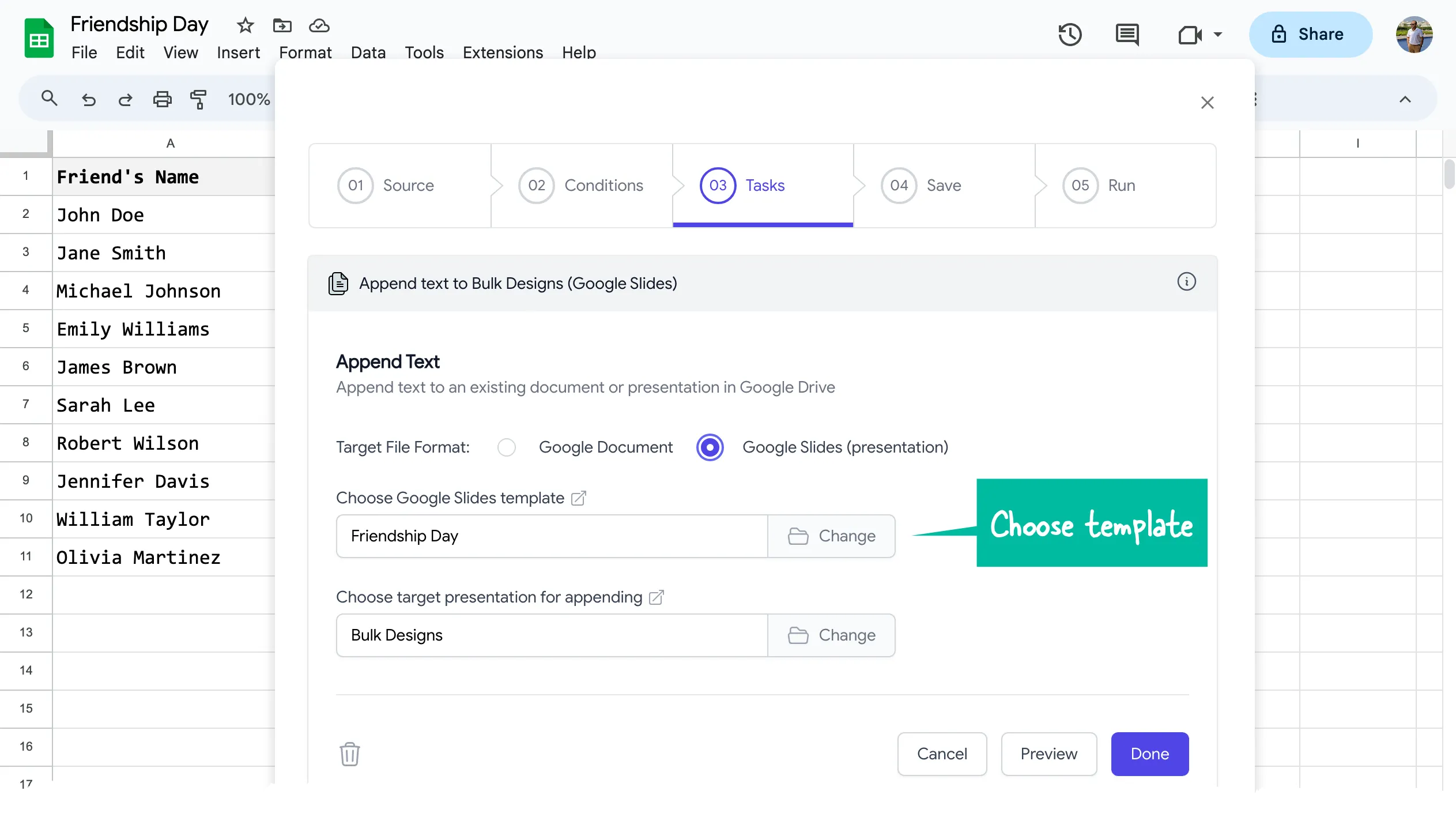
- Save your workflow and choose the Run option to generate your personalized images. Document Studio will automatically generate images for each row of the spreadsheet, but you also have the option to select rows for which the images should be generated.
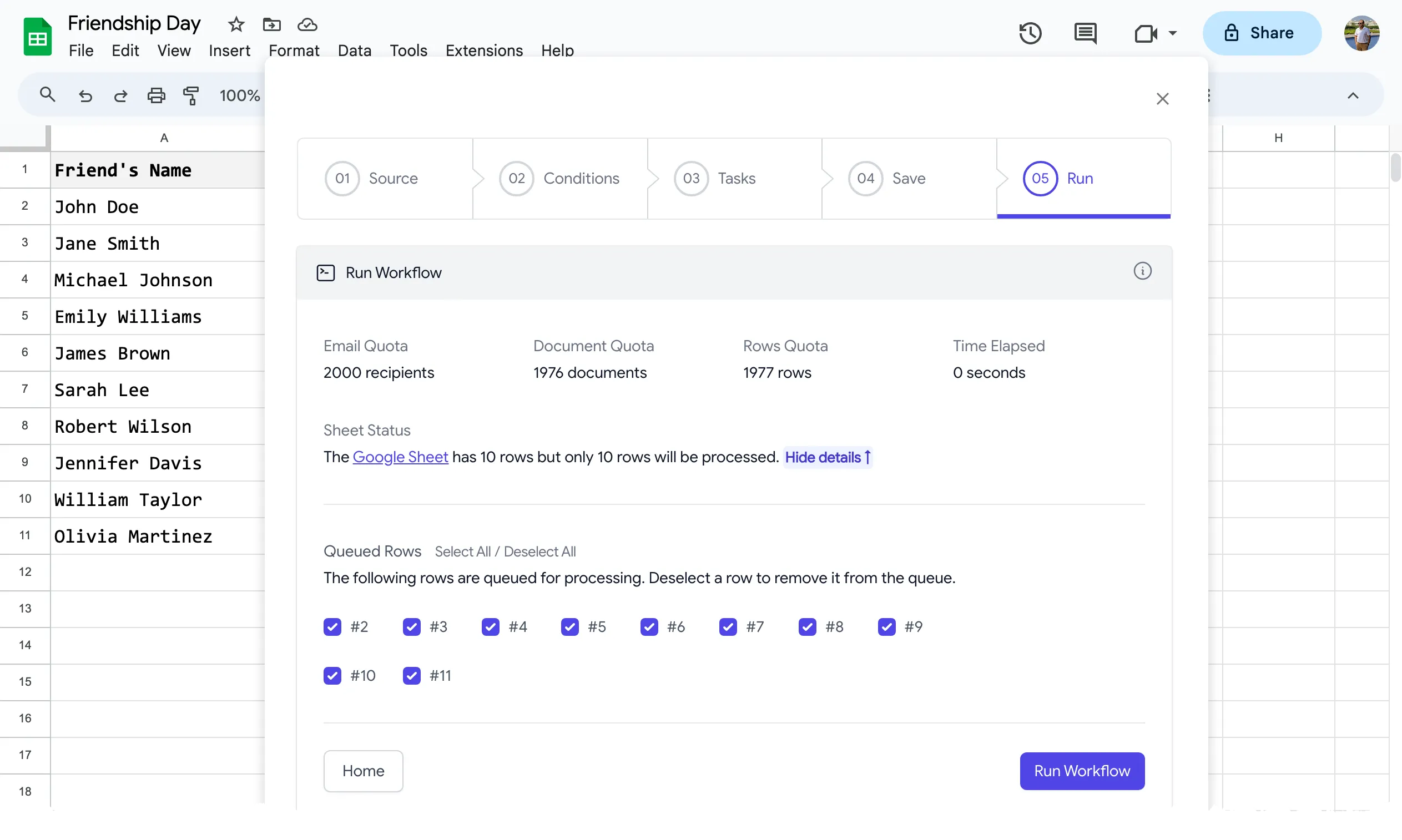
Click the Run workflow button, and your personalized images will be ready in no time.
The possibilities are endless. You may use Document Studio to create quiz certificates, business cards, employee IDs, wedding place cards and other designs that necessitate only minimal text changes.
Give Document Studio a try and surprise your friends and family with personalized images for any occasion!
Author

prakhar@affmantra.com
Related Posts

How to Add Speech Recognition to your Website
Table of Contents 1. Add Voice Recognition to your Website Open the Google website on your desktop computer and you’ll find a...
Read out all
How to Handle OAuth Permissions in Google Add-ons
- 0
- 714 words
Table of Contents 1. How to Check for Required OAuth Scopes 1.1 The “Authorization Catch-22” Problem 1.2 How to Reset the Permissions...
Read out all
How to Recover Permanently Deleted Files and Folders in Google Drive
- 0
- 326 words
Table of Contents When you delete any file or folder in your Google Drive, it is moved to the trash folder. The...
Read out all
Simple URL Tricks for Google Drive You Should Know
- 0
- 374 words
Table of Contents 1. Google Drive URL Tricks 1.1 Google Drive Web Viewer 1.2 Reader Mode for Google Drive Files 1.3 Embed...
Read out all
How to Extract URLs from HYPERLINK Function in Google Sheets
- 0
- 201 words
The HYPERLINK formula of Google Sheets lets you insert hyperlinks into your spreadsheets. The function takes two arguments: The full URL of...
Read out all
Find and Remove Inactive Users in your Google Workspace Domain
- 0
- 388 words
Table of Contents 1. Find the inactive users in Google Workspace domain You can use Google Apps Script to find all the...
Read out all