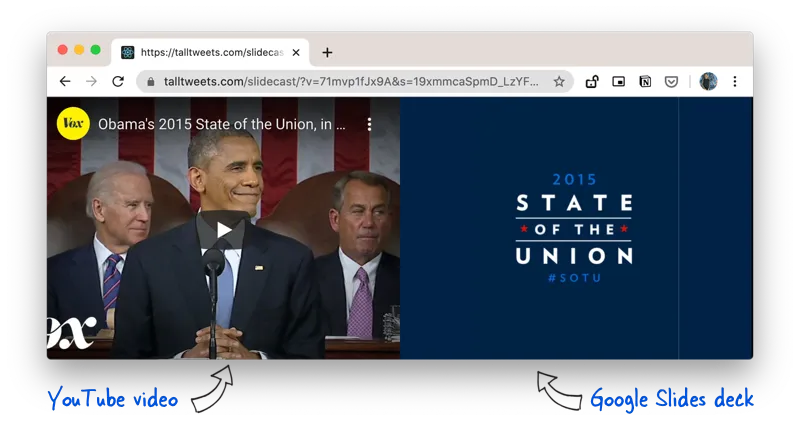
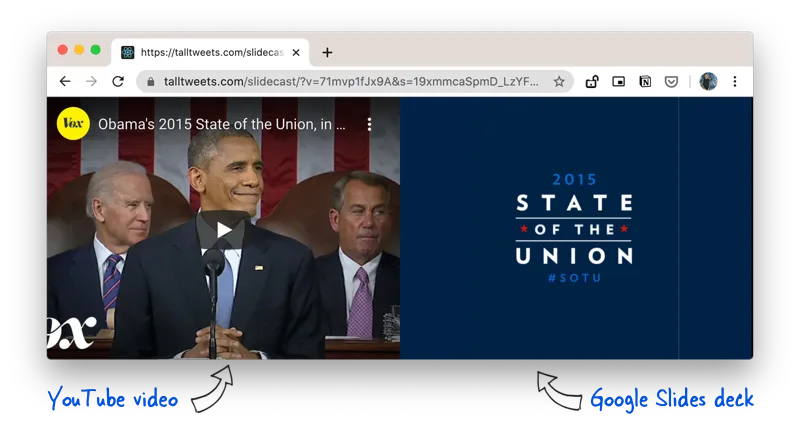
SlideCasts let you combine YouTube videos and Google Sides / PowerPoint presentations in a single-player. The speaker video and the slides appear side-by-side and, as the video progresses, the slides auto-change in sync with the video.
You can try a live demo of SlideCasts here. Just hit the play button on the YouTube video and you’ll notice that the slides will change at the 10s, 25s and 30s mark (configurable).
SlideCasts can be really useful for educators involved in remote teaching. The teacher’s “talking head” video can be uploaded to YouTube and the lecture slides can be hosted on Google Slides.
If your course slides are available as a PowerPoint presentation that will work as well since you can directly upload your PPT and PPTX files to Google Slides.
How to Sync Presentation Slides with Video
The first step is to install Creator Studio. Next go to slides.google.com and open any existing presentation.
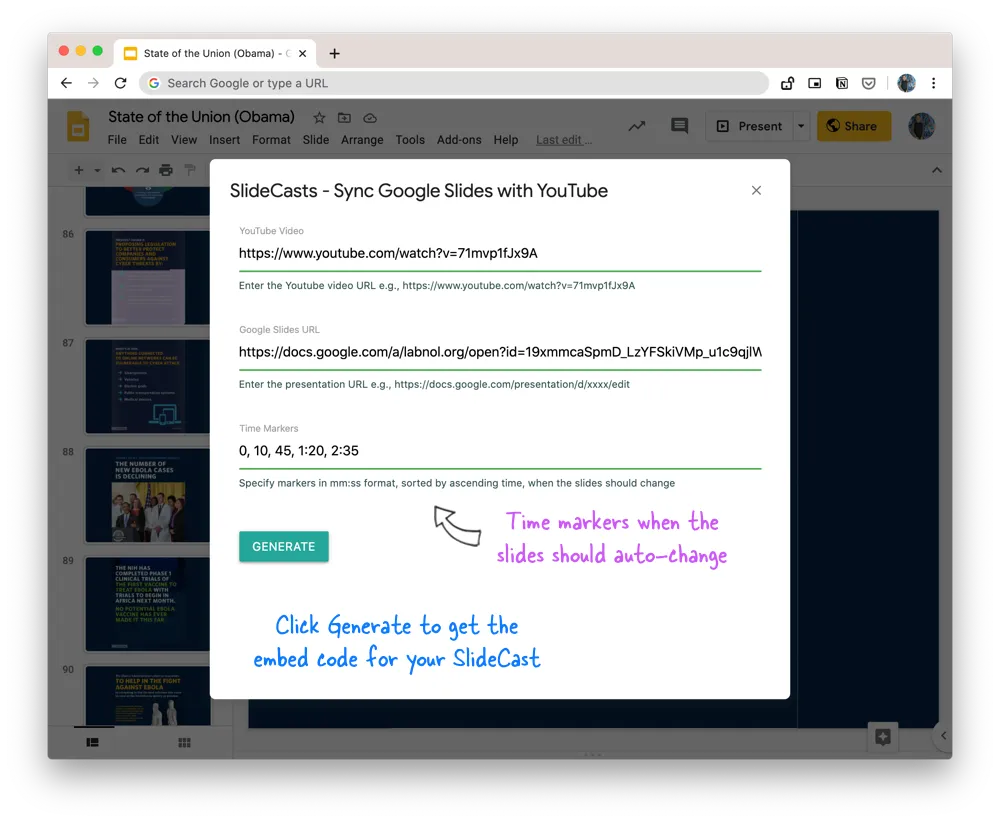
Go to the Addons menu inside Slides, choose Creator Studio and then select Create Slidecasts. Here specify the URL of the YouTube video and your Google Slides deck (both should be public).
Next, specify the timestamps in mm
format (minute seconds) when the slides should change in sync with the video.
For instance, if you want the second slide to show at the 15s point in the video, the 3rd slide at the 45s mark and the 4th slide at 1 minute, 20 second mark, your markers would be written as:
0, 15, 45, 1:20
That’s pretty much it. Click the Generate button and copy-paste the HTML code into your website.
The SlideCast player is responsive so the video and slides will auto-resize based on the size of the visitor’s screen.
Author

prakhar@affmantra.com
Related Posts

How to Add Speech Recognition to your Website
Table of Contents 1. Add Voice Recognition to your Website Open the Google website on your desktop computer and you’ll find a...
Read out all
How to Handle OAuth Permissions in Google Add-ons
- 0
- 714 words
Table of Contents 1. How to Check for Required OAuth Scopes 1.1 The “Authorization Catch-22” Problem 1.2 How to Reset the Permissions...
Read out all
How to Recover Permanently Deleted Files and Folders in Google Drive
- 0
- 326 words
Table of Contents When you delete any file or folder in your Google Drive, it is moved to the trash folder. The...
Read out all
Simple URL Tricks for Google Drive You Should Know
- 0
- 374 words
Table of Contents 1. Google Drive URL Tricks 1.1 Google Drive Web Viewer 1.2 Reader Mode for Google Drive Files 1.3 Embed...
Read out all
How to Extract URLs from HYPERLINK Function in Google Sheets
- 0
- 201 words
The HYPERLINK formula of Google Sheets lets you insert hyperlinks into your spreadsheets. The function takes two arguments: The full URL of...
Read out all
Find and Remove Inactive Users in your Google Workspace Domain
- 0
- 388 words
Table of Contents 1. Find the inactive users in Google Workspace domain You can use Google Apps Script to find all the...
Read out all