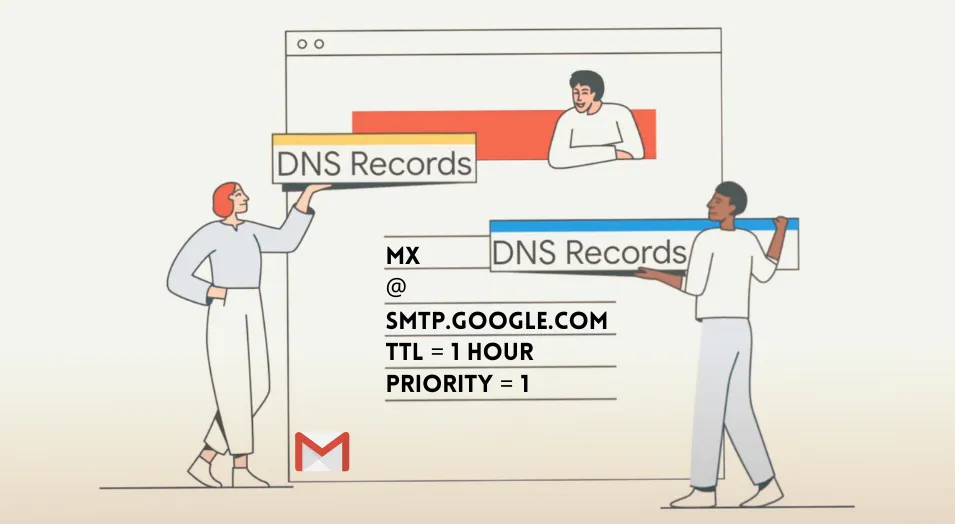
Mail Exchange (MX) records, in simple English, tell the internet where to deliver your emails. These records enable email servers to know which mail servers are responsible for accepting incoming messages for a given domain.
When you are using Gmail with your Google Workspace domain, Google provides you with a set of MX records in the format ASPMX.L.GOOGLE.COM and you need to add five such records to your domain. These MX records point incoming emails to Google’s mail servers, which then deliver the emails to your Gmail inbox.
| Priority | Host / Mail Server |
|---|---|
| 1 | ASPMX.L.GOOGLE.COM |
| 5 | ALT1.ASPMX.L.GOOGLE.COM |
| 5 | ALT2.ASPMX.L.GOOGLE.COM |
| 10 | ALT3.ASPMX.L.GOOGLE.COM |
| 10 | ALT4.ASPMX.L.GOOGLE.COM |
These MX records specify the priority and destination of email messages. The priority numbers indicate the order in which the email servers should be tried.
When a sender sends an email to your domain, their email server will look up your domain’s MX records to determine where to deliver the email. The server will try the first mail server listed (priority 1), and if that server is unavailable or unreachable, it will try the next one listed (priority 5), until the email message is successfully delivered.
New MX Records for Google Workspace
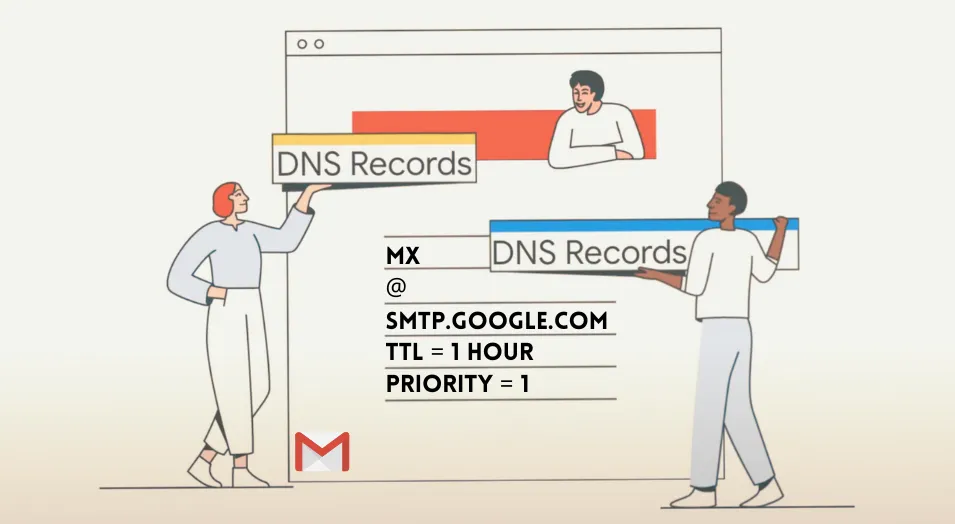
Google has simplified the MX records for new Google Workspace accounts that are created after April 2023. You now only need to add one MX record to your domain. The priority value is always 1 and the destination is SMTP.GOOGLE.COM.
| Priority | Host / Mail Server |
|---|---|
| 1 | SMTP.GOOGLE.COM |
You may find the updated MX records here. Google Workspace evangelist Michael Brenzel suggest that the new MX records should be used for only new Google Workspace accounts, and that there’s no need to change the DNS records for existing Workspace domains.
MX Records References:
Author

prakhar@affmantra.com
Related Posts

How to Add Speech Recognition to your Website
Table of Contents 1. Add Voice Recognition to your Website Open the Google website on your desktop computer and you’ll find a...
Read out all
How to Handle OAuth Permissions in Google Add-ons
- 0
- 714 words
Table of Contents 1. How to Check for Required OAuth Scopes 1.1 The “Authorization Catch-22” Problem 1.2 How to Reset the Permissions...
Read out all
How to Recover Permanently Deleted Files and Folders in Google Drive
- 0
- 326 words
Table of Contents When you delete any file or folder in your Google Drive, it is moved to the trash folder. The...
Read out all
Simple URL Tricks for Google Drive You Should Know
- 0
- 374 words
Table of Contents 1. Google Drive URL Tricks 1.1 Google Drive Web Viewer 1.2 Reader Mode for Google Drive Files 1.3 Embed...
Read out all
How to Extract URLs from HYPERLINK Function in Google Sheets
- 0
- 201 words
The HYPERLINK formula of Google Sheets lets you insert hyperlinks into your spreadsheets. The function takes two arguments: The full URL of...
Read out all
Find and Remove Inactive Users in your Google Workspace Domain
- 0
- 388 words
Table of Contents 1. Find the inactive users in Google Workspace domain You can use Google Apps Script to find all the...
Read out all