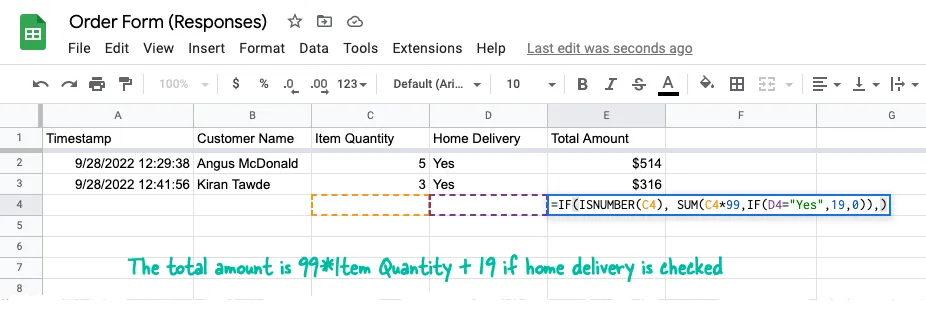
An order form, created in Google Forms, requires customers to provide their full name, the item quantity and whether home delivery is required. The final bill amount is calculated with a simple formula in Google Sheets.
// Item cost is $99 per unit. Delivery cost is $19.
=IF(ISNUMBER(C2), SUM(C2*99, IF(D2="Yes", 19, 0)), )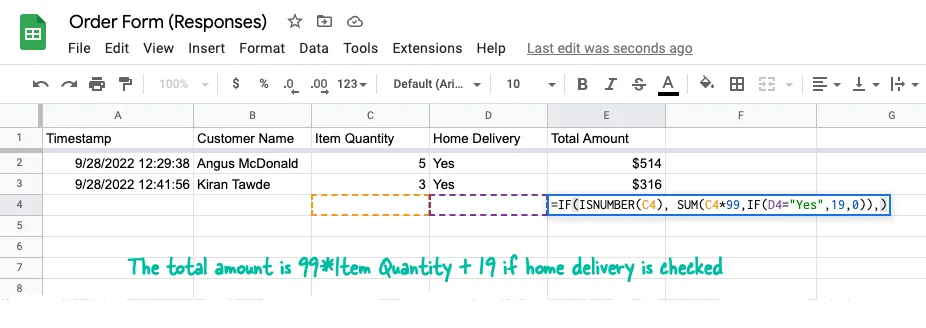
The Google Sheet owner has entered the formula across all rows in the Total Amount column so that the value is automatically calculated when a new form response is submitted.
The problem is that the formulas in Google Sheets are automatically deleted when new responses come in. That’s the default behavior and even if you protect the column range, the formulas in the cell will be erased on new rows.
How to Prevent Formulas from Deleting
There are several workarounds to this problem.
Use an ARRAYFORMULA
Instead of adding formulas inside individual cells of the column, add an Array Formula to the first row of the column that contains the computed values.
=ARRAYFORMULA(IF(ROW(C:C)=1,
   "Total Amount",
   IF(ISNUMBER(C:C), C:C*99 + IF(D:D="Yes",19,0),)
  ))
Here’s a simple breakdown of the formula:
IF(ROW(C:C)=1, "Total Amount", ...– If the current row number is 1, add the column title.IF(ISNUMBER(C:C), ...– Calculate the amount only if there’s a numeric value in the C column.C:C*99 + IF(D:D="Yes",19,0),)– Multiply $99 with the item quantity and add $19 if the column D is set to Yes.
Use MAP with a LAMBDA function
You can use the new MAP function of Google Sheets that takes an array of values as input and returns a new array formed by applying a Lambda function to each value of the array.
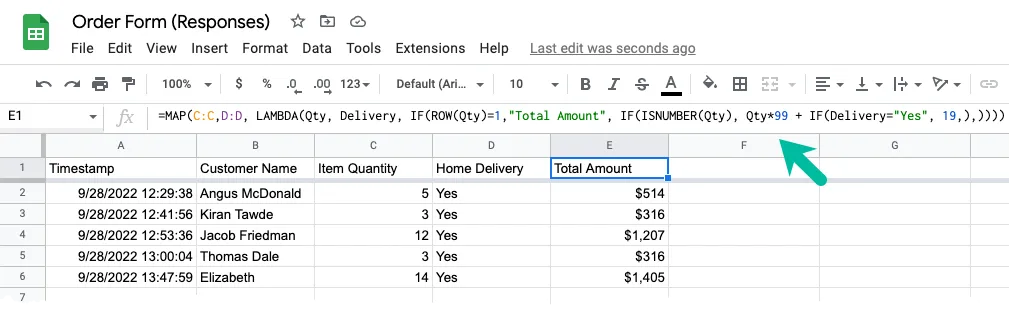
=MAP(C:C,D:D,
  LAMBDA(Qty, Delivery,
    IF(ROW(Qty)=1,"Total Amount",
    IF(ISNUMBER(Qty), Qty*99 + IF(Delivery="Yes", 19,),))
  ))
Use a QUERY function
If array formulas sound complex, here’s an alternate approach.
Create a new sheet in your Google Spreadsheet and use the QUERY function with a SQL-like statement to import the required data from the Form sheet into the current sheet.
=QUERY('Form Responses 1'!A:D,"SELECT A,B,C,D",TRUE)We are only importing the sheet data that has been entered in the form response and all the calculations will happen in this sheet, not the main sheet.
Paste the simple formula for amount calculation in cell E2 and drag the cross-hair down to auto-fill the formula across all rows.
=IF(ISNUMBER(C2), SUM(C2*99,IF(D2="Yes",19,0)),)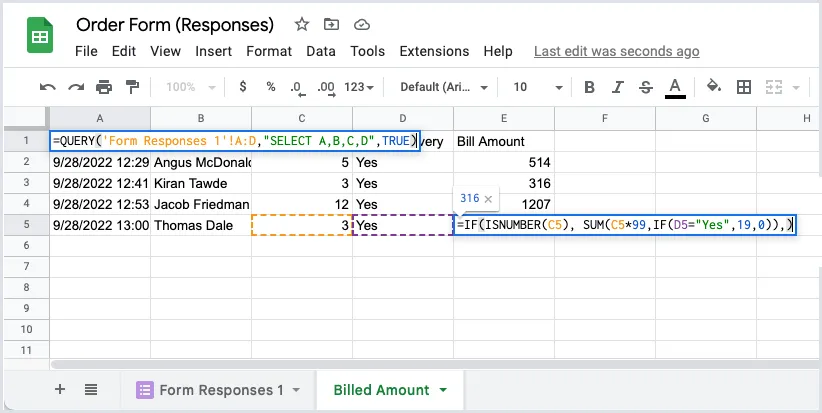
This is the recommended approach if you would like to preserve row formatting and conditional formatting when new survey responses come in.
Author

prakhar@affmantra.com
Related Posts

How to Add Speech Recognition to your Website
Table of Contents 1. Add Voice Recognition to your Website Open the Google website on your desktop computer and you’ll find a...
Read out all
How to Handle OAuth Permissions in Google Add-ons
- 0
- 714 words
Table of Contents 1. How to Check for Required OAuth Scopes 1.1 The “Authorization Catch-22” Problem 1.2 How to Reset the Permissions...
Read out all
How to Recover Permanently Deleted Files and Folders in Google Drive
- 0
- 326 words
Table of Contents When you delete any file or folder in your Google Drive, it is moved to the trash folder. The...
Read out all
Simple URL Tricks for Google Drive You Should Know
- 0
- 374 words
Table of Contents 1. Google Drive URL Tricks 1.1 Google Drive Web Viewer 1.2 Reader Mode for Google Drive Files 1.3 Embed...
Read out all
How to Extract URLs from HYPERLINK Function in Google Sheets
- 0
- 201 words
The HYPERLINK formula of Google Sheets lets you insert hyperlinks into your spreadsheets. The function takes two arguments: The full URL of...
Read out all
Find and Remove Inactive Users in your Google Workspace Domain
- 0
- 388 words
Table of Contents 1. Find the inactive users in Google Workspace domain You can use Google Apps Script to find all the...
Read out all