Looking for a place to host images so you can embed them on to your website? The most popular image hosting services are imgur.com and imgbb.com but did you know that you can also use Google Drive to host images.
It works something like this. You upload an image file to Google Drive and make that file public. Google Drive will now generate a high-resolution thumbnail image of the uploaded file that you can directly embed on your website or emails.
Generate Google Drive Image Links
1. Share File
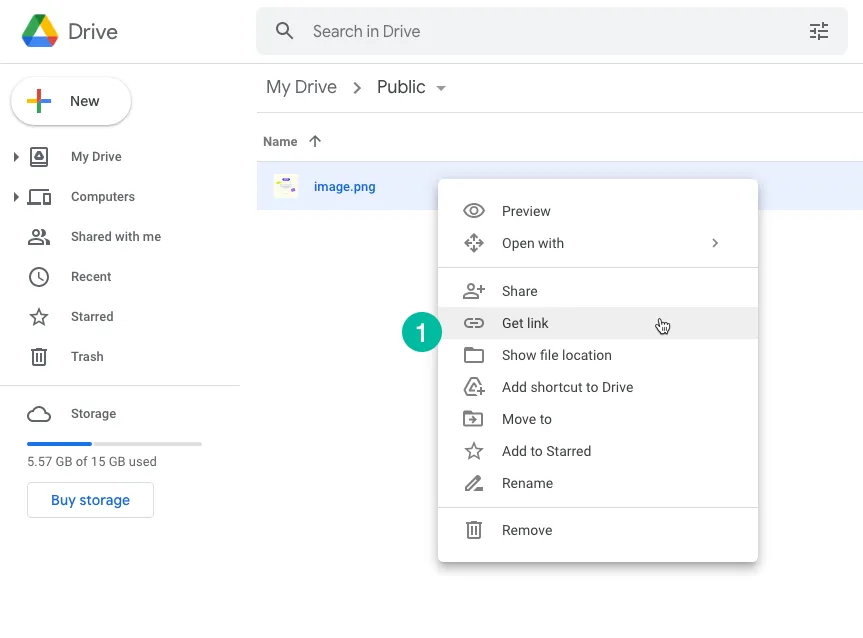
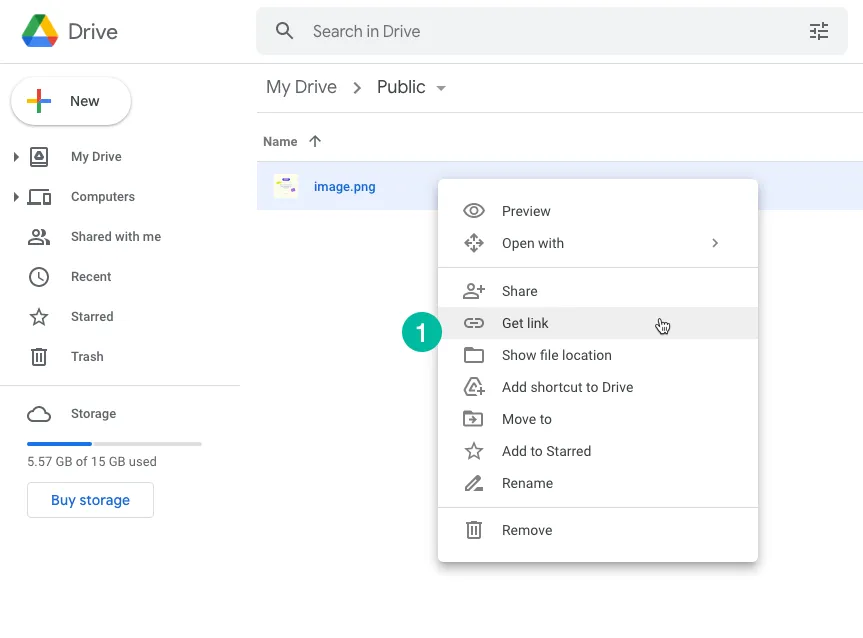
Go to Google Drive and upload the image that you wish to embed in your website. Next, right-click the image and choose Get link to get the shareable link of the uploaded file.
2. Change Permissions
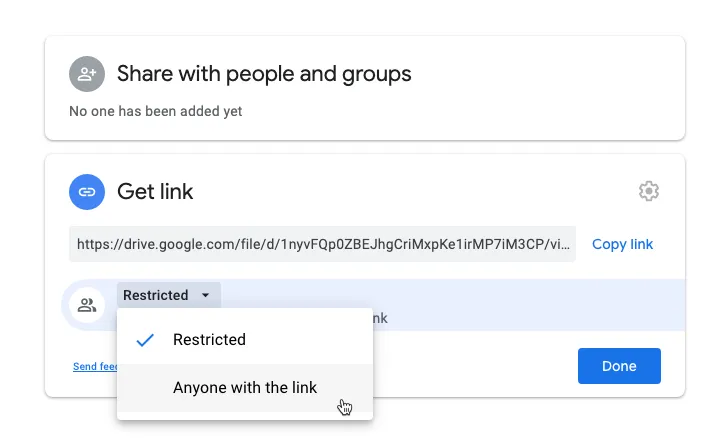
Inside the share dialog, choose the permissions drop-down and select Anyone with a link. This will make the file visible to anyone on the internet who has access to the share link. The file will be available to even users who do not have a Google account.
Click the Copy link button to copy the file’s link to your clipboard.
3. Generate Link
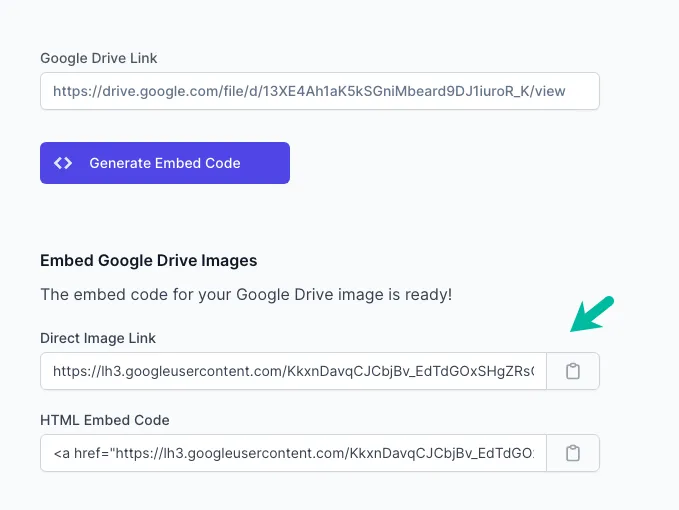
Next, open the Google Drive Embed page and paste the file link in the input text box. Click the Generate button to grab the direct link of the image that you can place in your website or emails.
How Drive Image Links are Generated
Internally, the tool takes the public link of the image on your Google Drive and grabs the Open Graph image from the HTML. It then changes the s parameter of the OG image to switch to a high resolution thumbnail. It is a similar technique that we use to get direct links for Google Drive photos.
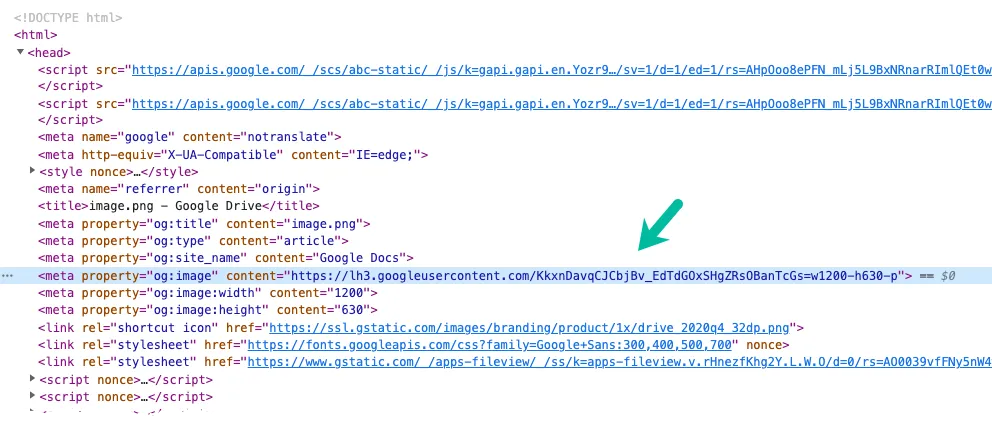
Alternate Approach
If you prefer mangling URLs on your own, here’s an alternate approach that will help you generate direct links for your drive images.
Make the image file in your Google Drive public as described earlier and grab the file link of the public image. The URL will be something like this:
https://drive.google.com/file/d/13XE4Ah1aK5kSGniMbeard9DJ1iuroR_K/viewThe part 13XE4Ah1aK5kSGniMbeard9DJ1iuroR_K in the Google Drive link is the unique ID of the file. Take that File ID and replace it in the URL below:
<img src="https://drive.google.com/uc?id=DRIVE_FILE_ID" alt="Google Drive Image" />You can use this link to easily embed images into Google Sheets. The only downside of this approach is that you do not have control over the size of the image that is generated. In the previous example, you can easily change the width parameter to generate images of any specific size.
Also see: Google Drive URL Tricks
Author

prakhar@affmantra.com
Related Posts

How to Add Speech Recognition to your Website
Table of Contents 1. Add Voice Recognition to your Website Open the Google website on your desktop computer and you’ll find a...
Read out all
How to Handle OAuth Permissions in Google Add-ons
- 0
- 714 words
Table of Contents 1. How to Check for Required OAuth Scopes 1.1 The “Authorization Catch-22” Problem 1.2 How to Reset the Permissions...
Read out all
How to Recover Permanently Deleted Files and Folders in Google Drive
- 0
- 326 words
Table of Contents When you delete any file or folder in your Google Drive, it is moved to the trash folder. The...
Read out all
Simple URL Tricks for Google Drive You Should Know
- 0
- 374 words
Table of Contents 1. Google Drive URL Tricks 1.1 Google Drive Web Viewer 1.2 Reader Mode for Google Drive Files 1.3 Embed...
Read out all
How to Extract URLs from HYPERLINK Function in Google Sheets
- 0
- 201 words
The HYPERLINK formula of Google Sheets lets you insert hyperlinks into your spreadsheets. The function takes two arguments: The full URL of...
Read out all
Find and Remove Inactive Users in your Google Workspace Domain
- 0
- 388 words
Table of Contents 1. Find the inactive users in Google Workspace domain You can use Google Apps Script to find all the...
Read out all