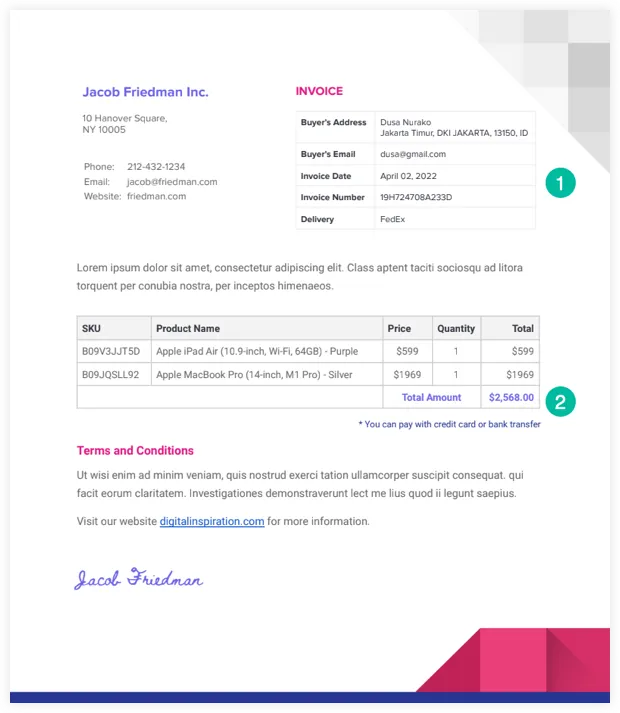
An external accounting system generates paper receipts for its customers which are then scanned as PDF files and uploaded to a folder in Google Drive. These PDF invoices have to be parsed and specific information, like the invoice number, the invoice date and the buyer’s email address, needs to be extracted and saved into a Google Spreadsheet.
Here’s a sample PDF invoice that we’ll use in this example.
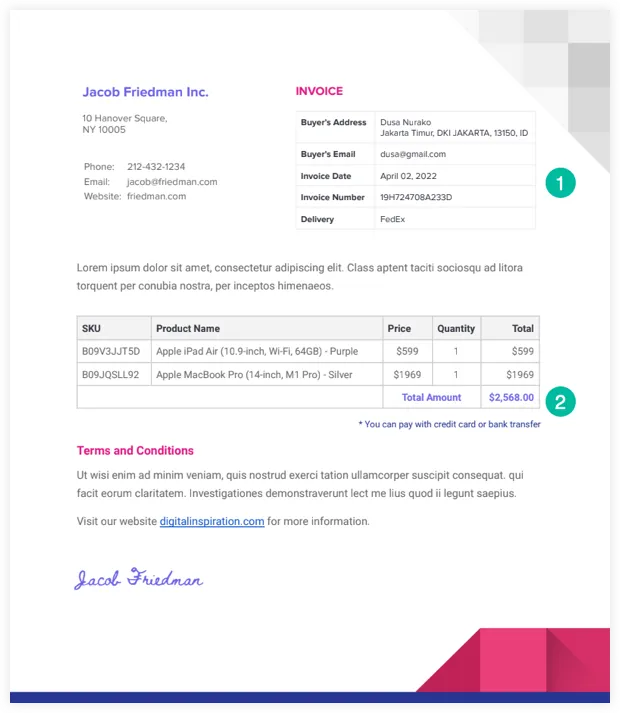
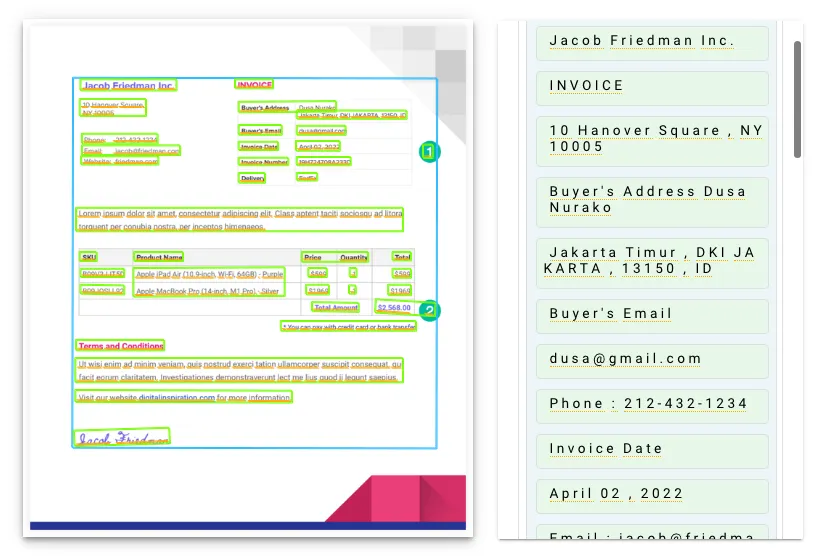
Our PDF extractor script will read the file from Google Drive and use Google Drive API to convert to a text file. We can then use RegEx to parse this text file and write the extracted information into a Google Sheet.
Let’s get started.
Step 1. Convert PDF to Text
Assuming that the PDF files is already in our Google Drive, we’ll write a little function that will convert the PDF file to text. Please ensure the Advanced Drive API as describes in this tutorial.
/*
 * Convert PDF file to text
 * @param {string} fileId - The Google Drive ID of the PDF
 * @param {string} language - The language of the PDF text to use for OCR
 * return {string} - The extracted text of the PDF file
 */

const convertPDFToText = (fileId, language) => {
  fileId = fileId || '18FaqtRcgCozTi0IyQFQbIvdgqaO_UpjW'; // Sample PDF file
  language = language || 'en'; // English

  // Read the PDF file in Google Drive
  const pdfDocument = DriveApp.getFileById(fileId);

  // Use OCR to convert PDF to a temporary Google Document
  // Restrict the response to include file Id and Title fields only
  const { id, title } = Drive.Files.insert(
    {
      title: pdfDocument.getName().replace(/\.pdf$/, ''),
      mimeType: pdfDocument.getMimeType() || 'application/pdf'
    },
    pdfDocument.getBlob(),
    {
      ocr: true,
      ocrLanguage: language,
      fields: 'id,title'
    }
  );

  // Use the Document API to extract text from the Google Document
  const textContent = DocumentApp.openById(id).getBody().getText();

  // Delete the temporary Google Document since it is no longer needed
  DriveApp.getFileById(id).setTrashed(true);

  // (optional) Save the text content to another text file in Google Drive
  const textFile = DriveApp.createFile(`${title}.txt`, textContent, 'text/plain');
  return textContent;
};
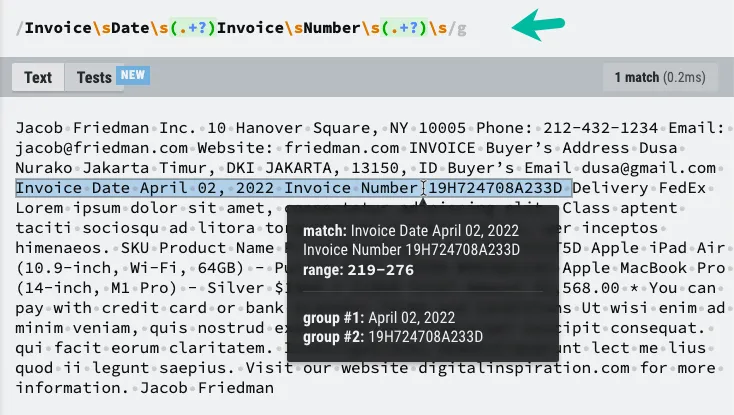
Now that we have the text content of the PDF file, we can use RegEx to extract the information we need. I’ve highlighted the text elements that we need to save in the Google Sheet and the RegEx pattern that will help us extract the required information.
const extractInformationFromPDFText = (textContent) => {
  const pattern = /Invoice\sDate\s(.+?)\sInvoice\sNumber\s(.+?)\s/;
  const matches = textContent.replace(/\n/g, ' ').match(pattern) || [];
  const [, invoiceDate, invoiceNumber] = matches;
  return { invoiceDate, invoiceNumber };
};
You may have to tweak the RegEx pattern based on the unique structure of your PDF file.
Step 3: Save Information to Google Sheet
This is the easiest part. We can use the Google Sheets API to easily write the extracted information into a Google Sheet.
const writeToGoogleSheet = ({ invoiceDate, invoiceNumber }) => {
  const spreadsheetId = '<<Google Spreadsheet ID>>';
  const sheetName = '<<Sheet Name>>';
  const sheet = SpreadsheetApp.openById(spreadsheetId).getSheetByName(sheetName);
  if (sheet.getLastRow() === 0) {
    sheet.appendRow(['Invoice Date', 'Invoice Number']);
  }
  sheet.appendRow([invoiceDate, invoiceNumber]);
  SpreadsheetApp.flush();
};
If you a more complex PDF, you may consider using a commercial API that use Machine Learning to analyze the layout of documents and extract specific information at scale
Some popular web services for extracting PDF data include Amazon Textract, Adobe’s Extract API and Google’s own Vision AI.They all offer generous free tiers for small-scale use.
Author

prakhar@affmantra.com
Related Posts

How to Add Speech Recognition to your Website
Table of Contents 1. Add Voice Recognition to your Website Open the Google website on your desktop computer and you’ll find a...
Read out all
How to Handle OAuth Permissions in Google Add-ons
- 0
- 714 words
Table of Contents 1. How to Check for Required OAuth Scopes 1.1 The “Authorization Catch-22” Problem 1.2 How to Reset the Permissions...
Read out all
How to Recover Permanently Deleted Files and Folders in Google Drive
- 0
- 326 words
Table of Contents When you delete any file or folder in your Google Drive, it is moved to the trash folder. The...
Read out all
Simple URL Tricks for Google Drive You Should Know
- 0
- 374 words
Table of Contents 1. Google Drive URL Tricks 1.1 Google Drive Web Viewer 1.2 Reader Mode for Google Drive Files 1.3 Embed...
Read out all
How to Extract URLs from HYPERLINK Function in Google Sheets
- 0
- 201 words
The HYPERLINK formula of Google Sheets lets you insert hyperlinks into your spreadsheets. The function takes two arguments: The full URL of...
Read out all
Find and Remove Inactive Users in your Google Workspace Domain
- 0
- 388 words
Table of Contents 1. Find the inactive users in Google Workspace domain You can use Google Apps Script to find all the...
Read out all