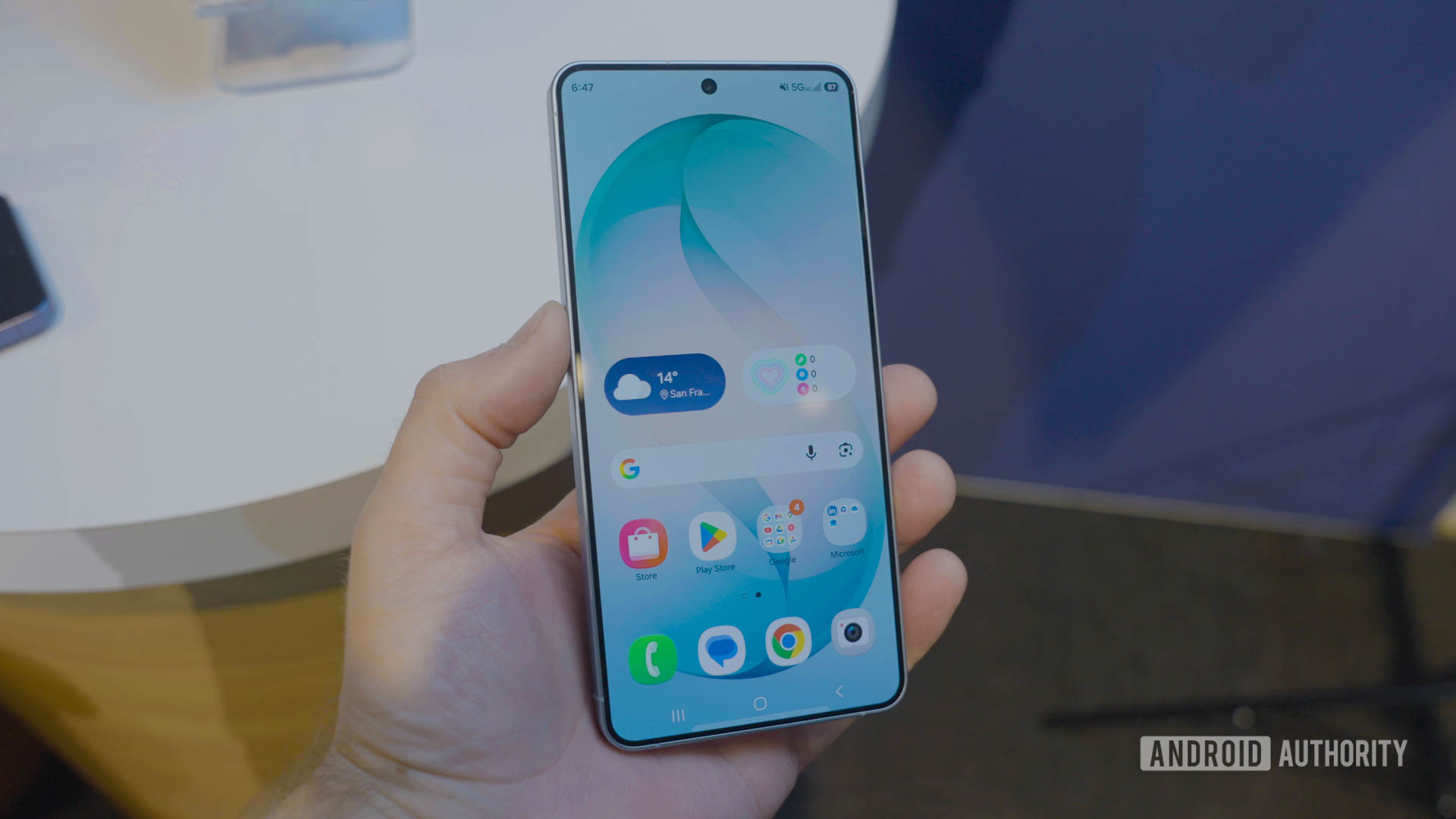
A good wallpaper is timeless, but maybe you want something fresh and right out of the factory. The Samsung Galaxy S26 series brings a few of the newest devices in the industry, and they are bound to be among the most popular, too. Whether you buy one or not, you can still enjoy these devices’ wallpapers. We have them for you here (courtesy of our friends at YTECHB)!
Things are pretty simple with the new Samsung Galaxy S26 wallpapers. They share the same design, featuring an abstract, minimalist “S”. The only difference among the wallpapers is the color. There is a matching wallpaper color for each color version of these phones. These include Cobalt Violet, Sky Blue, Black, White, Silver Shadow, and Pink Gold.
Download the Samsung Galaxy S26 wallpapers here
First, let’s go over the basics. You shouldn’t simply download the images you see below. These are previews for demonstrational purposes. As such, we have compressed and optimized these images for website performance, so they won’t look as good as they should.
Instead, click on the download button right below the previews. You will be redirected to a Google Drive folder where you can download the full-resolution files.
Let’s not waste any time! Here’s a quick look at the Samsung Galaxy S26 wallpapers.
How to set the Samsung Galaxy S26 wallpapers on your phone
As already mentioned, wallpapers are timeless. This is because they are simple images, so you can really use them with any device that lets you change the background. That said, these are made with mobile devices in mind, so their dimensions are better suited for smartphones and maybe tablets. With that in mind, we will show you how to use these on Android and iOS devices, the two leading mobile platforms.
Let’s get started. Once you’ve found the wallpaper you want, make sure you have it stored in the device. This won’t be an issue if you downloaded it using your phone. If you used any other device to save the file, you can use other transfer methods, such as Bluetooth, QuickShare, AirDrop, a physical storage device, or even a cloud storage solution like Google Drive.
Once the image is on your phone, follow the steps below to set it as your wallpaper.
How to set a wallpaper on Android:
- Launch the Settings app.
- Select Wallpaper & style.
- Tap on More wallpapers.
- Find and select your Samsung Galaxy S26 wallpaper.
- Customize the wallpaper, then hit Set Wallpaper.
- Choose whether you want to set the wallpaper on your Home screen or Lock screen (or highlight both).
- Pick Set.
How to set a wallpaper on iPhone:
- Open the Settings app.
- Tap on Wallpaper.
- Select Add New Wallpaper.
- Find and select the Samsung Galaxy S26 wallpaper you want to set.
- Customize your wallpaper and settings to your liking, then tap on Add.
- Hit Set as Wallpaper Pair.
Editor’s note: These instructions were put together using a Google Pixel 8a running Android 16 and an Apple iPhone 15 running iOS 18.5. Steps may differ, depending on your device and software version.
Frequently asked questions
Stock wallpapers usually correspond with the specific device’s screen. In this case, the images are wider because they account for you swiping left and right, while the wallpaper moves along with your actions. These have a resolution of 3,120 x 3,120.
Wallpapers are simply images, so yes, you can use this with any device, as long as the OS allows you to change the background.
Thank you for being part of our community. Read our Comment Policy before posting.
Author

prakhar@affmantra.com
Related Posts
These 5 Android apps are so good, I’m surprised they’re free
Joe Maring / Android Authority I’ve built a collection of such apps over the years. They’re all free, don’t show any ads,...
Read out all
Samsung Messages shutdown is limited to the US market for now
- 0
- 308 words
Joe Maring / Android Authority TL;DR Samsung Messages is reaching end-of-service in July 2026. The company has now clarified that the shutdown...
Read out all
The Galaxy Buds 4 fix two of my biggest problems
- 0
- 634 words
The Galaxy Buds 3 Pro are my favorite earbuds, and they’re so good that I wasn’t expecting many upgrades for the Galaxy...
Read out all
I tried to give smartwatches a second chance, but it didn’t go well
- 0
- 1,444 word
Kaitlyn Cimino / Android Authority For most of my life, I’ve been the kind of tech geek who gets excited about the...
Read out all
How to fix one of Android Auto’s most annoying display problems
- 0
- 751 words
Andy Walker / Android Authority I rely on Android’s Extra Dim accessibility feature almost every night. Introduced in Android 12, it allows...
Read out all
Need a power station? These two Anker ones are nearly half off
- 0
- 448 words
These deals are available from Amazon. Both are shipped and sold by Anker, though. Anker SOLIX C1000 Gen 2 There are plenty...
Read out all