You can use Google Apps Script to find all the inactive user accounts in your Google Workspace domain. The script will find all the users that have not logged in to the domain for a period of time (say 6 months). You also have the option to delete the dormant accounts from Workspace domain and save on your monthly bills.
Find the inactive users in Google Workspace domain
We can use the Admin Directory service of Apps Script to list all the users (active and inactive) in a Google Workspace domain. Open a new script, go to Service section and enable the Admin Directory service.
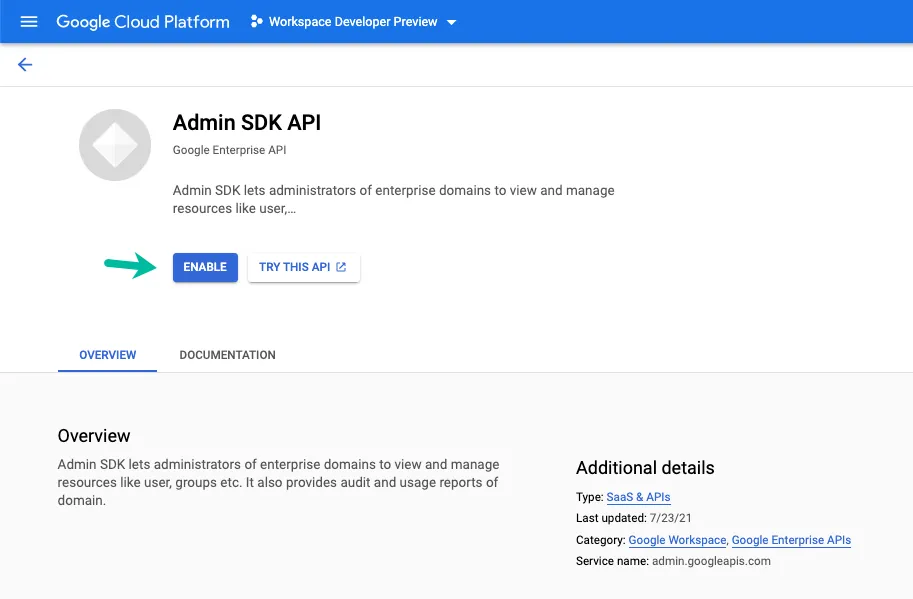
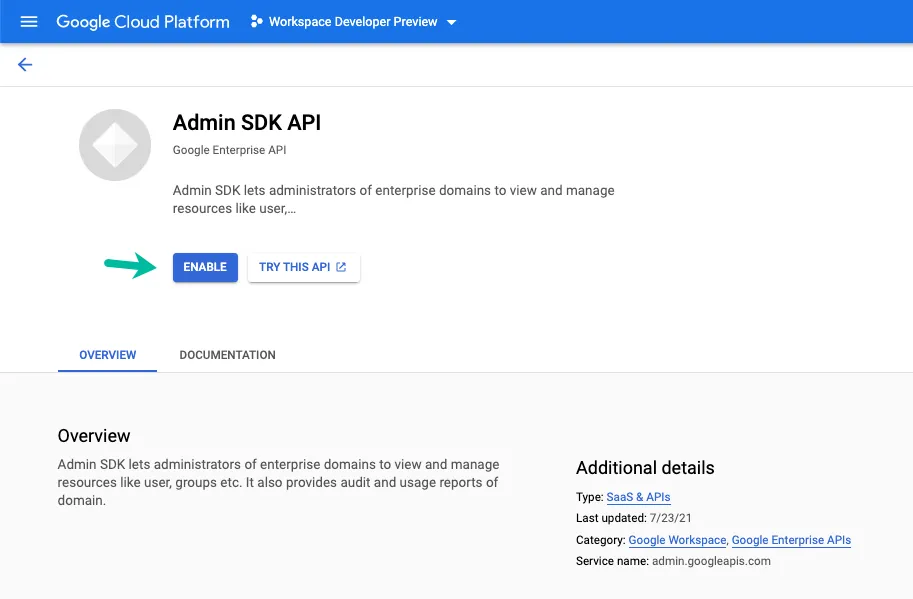
Next, go to the Google Cloud project associated with your Apps Script project. Switch to the Library section, search for Admin SDK and enable the API. The required OAuth scope is https://www.googleapis.com/auth/admin.directory.user and it should be listed in your appsscript.json file.
{
  "timeZone": "Asia/Kolkata",
  "dependencies": {
    "enabledAdvancedServices": [
      {
        "userSymbol": "AdminDirectory",
        "version": "directory_v1",
        "serviceId": "admin"
      }
    ]
  },
  "exceptionLogging": "STACKDRIVER",
  "oauthScopes": ["https://www.googleapis.com/auth/admin.directory.user"],
  "runtimeVersion": "V8"
}
The script will list all users in the domain and find the dormant accounts based on the last login date. If a user has not logged into his or her account in the last, say, 6 months, then the user is considered to be inactive and may be removed.
const getInactiveAccounts = () => {
  let accounts = [];
  let pageToken = null;

  // Replace example.com with your domain name.
  do {
    const { users, nextPageToken = null } = AdminDirectory.Users.list({
      domain: 'example.com',
      customer: 'my_customer',
      maxResults: 100,
      orderBy: 'email',
      pageToken
    });

    pageToken = nextPageToken;
    accounts = [...accounts, ...users];
  } while (pageToken !== null);

  // delete users who haven't logged in the last 6 months
  const MONTHS = 6;
  const cutOffDate = new Date();
  cutOffDate.setMonth(cutOffDate.getMonth() - MONTHS);

  const inactiveAccounts = accounts
    .filter(({ isAdmin }) => isAdmin === false) // Skip users with admin priveleges
    .filter(({ lastLoginTime }) => {
      const lastLoginDate = new Date(lastLoginTime);
      return lastLoginDate < cutOffDate;
    })
    .const(({ primaryEmail }) => primaryEmail); // Get only the email address

  Logger.log(`We found ${inactiveAccounts.length} inactive accounts in the domain.`);
  Logger.log(`The list is: ${inactiveAccounts.join(', ')}`);

  // Set this to true if you really want to delete the inactive accounts
  const DELETE_USER = false;

  if (DELETE_USER) {
    // Remove the users from the domain
    inactiveAccounts.forEach((userEmail) => {
      AdminDirectory.Users.remove(userEmail);
      Logger.log(`Deleted Google Workspace account for ${userEmail}`);
    });
  }
};Author

prakhar@affmantra.com
Related Posts

How to Add Speech Recognition to your Website
Table of Contents 1. Add Voice Recognition to your Website Open the Google website on your desktop computer and you’ll find a...
Read out all
How to Handle OAuth Permissions in Google Add-ons
- 0
- 714 words
Table of Contents 1. How to Check for Required OAuth Scopes 1.1 The “Authorization Catch-22” Problem 1.2 How to Reset the Permissions...
Read out all
How to Recover Permanently Deleted Files and Folders in Google Drive
- 0
- 326 words
Table of Contents When you delete any file or folder in your Google Drive, it is moved to the trash folder. The...
Read out all
Simple URL Tricks for Google Drive You Should Know
- 0
- 374 words
Table of Contents 1. Google Drive URL Tricks 1.1 Google Drive Web Viewer 1.2 Reader Mode for Google Drive Files 1.3 Embed...
Read out all
How to Extract URLs from HYPERLINK Function in Google Sheets
- 0
- 201 words
The HYPERLINK formula of Google Sheets lets you insert hyperlinks into your spreadsheets. The function takes two arguments: The full URL of...
Read out all
The Best Online Tools To Know Everything About a Website
- 0
- 12 words
The Best Online Tools To Know Everything About a Website Source link
Read out all