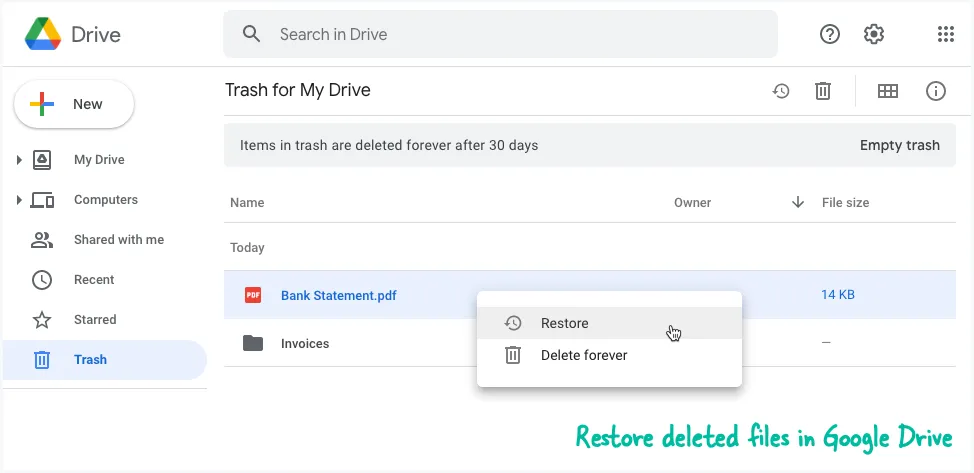
When you delete any file or folder in your Google Drive, it is moved to the trash folder. The deleted file stays in trash for 30 days and then it is permanently deleted. You can right-click the deleted file in the trash bin and select Restore to undelete the file.
Restore Permanently Deleted Files
If you fail to restore a deleted file within the 30-day window, or if you have emptied the trash manually, the files will be permanently deleted from your Google Drive.
You can however contact Google Support and they may restore the deleted files for you.
-
Go to support.google.com/drive?p=file_recovery and sign-in with the Google account you used to delete the file.
-
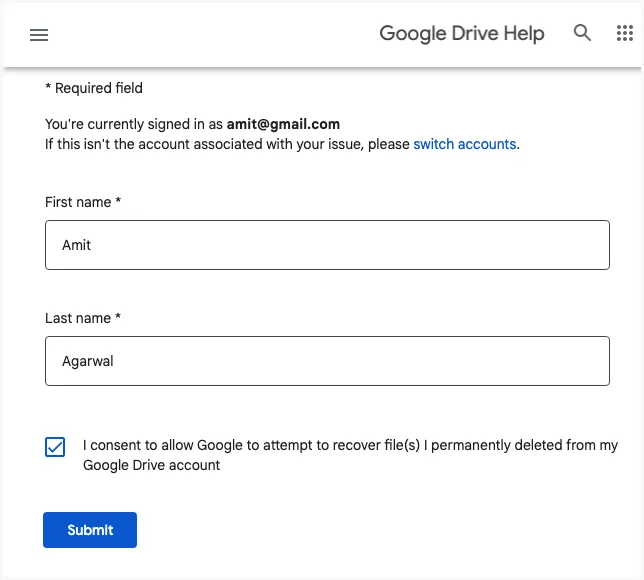
Provide your first name, last name, and check the consent box to confirm that you are trying to recover files you deleted from Google Drive.
You’ll receive an email from drive-noreply@google.com confirming that your request has been received and that it may take up to 48 hours for the files to be restored. (It usually takes less than 12 hours.)
Google recommends that you avoid emptying your trash while the file recovery process is ongoing. Also, please note that files that you have yourself uploaded to Google Drive may be recovered in this process. If you are not the owner of a file, it cannot be restored through this process.
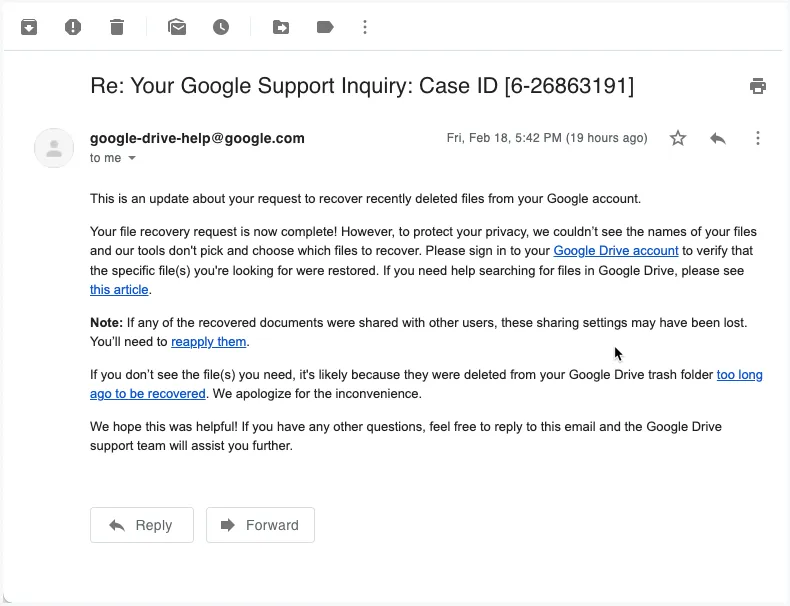
Once the restoration process is complete, Google Support will send you another email confirming that the files have been restored. You can now open your Google Drive and the permanently deleted files and folders will be visible in their original location.
The above steps are only valid for individual Google accounts. If you have a Google Workspace account, you would need to get in touch with your domain administrator to restore files. Also, the restoration process will restore all deleted files, it is currently possible to restore individual files or folders.
Author

prakhar@affmantra.com
Related Posts

How to Add Speech Recognition to your Website
Table of Contents 1. Add Voice Recognition to your Website Open the Google website on your desktop computer and you’ll find a...
Read out all
How to Handle OAuth Permissions in Google Add-ons
- 0
- 714 words
Table of Contents 1. How to Check for Required OAuth Scopes 1.1 The “Authorization Catch-22” Problem 1.2 How to Reset the Permissions...
Read out all
Simple URL Tricks for Google Drive You Should Know
- 0
- 374 words
Table of Contents 1. Google Drive URL Tricks 1.1 Google Drive Web Viewer 1.2 Reader Mode for Google Drive Files 1.3 Embed...
Read out all
How to Extract URLs from HYPERLINK Function in Google Sheets
- 0
- 201 words
The HYPERLINK formula of Google Sheets lets you insert hyperlinks into your spreadsheets. The function takes two arguments: The full URL of...
Read out all
Find and Remove Inactive Users in your Google Workspace Domain
- 0
- 388 words
Table of Contents 1. Find the inactive users in Google Workspace domain You can use Google Apps Script to find all the...
Read out all
The Best Online Tools To Know Everything About a Website
- 0
- 12 words
The Best Online Tools To Know Everything About a Website Source link
Read out all