Your Samsung Galaxy phone ships with Bixby, the voice assistant that is tightly integrated with the phone. However, if you prefer to use Google Gemini instead of Bixby, here’s a quick guide to help you through the process.
In the default configuration, when you press and hold the side button of your Galaxy phone, Bixby will wake up waiting for you to ask a question. Let’s see how we can use the same power button to wake up Google Gemini on your phone.
Step 1: Install Google Gemini
If you haven’t done so already, go to the Google Play Store and install the Google Gemini app.
Step 2: Replace Google Assistant with Gemini
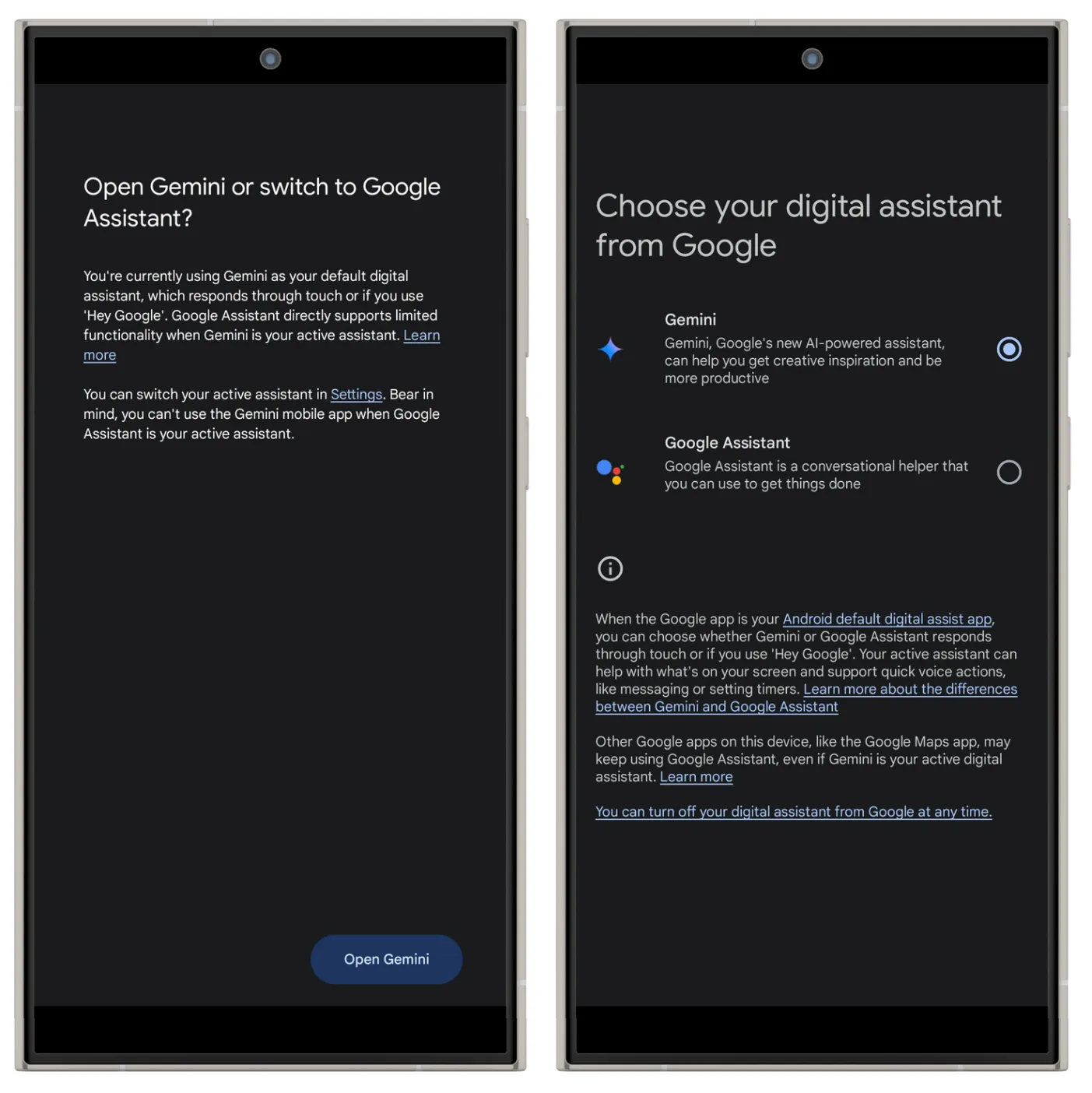
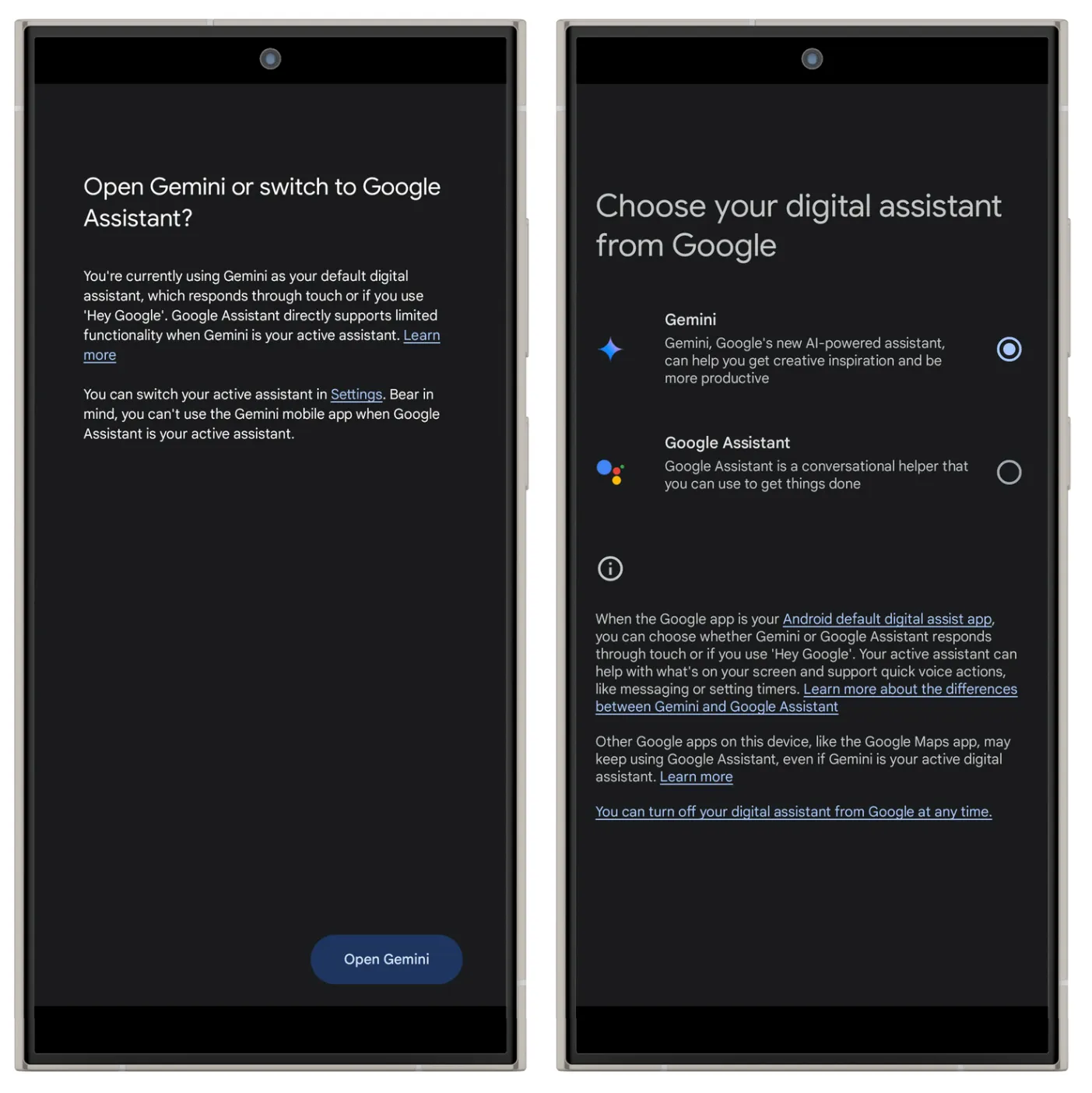
Next, you need to replace the good old Google Assistant with Gemini to act as the primary voice assistant from Google on your phone. Open the Google Assistant app and set Gemini as the default digital assistant app from Google on your phone.
Step 3: Map the Power Button to Gemini
Now we are ready to configure the power button to wake up Gemini instead of Bixby.
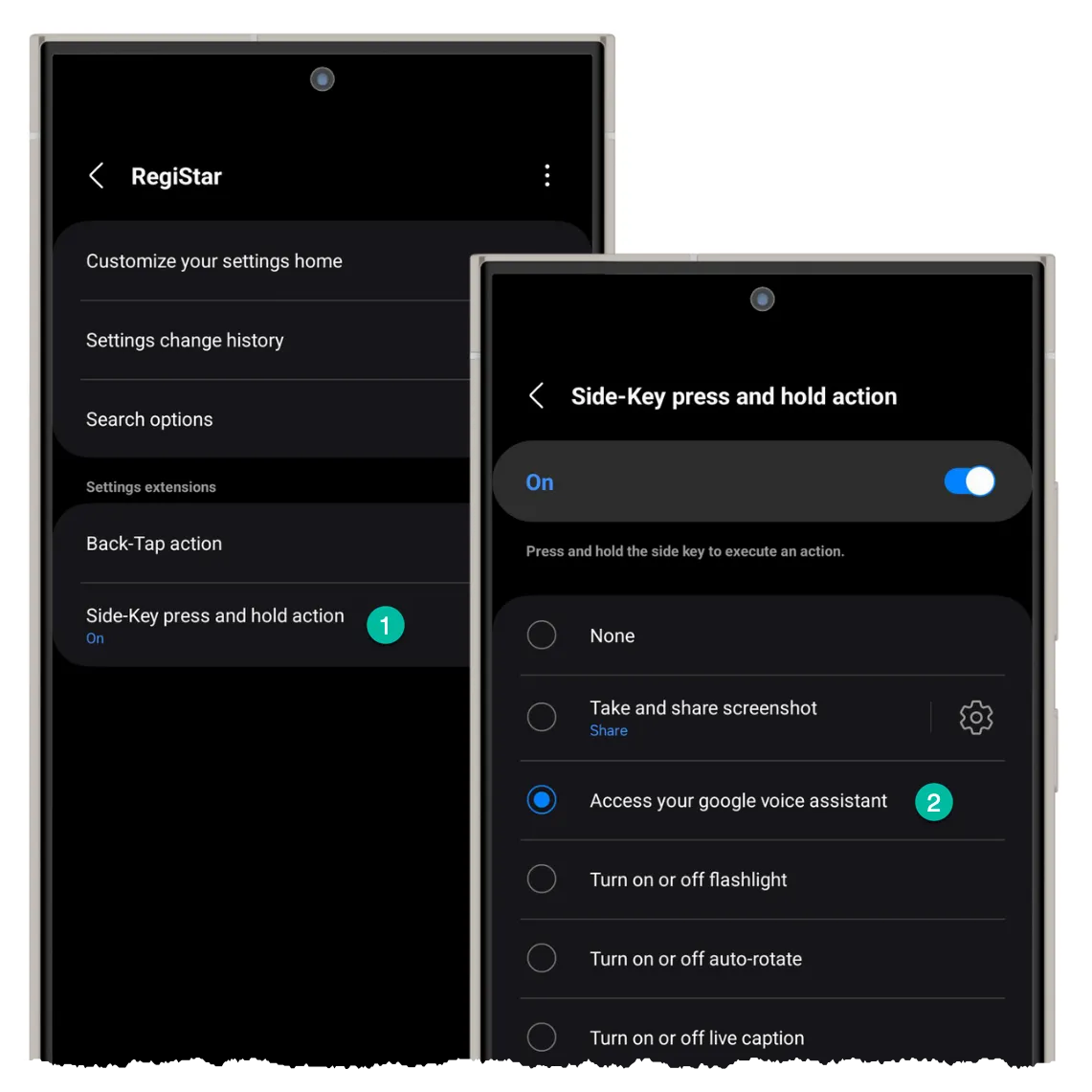
- Install the Good Lock and Registar apps from the Galaxy Store.
- Open the Good Lock app, go to the Plugins tab, and tap on
Registarto open the module. - Inside the Registar module, click on the
Side-key press and hold actionand set the action asAccess your Google Voice Assistant.
That’s it! You can now press and hold the power button to wake up Gemini on your Samsung mobile phone.
You can also launch ChatGPT, Perplexity or any other AI app by pressing and holding the power button. All you have to do is set the action to Open app inside the Registar module, tap the gear icon and select the app you want to launch.
Author

prakhar@affmantra.com
Related Posts

How to Add Speech Recognition to your Website
Table of Contents 1. Add Voice Recognition to your Website Open the Google website on your desktop computer and you’ll find a...
Read out all
How to Handle OAuth Permissions in Google Add-ons
- 0
- 714 words
Table of Contents 1. How to Check for Required OAuth Scopes 1.1 The “Authorization Catch-22” Problem 1.2 How to Reset the Permissions...
Read out all
How to Recover Permanently Deleted Files and Folders in Google Drive
- 0
- 326 words
Table of Contents When you delete any file or folder in your Google Drive, it is moved to the trash folder. The...
Read out all
Simple URL Tricks for Google Drive You Should Know
- 0
- 374 words
Table of Contents 1. Google Drive URL Tricks 1.1 Google Drive Web Viewer 1.2 Reader Mode for Google Drive Files 1.3 Embed...
Read out all
How to Extract URLs from HYPERLINK Function in Google Sheets
- 0
- 201 words
The HYPERLINK formula of Google Sheets lets you insert hyperlinks into your spreadsheets. The function takes two arguments: The full URL of...
Read out all
Find and Remove Inactive Users in your Google Workspace Domain
- 0
- 388 words
Table of Contents 1. Find the inactive users in Google Workspace domain You can use Google Apps Script to find all the...
Read out all