If you are running an online store running on WordPress, chances are you are using WooCommerce to manage your customers and orders. The holiday season in near and you may want to send your existing customers a special discount code for their next purchase. Or you may want to analyze your store’s data to see how your business is performing in various regions.
You can the built-in export feature of WooCommerce to export your customers data to a CSV file and then import the CSV file into Google Sheets. Go to your WooCommerce dashboard, navigate to the Customers section, and you’ll find an option to download the customers list as a CSV file.
If you are however looking for a more efficient way to export your WooCommerce customers to Google Sheets, you can use Google Apps Script to create a custom script that will export the customers to a Google Sheet.
Step 1: Create an API Key in WooCommerce
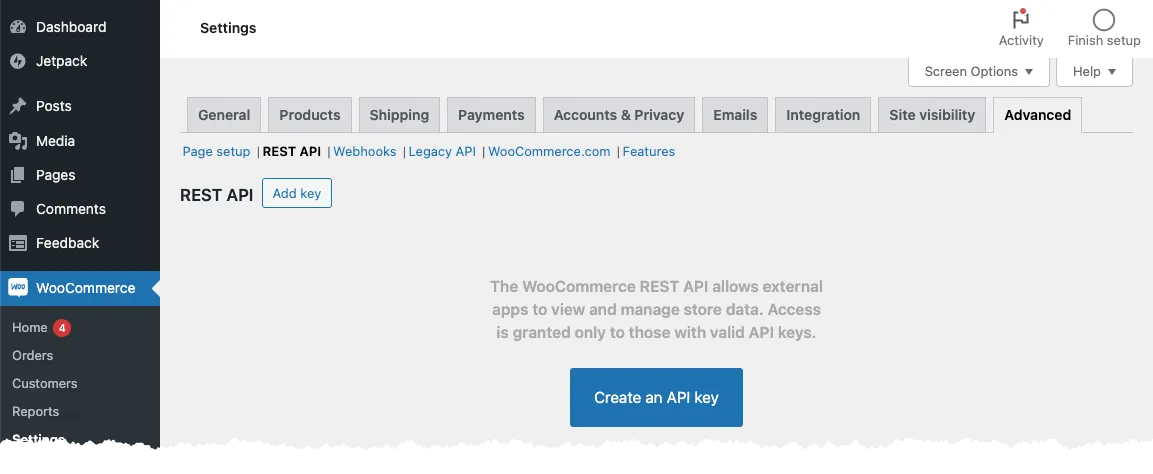
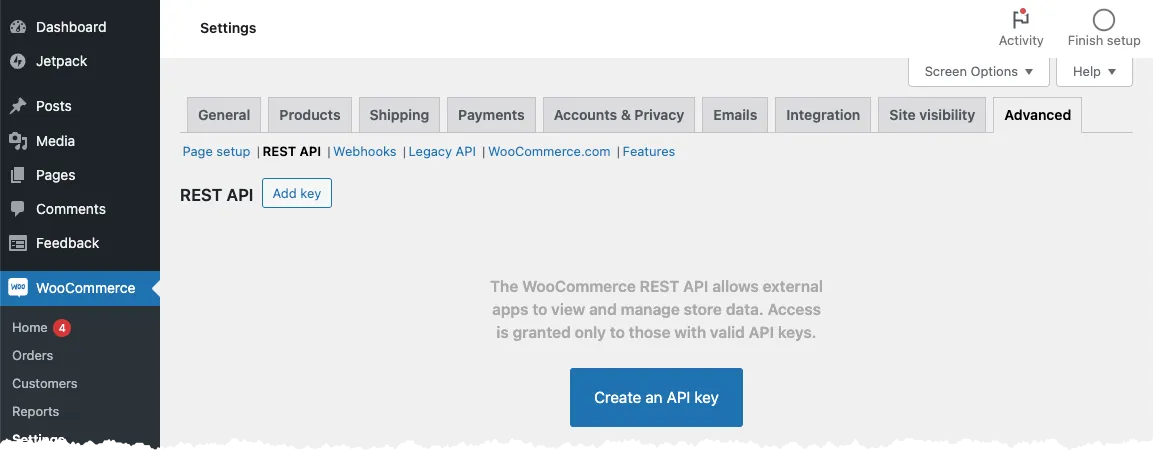
To get started, you’ll create an API key in WooCommerce. Go to your WooCommerce dashboard, navigate to the Settings section, and then click on the “Advanced” tab. Go to the “Rest API” section and click on the “Create API Key” button.
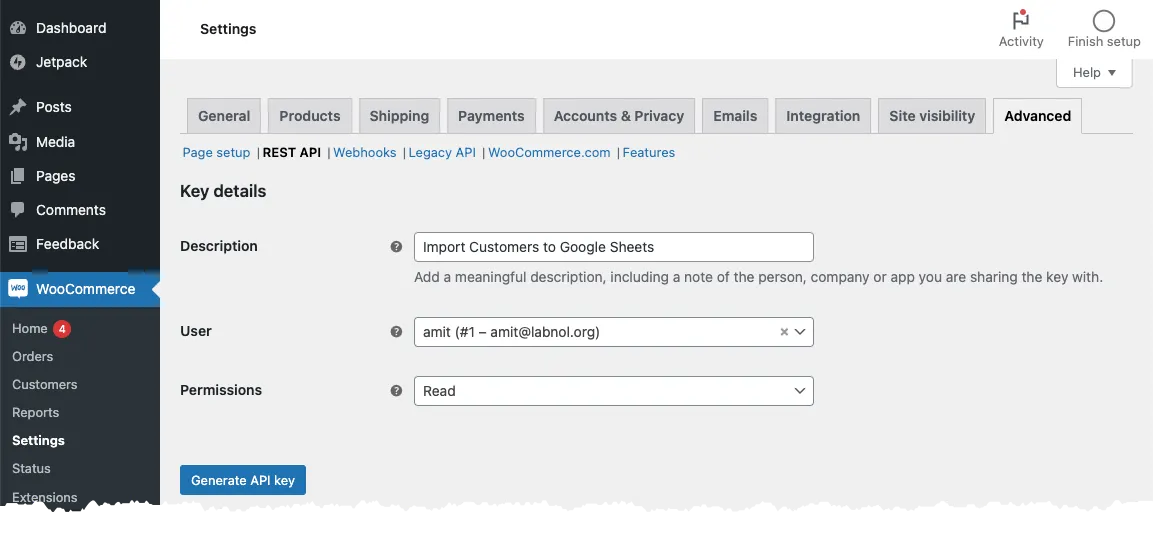
On the next screen, you’ll be asked to enter a name for the API key. You can use a name like “Import Customers to Google Sheets” or something similar. You can restrict the API key permissions to read only, which is all we need since we’re only going to be reading customer data and not modifying any data.
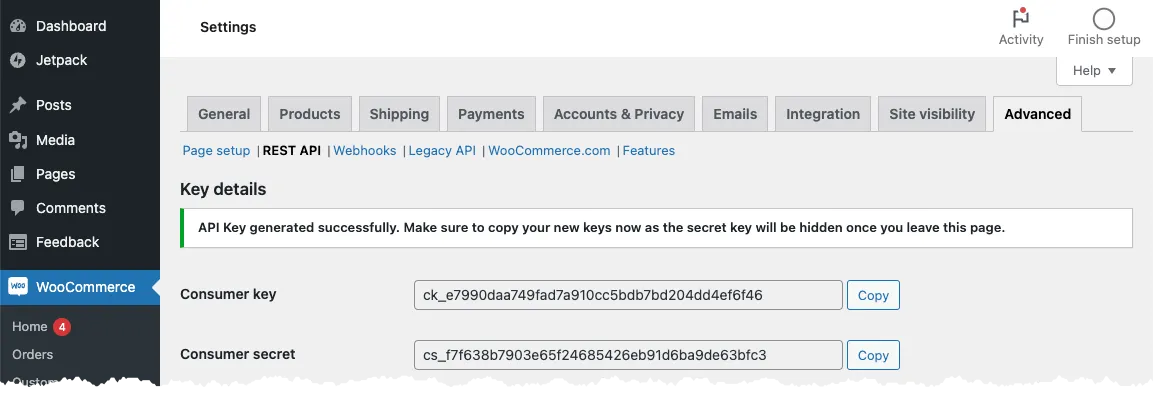
WooCommerce will generate the consumer key and consumer secret for you. You’ll need to save the secret key somewhere, as you won’t be able to access it later from the WooCommerce dashboard.
Step 2: Create a Google Sheet
Now that you have your WooCommerce credentials, let’s create a Google Sheet to store the customer data. Type sheets.new in your browser’s address bar to create a new spreadsheet. Go to Extensions > Apps Script to open the Google Apps Script editor associated with your spreadsheet.
Paste the following code into the Apps Script editor. Remember to replace the WooCommerce consumer key, consumer secret and WordPress domain with your own values. Do not add a slash at the end of the WordPress domain.
const MAX_PER_PAGE = 100;
const CONSUMER_KEY = '<<YOUR_CONSUMER_KEY>>';
const CONSUMER_SECRET = '<<YOUR_CONSUMER_SECRET>>';
const WORDPRESS_DOMAIN = '<<YOUR_WORDPRESS_DOMAIN>>';

const fetchWooCommerceCustomers = () => {
  const bearerToken = Utilities.base64Encode(`${CONSUMER_KEY}:${CONSUMER_SECRET}`);

  const getQueryString = (options) => {
    return Object.keys(options)
      .map((key) => `${key}=${options[key]}`)
      .join('&');
  };

  const getApiUrl = (pageNum) => {
    const options = {
      context: 'view',
      page: pageNum,
      per_page: MAX_PER_PAGE,
      order: 'desc',
      orderby: 'id',
      role: 'customer'
    };
    return `${WORDPRESS_DOMAIN}/wp-json/wc/v3/customers?${getQueryString(options)}`;
  };

  // Fetches a single page of customer data.
  const fetchPage = (pageNum) => {
    const url = getApiUrl(pageNum);
    const response = UrlFetchApp.fetch(url, {
      headers: {
        'Content-Type': 'application/json',
        Authorization: `Basic ${bearerToken}`
      }
    });

    return JSON.parse(response.getContentText());
  };

  let page = 1;
  let allCustomers = [];
  let hasMore = true;

  do {
    const customers = fetchPage(page);
    allCustomers = allCustomers.concat(customers);
    page += 1;
    hasMore = customers.length === MAX_PER_PAGE;
  } while (hasMore === true);

  return allCustomers;
};
The above script will fetch all the customers from your WooCommerce store. Next, we’ll add a function to flatten the customer data and store it in a Google Sheet.
Step 3: Flatten the Customer Data
To flatten the customer data, we’ll add the following function to the script.
const parseCustomer = (customer) => {
  const { id, first_name, last_name, email, billing = {} } = customer;
  return {
    customer_id: id,
    first_name,
    last_name,
    customer_email: email,
    billing_first_name: billing.first_name,
    billing_last_name: billing.last_name,
    billing_email: billing.email,
    billing_phone: billing.phone,
    billing_address_1: billing.address_1,
    billing_address_2: billing.address_2,
    billing_city: billing.city,
    billing_state: billing.state,
    billing_postcode: billing.postcode,
    billing_country: billing.country
  };
};
Step 4: Store the Customer Data
To store the customer data in a Google Sheet, we’ll add the following function to the script.
const exportCustomersToGoogleSheet = () => {
  const wooData = fetchWooCommerceCustomers();
  const customers = wooData.map(parseCustomer);
  const headers = Object.keys(customers[0]);
  const rows = customers.map((c) => headers.map((header) => c[header] || ''));
  const data = [headers, ...rows];
  const sheet = SpreadsheetApp.getActiveSpreadsheet().insertSheet();
  sheet.getRange(1, 1, data.length, data[0].length).setValues(data);
  const message = rows.length + ' customers exported to sheet ' + sheet.getName();
  SpreadsheetApp.getUi().alert(message);
};
Step 5: Run the Export Function
Inside the Apps Script editor, click on the “exportCustomersToGoogleSheet” function and then click on the “Run” button. Authorize the script and watch as your customers data from WooCommerce magically appears in your Google Sheet.
You can then use Gmail Mail Merge to send personalized emails to your customers right inside the Google Sheet.
Author

prakhar@affmantra.com
Related Posts

How to Add Speech Recognition to your Website
Table of Contents 1. Add Voice Recognition to your Website Open the Google website on your desktop computer and you’ll find a...
Read out all
How to Handle OAuth Permissions in Google Add-ons
- 0
- 714 words
Table of Contents 1. How to Check for Required OAuth Scopes 1.1 The “Authorization Catch-22” Problem 1.2 How to Reset the Permissions...
Read out all
How to Recover Permanently Deleted Files and Folders in Google Drive
- 0
- 326 words
Table of Contents When you delete any file or folder in your Google Drive, it is moved to the trash folder. The...
Read out all
Simple URL Tricks for Google Drive You Should Know
- 0
- 374 words
Table of Contents 1. Google Drive URL Tricks 1.1 Google Drive Web Viewer 1.2 Reader Mode for Google Drive Files 1.3 Embed...
Read out all
How to Extract URLs from HYPERLINK Function in Google Sheets
- 0
- 201 words
The HYPERLINK formula of Google Sheets lets you insert hyperlinks into your spreadsheets. The function takes two arguments: The full URL of...
Read out all
Find and Remove Inactive Users in your Google Workspace Domain
- 0
- 388 words
Table of Contents 1. Find the inactive users in Google Workspace domain You can use Google Apps Script to find all the...
Read out all