Google Secret Manager is a cloud service where you can store sensitive data such as passwords, database credentials, encryption keys or any other confidential information that you don’t want to hardcode in your application’s source code. You can also set up an expiration time for the secret and the Google Secret Manager will automatically delete the secret after the specified time.
The following guide explains how you can use Google Apps Script to access secrets stored in the Google Secret Manager. But before we proceed, let’s first create a secret in the Google Secret Manager.
Enable Google Secret Manager
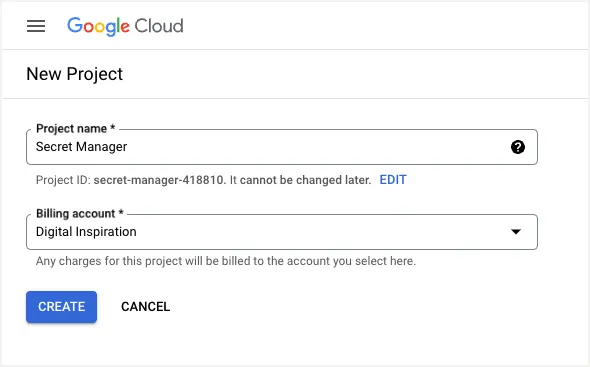
1. Open the Google Cloud Console and create a new project.
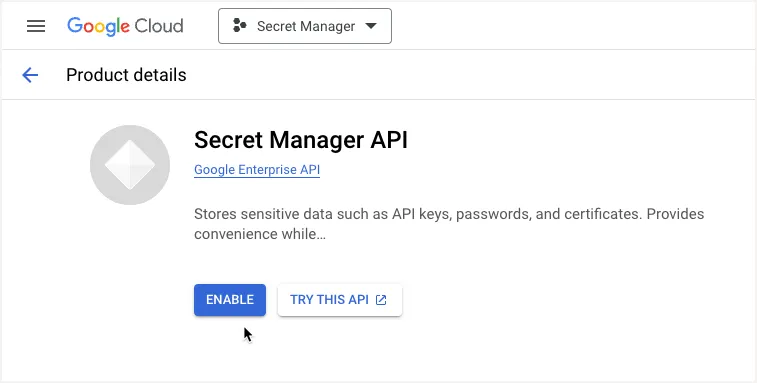
2. Go to the Library section of your Google Cloud project and enable the Secret Manager API.
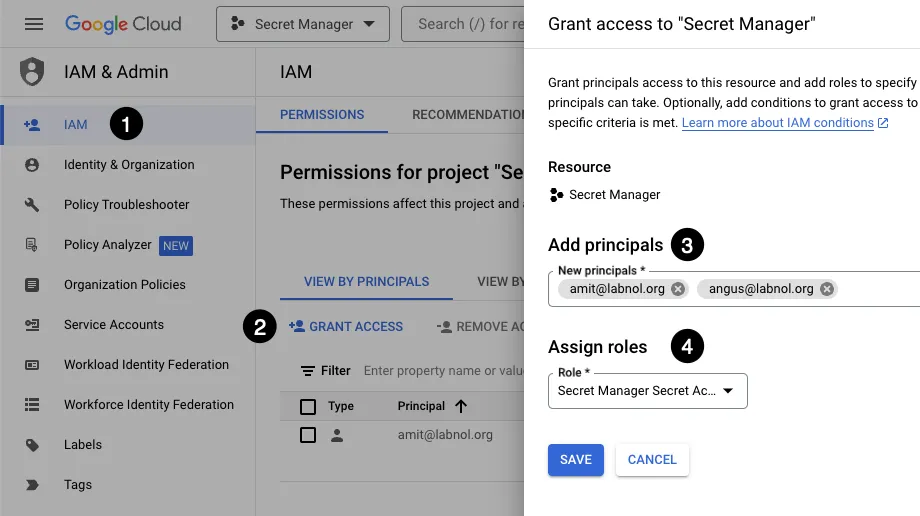
3. Go to the IAM & Admin > IAM section of your Google Cloud. Click on Grant Access and add the Secret Manager Secret Accessor role to the Google account from which you want to access the secrets stored in the Google Secret Manager.
Create a Secret in Google Secret Manager
Now that you have enabled the Secret Manager API and granted access to your Google account, let’s create a new secret in the Google Secret Manager.
Go to the Secret Manager and click on the Create Secret button to create a new secret.
Give your secret a name and add the secret value – this could be a plain text string, or you can upload a binary file up to 64KB in size. If you would like the secret to expire after a certain time, you can set an expiration time for the secret.
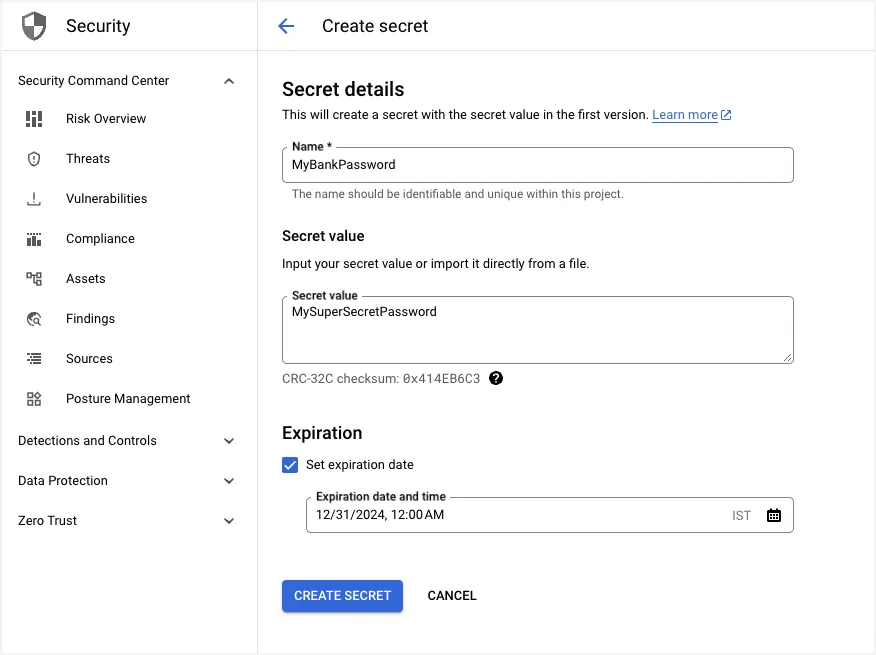
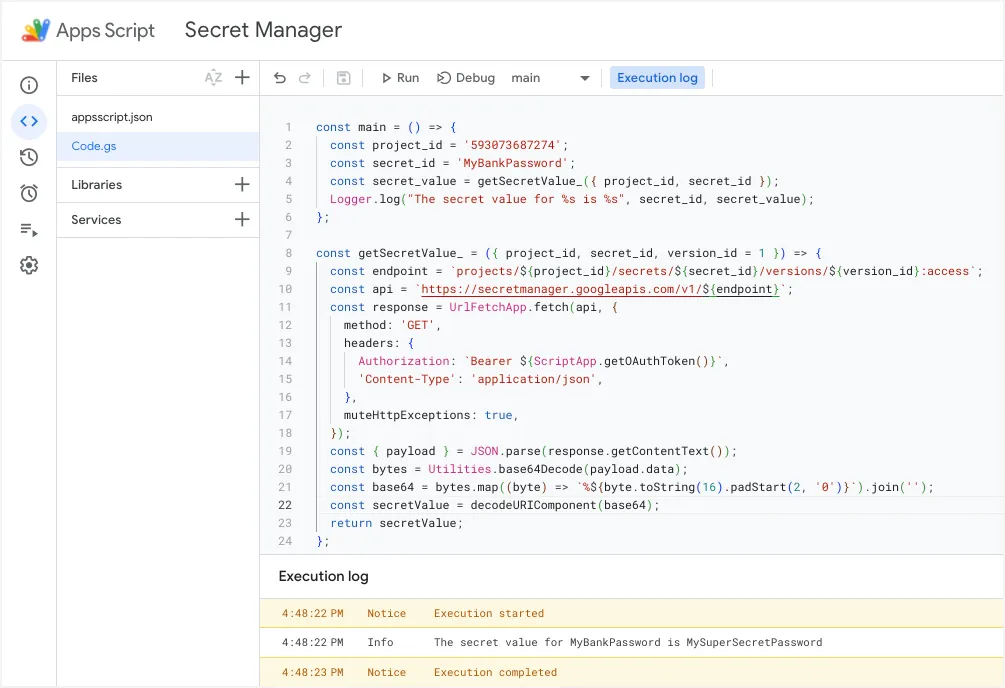
In the above example, I have created a secret named MyBankPassword with the value MySuperSecretPassword. Google Secret Manager will automatically assign a version number (1) to the secret. You cannot change the secret value once it has been saved but you can create a new version of the secret with a different value.
Access Google Secret Manager from Google Apps Script
Now that you have created a secret in the Google Secret Manager, let’s write a Google Apps Script that will fetch the secret value from the Google Secret Manager.
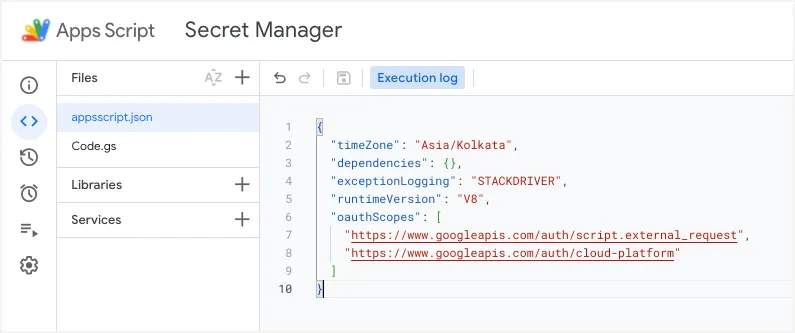
Go to script.new to create a new Google Apps Script project. Go to the Project Settings and enable the Show appsscript.json manifest file in editor option. Switch to the appsscript.json tab and add the following OAuth scopes to the manifest file:
{
  "oauthScopes": [
    "https://www.googleapis.com/auth/script.external_request",
    "https://www.googleapis.com/auth/cloud-platform"
  ]
}
Next, add the following function to your Google Apps Script project. Replace the project_id, secret_id, and version_id variables with the actual values of your secret.
The project_id is the project number of your Google Cloud project and can be found in the Google Cloud Console here.
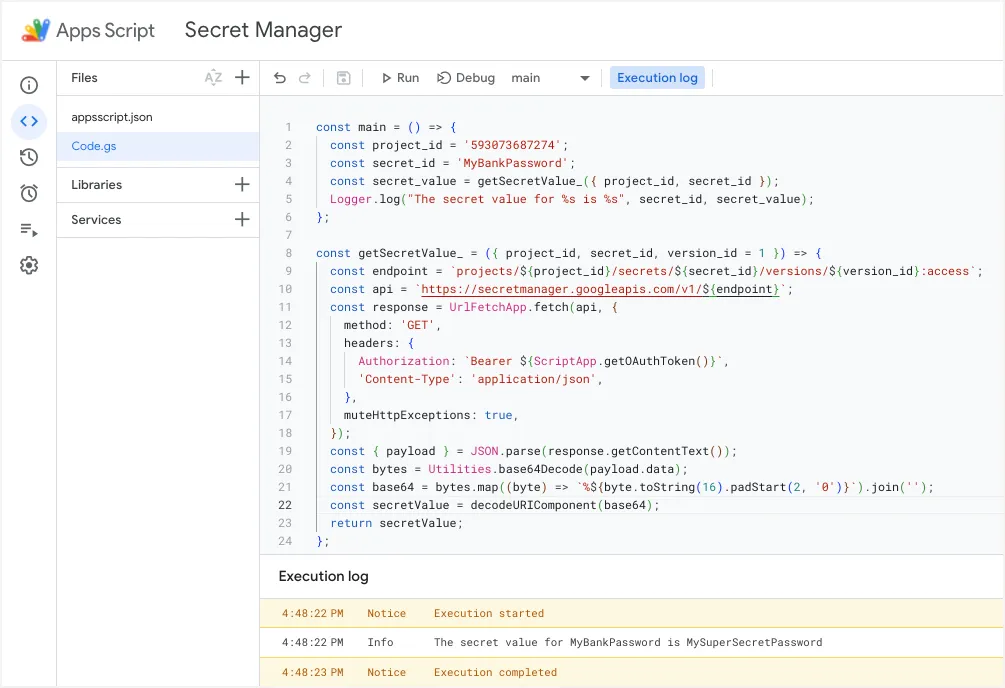
After you have added the function to your Google Apps Script project, run the main function to fetch the secret value from the Google Secret Manager and log it to the Google Apps Script Logger.
const main = () => {
  const project_id = '<<YourProjectId>>';
  const secret_id = '<<YourSecretId>>';
  const secret_value = getSecretValue_({ project_id, secret_id });
  Logger.log('The secret value for %s is %s', secret_id, secret_value);
};

const getSecretValue_ = ({ project_id, secret_id, version_id = 1 }) => {
  const endpoint = `projects/${project_id}/secrets/${secret_id}/versions/${version_id}:access`;
  const api = `https://secretmanager.googleapis.com/v1/${endpoint}`;
  const response = UrlFetchApp.fetch(api, {
    method: 'GET',
    headers: {
      Authorization: `Bearer ${ScriptApp.getOAuthToken()}`,
      'Content-Type': 'application/json'
    },
    muteHttpExceptions: true
  });

  const { error, payload } = JSON.parse(response.getContentText());

  // If there was an error, throw an exception
  // The secret may not exist or the user may not have access to it
  if (error) {
    throw new Error(error.message);
  }

  // The secret value is Base64-encoded, so we need to decode it
  const bytes = Utilities.base64Decode(payload.data);
  const base64 = bytes.map((byte) => `%${byte.toString(16).padStart(2, '0')}`).join('');
  const secretValue = decodeURIComponent(base64);
  return secretValue;
};Author

prakhar@affmantra.com
Related Posts

How to Create Photo Stickers in Canva
Table of Contents This quick tutorial will walk you through the steps to create your own custom stickers from photos in Canva....
Read out all
How to Add Speech Recognition to your Website
Table of Contents 1. Add Voice Recognition to your Website Open the Google website on your desktop computer and you’ll find a...
Read out all
How to Handle OAuth Permissions in Google Add-ons
- 0
- 714 words
Table of Contents 1. How to Check for Required OAuth Scopes 1.1 The “Authorization Catch-22” Problem 1.2 How to Reset the Permissions...
Read out all
How to Recover Permanently Deleted Files and Folders in Google Drive
- 0
- 326 words
Table of Contents When you delete any file or folder in your Google Drive, it is moved to the trash folder. The...
Read out all
Simple URL Tricks for Google Drive You Should Know
- 0
- 374 words
Table of Contents 1. Google Drive URL Tricks 1.1 Google Drive Web Viewer 1.2 Reader Mode for Google Drive Files 1.3 Embed...
Read out all
How to Extract URLs from HYPERLINK Function in Google Sheets
- 0
- 201 words
The HYPERLINK formula of Google Sheets lets you insert hyperlinks into your spreadsheets. The function takes two arguments: The full URL of...
Read out all