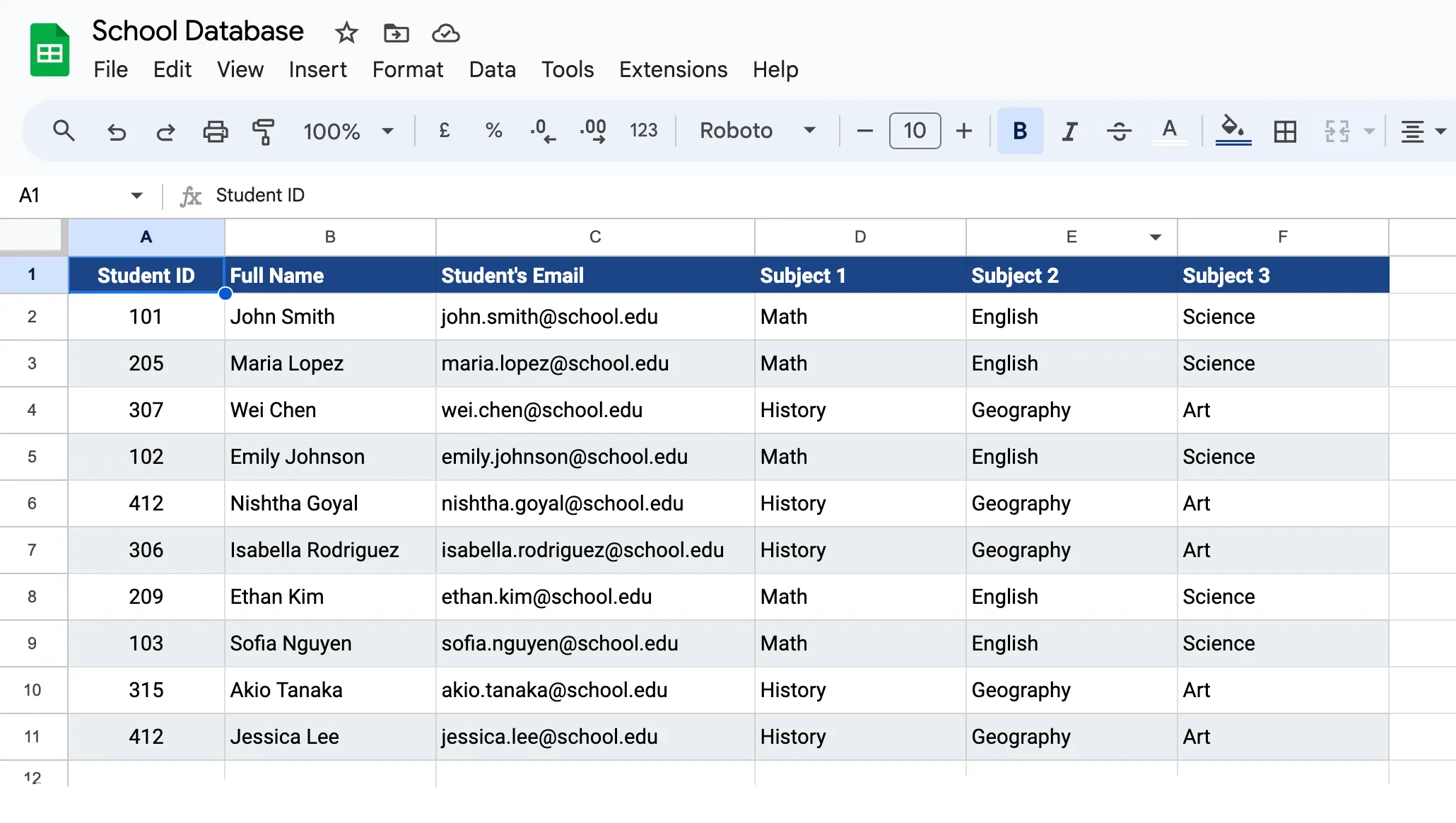
A teacher would like to create separate Google Drive folders for each student in her class. Within each student’s folder, there will be additional subfolders for various subjects. This folder structure would make it easier for students to submit their assignments to the appropriate subject subfolders.
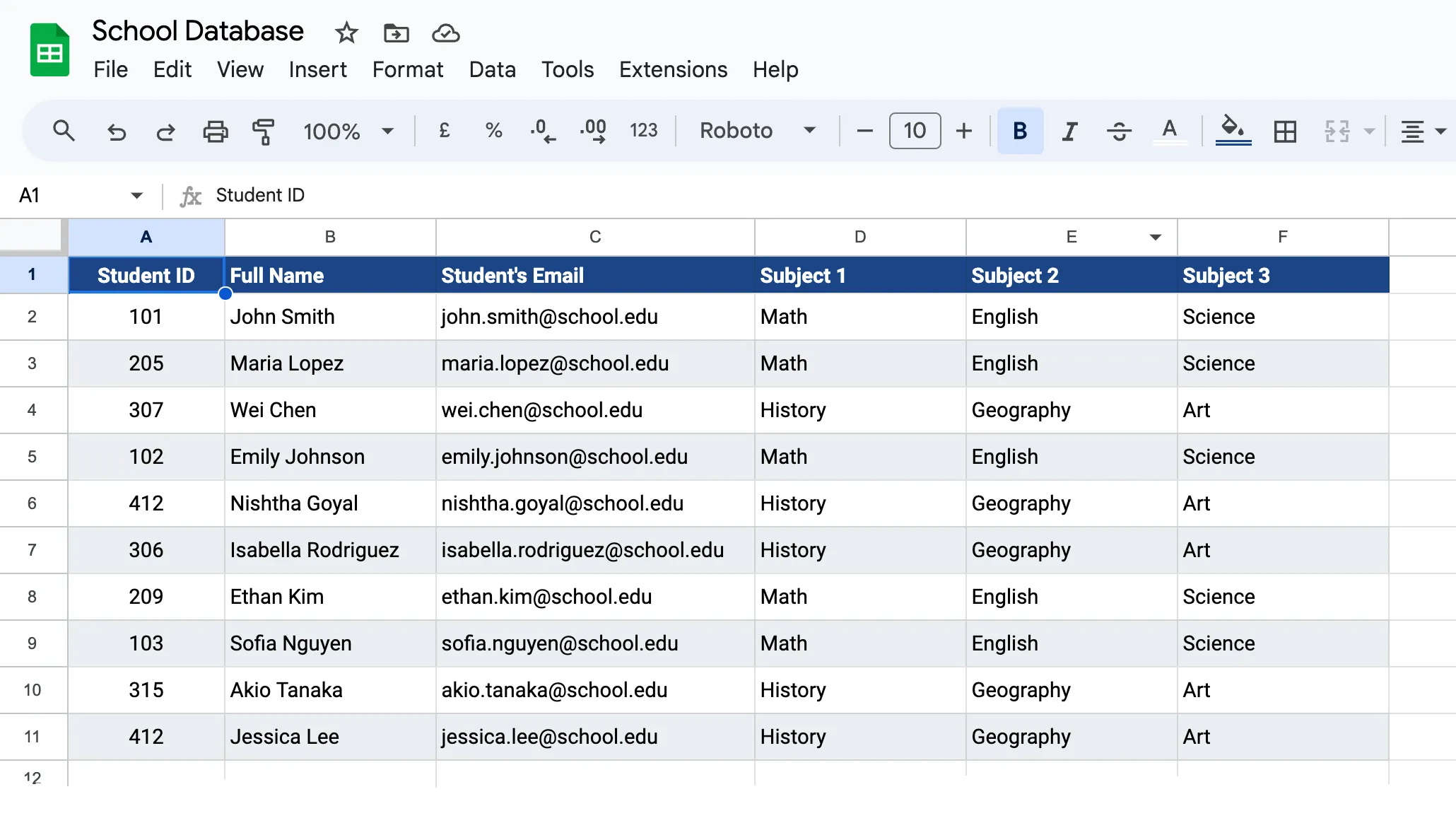
We’ve prepared a Google Sheet with the names of students, and the subjects they are taking.
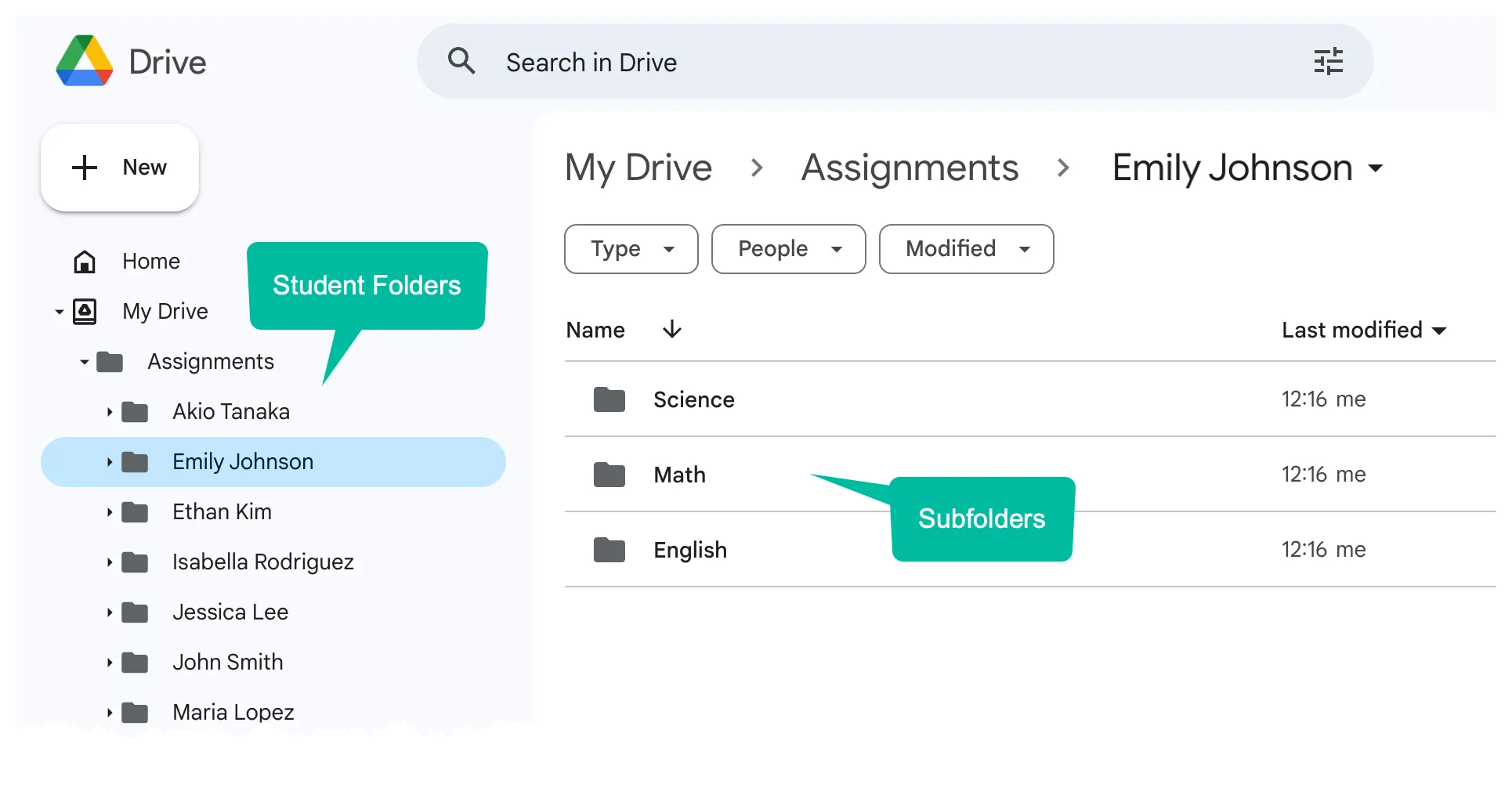
For example, consider a student named Emily Johnson, who is taking Maths, Science, and English. In this case, you need to create four new folders in total, with one main folder named ‘Emily Johnson’ and three subfolders within it for each subject: Maths, Science, and English.
Create Multiple Folders in Google Drive
Install the Document Studio add-on for Google Sheets. Open the spreadsheet with the student data and click on Extensions > Document Studio > Open to launch the add-on.
Create a new workflow inside Document studio, give it a descriptive name like Student Folders. Next, select the source worksheet that contains the student’s data and click on the Continue button to move to the next step.
On the next screen, you can specify the conditions for creating the folders in Google Drive. For instance, you may only want to create folders for students who are taking a specific subject or are in a particular class. Press the Continue button to move to the next step.
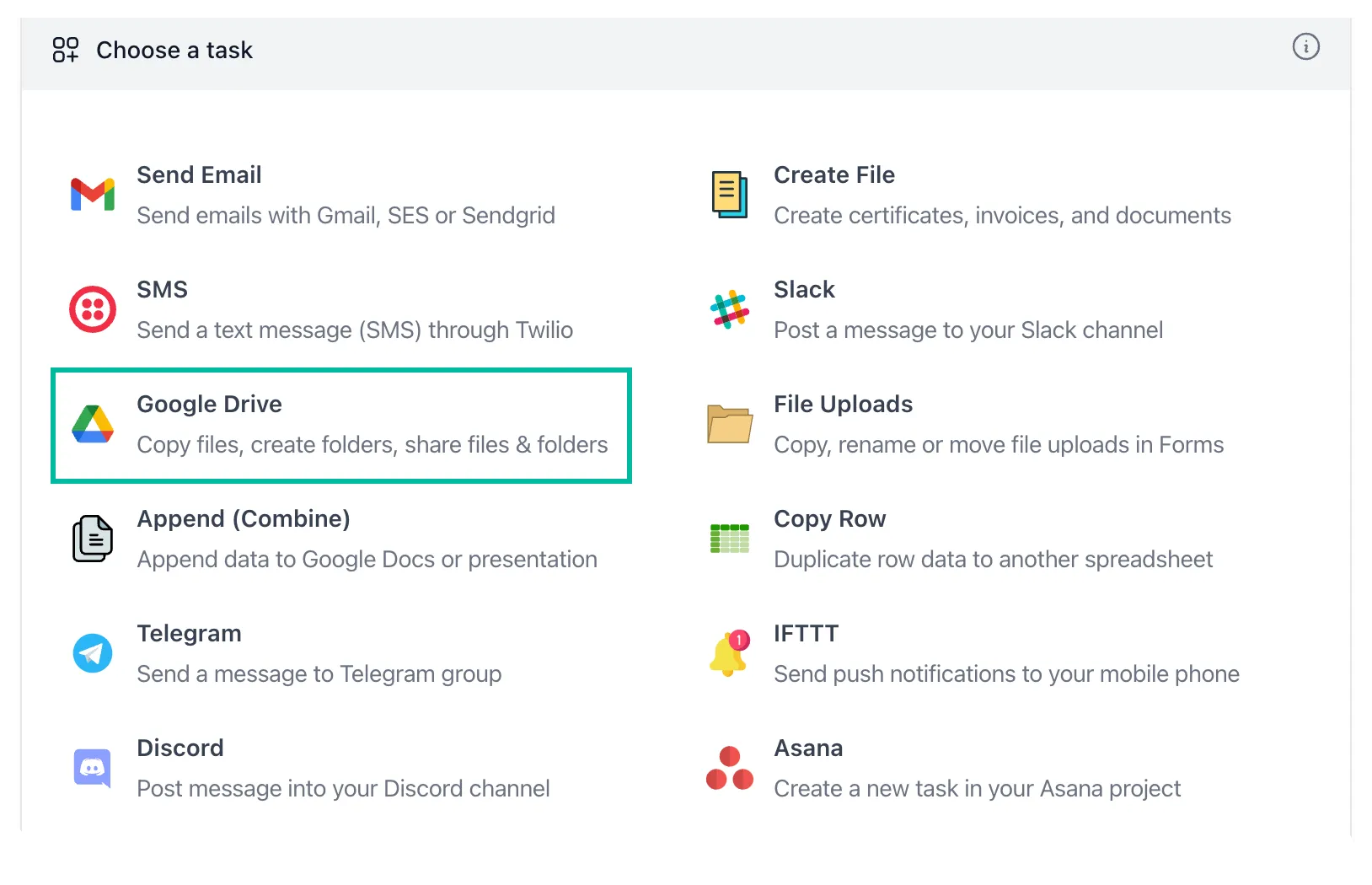
Choose the Google Drive task and then select Create Folder from the dropdown menu. Next, select the parent folder in Google Drive where the student folders should be created. You can choose to create folders inside your personal Google Drive or even Shared Drives.
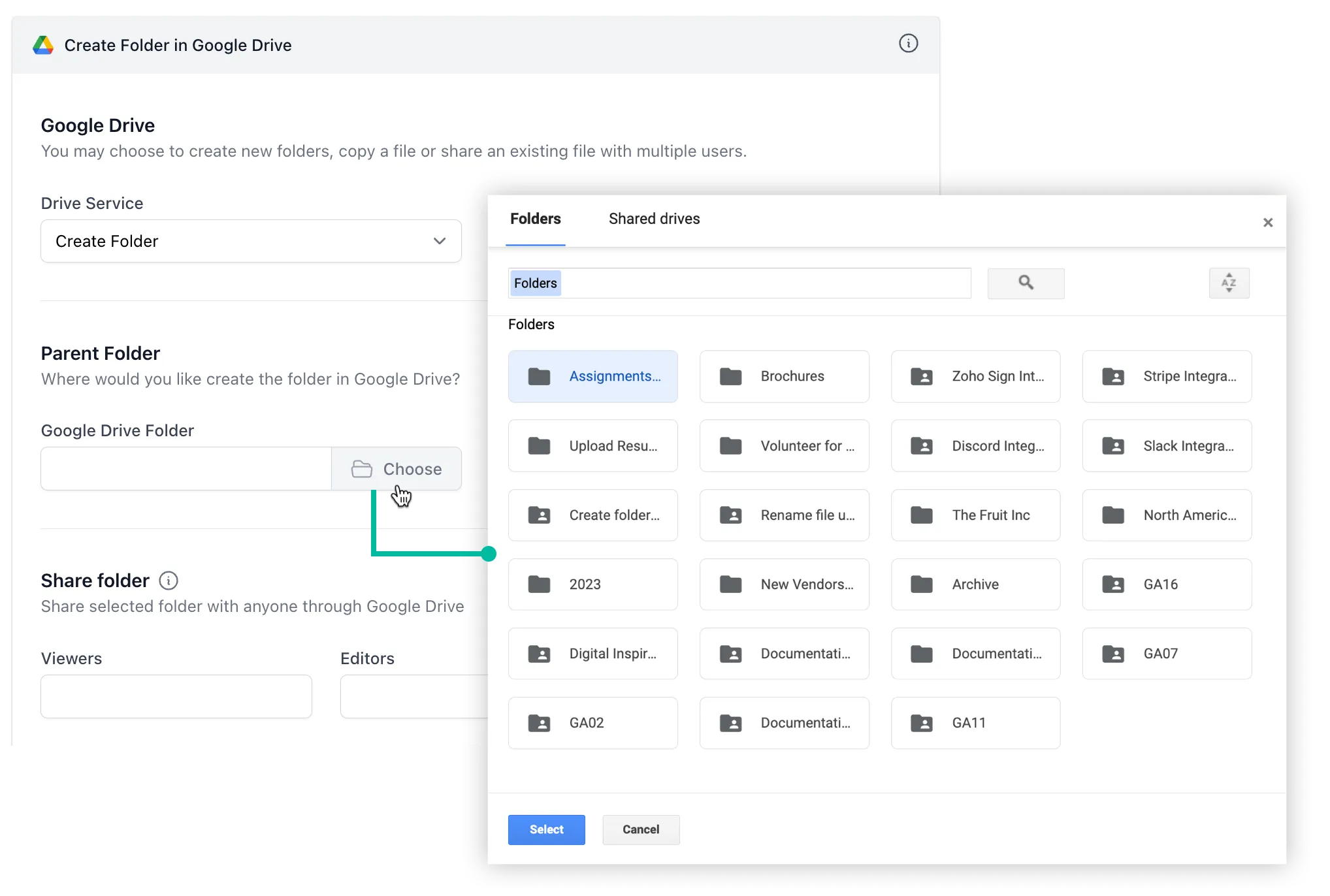
Naming Folders and SubfoldersStudent Folders
Now that you have selected the parent folder, you need to define the name of the child folder along with its subfolder structure.
For the Subfolder Name field, we’ll put {{ Full Name }} / {{ Subject 1 }} and this will do two things:
-
Create a new folder for each student in the parent folder with the student’s name. The folder is only created if it doesn’t already exist.
-
Inside the student folder, create a subfolder for
Subject 1that the student is taking. The value ofSubject 1is replaced with the actual subject name from the Google Sheet.
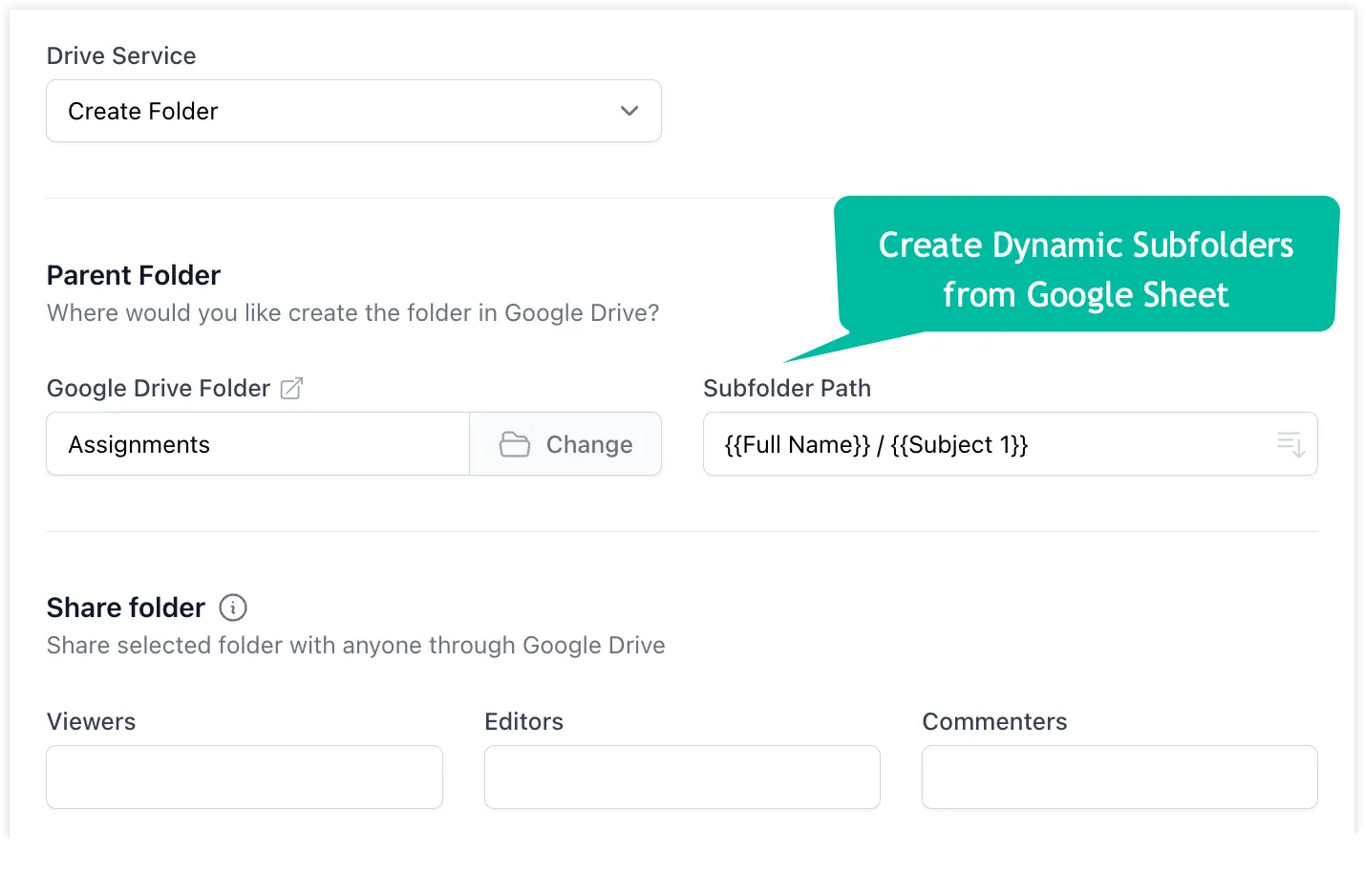
You may also put the {{Email Address}} column in the Editors field to share the student folders with their email addresses automatically when the folder is created in Google Drive.
Create Additional Subject Subfolders
Now that you have defined the task to create subfolders for the first subject, you can add more tasks to create subfolders for other subjects as well.
Instead of creating a new task, you can simply duplicate the existing task and change the Subfolder Name field to {{ Full Name }} / {{ Subject 2 }} to create subfolders for the remaining subjects.
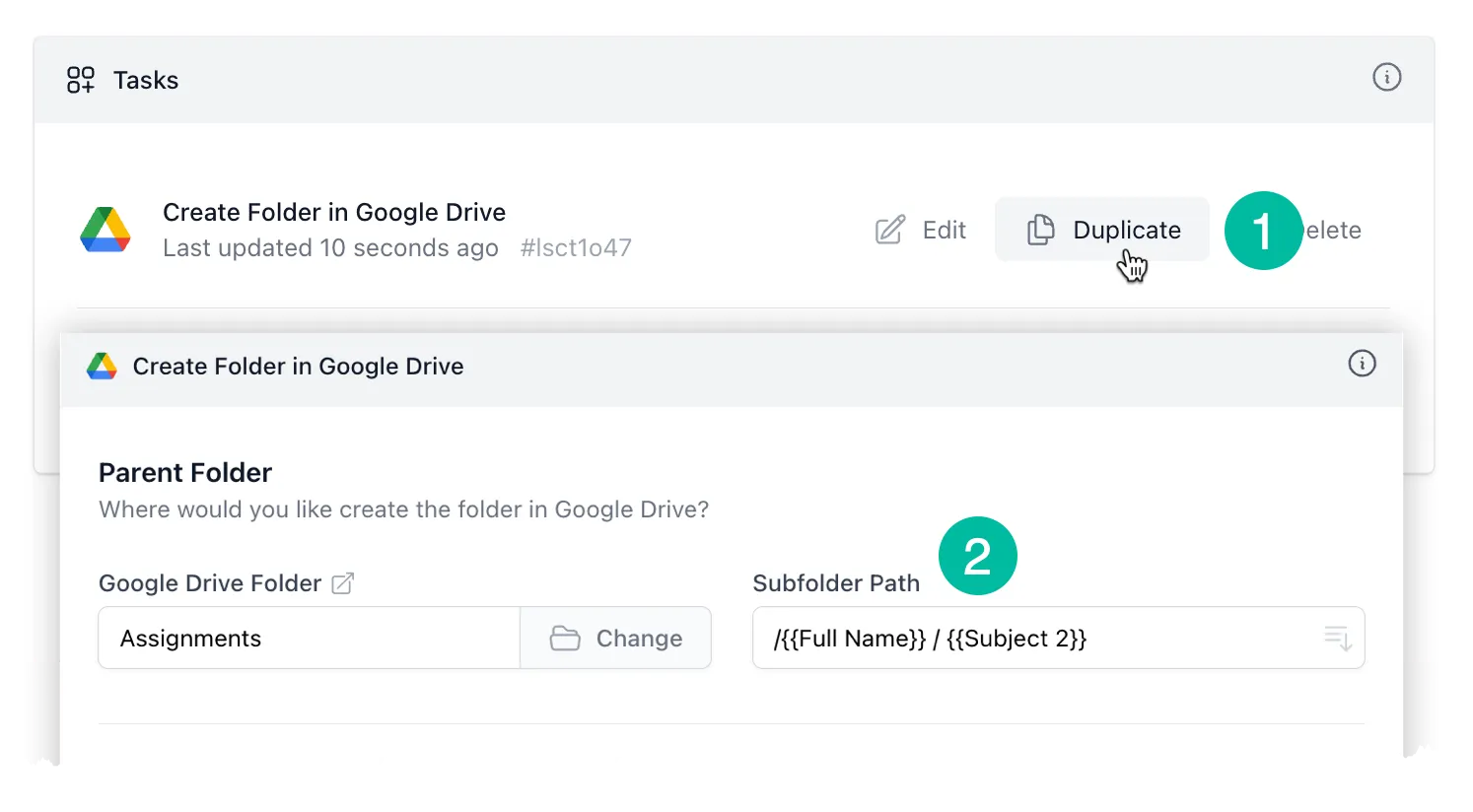
Now that workflow is ready, choose the Save and Run option to create the folders and subfolders in Google Drive. The folders would be created and a link to the folder would be placed in the spreadsheet itself. If a folder already exists, the link to the existing folder is placed in the spreadsheet.
This is how the folder structure would look like in Google Drive:
Also see: Create Folders for Google Form responses
Author

prakhar@affmantra.com
Related Posts

How to Create Photo Stickers in Canva
Table of Contents This quick tutorial will walk you through the steps to create your own custom stickers from photos in Canva....
Read out all
How to Add Speech Recognition to your Website
Table of Contents 1. Add Voice Recognition to your Website Open the Google website on your desktop computer and you’ll find a...
Read out all
How to Handle OAuth Permissions in Google Add-ons
- 0
- 714 words
Table of Contents 1. How to Check for Required OAuth Scopes 1.1 The “Authorization Catch-22” Problem 1.2 How to Reset the Permissions...
Read out all
How to Recover Permanently Deleted Files and Folders in Google Drive
- 0
- 326 words
Table of Contents When you delete any file or folder in your Google Drive, it is moved to the trash folder. The...
Read out all
Simple URL Tricks for Google Drive You Should Know
- 0
- 374 words
Table of Contents 1. Google Drive URL Tricks 1.1 Google Drive Web Viewer 1.2 Reader Mode for Google Drive Files 1.3 Embed...
Read out all
How to Extract URLs from HYPERLINK Function in Google Sheets
- 0
- 201 words
The HYPERLINK formula of Google Sheets lets you insert hyperlinks into your spreadsheets. The function takes two arguments: The full URL of...
Read out all