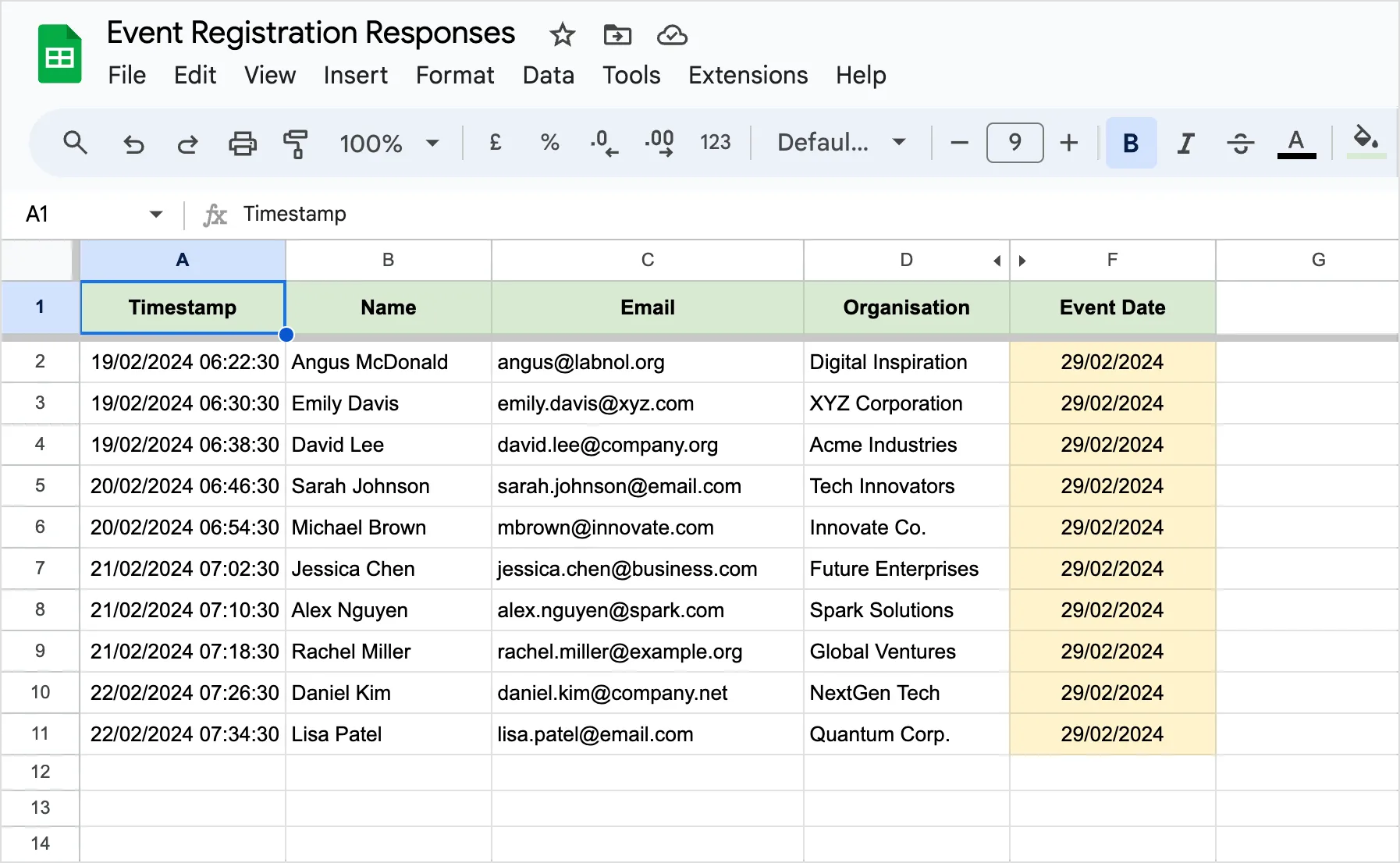
You are using Google Forms to collect registrations for an upcoming event and would like to send email reminders to all the registered attendees a few days before the event date to ensure maximum attendance.
This tutorial explains how you can use Google Sheets and Document Studio for sending automatic reminders to all the registered attendees. We’ll primarily us Gmail to send the reminders via email but you can also use contact the event registrants via SMS or WhatsApp.
The reminders can be scheduled for any future date and time, and the email body can be personalized for each recipient. Let’s get started.
Prepare the Google Sheet
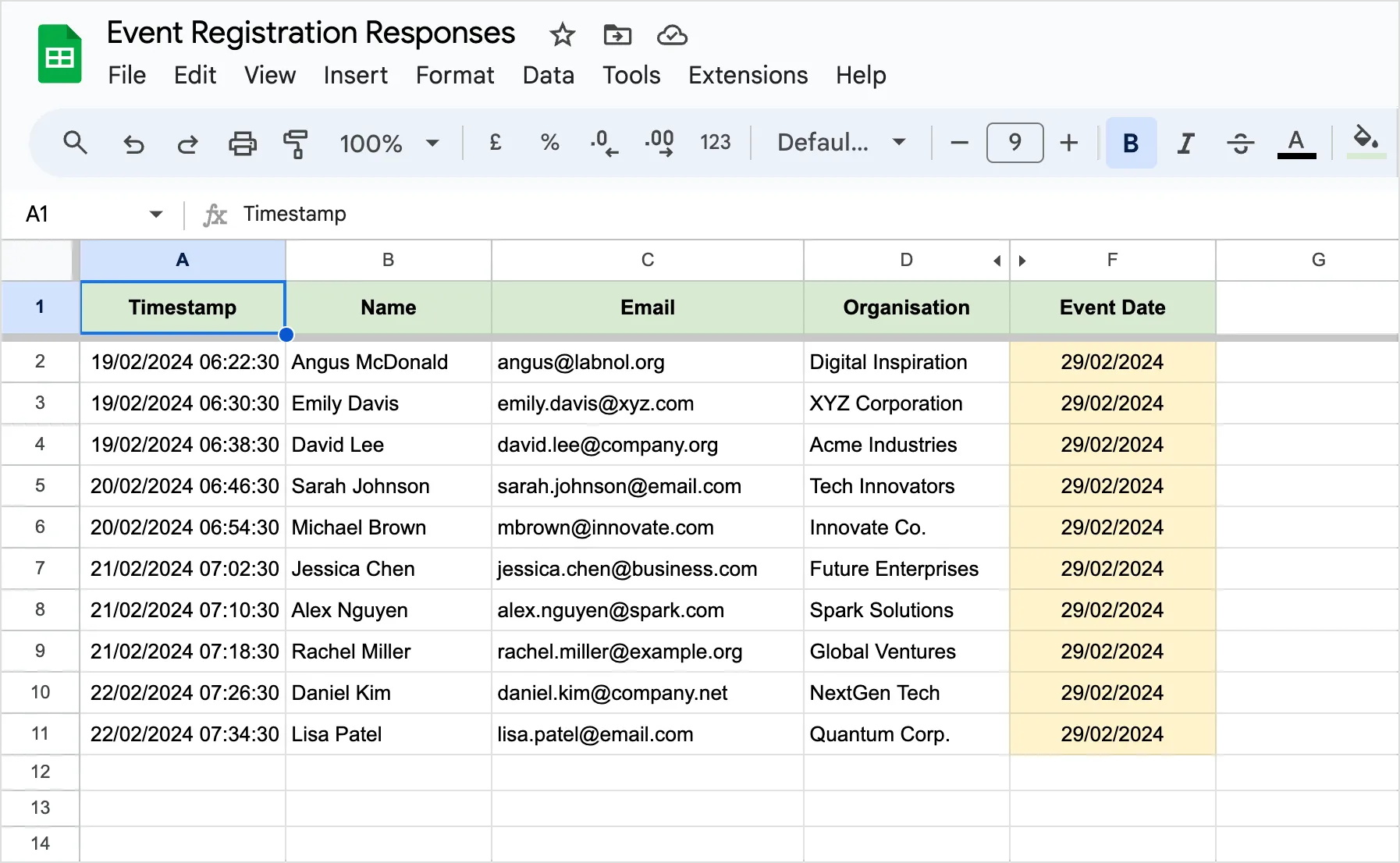
Assuming that you have already set up a Google Form for event registration, the responses will be collected in a Google Sheet linked to the form. In the same sheet, add a new column labeled Event Date and this will contain the event date. You can either copy and paste the date manually for all the rows in the sheet or use a formula to copy down the date automatically.
Create Email Reminder Workflow
Install Document Studio and launch it inside the sheet associated with your Google Form. Inside the app, create a new workflow and provide a descriptive name for your workflow. Choose the specific worksheet in your Google Spreadsheet that contains the form responses. Click on Continue to move to the conditions page.
In the Conditions section, you can define specific criteria and the workflow will only run for Google Sheet rows that meet these conditions. For instance, you may want to send a reminder email only to attendees who have paid the registration fee. By default, the reminder workflow will run for all rows in the Google Sheet.
Configure the Email Task
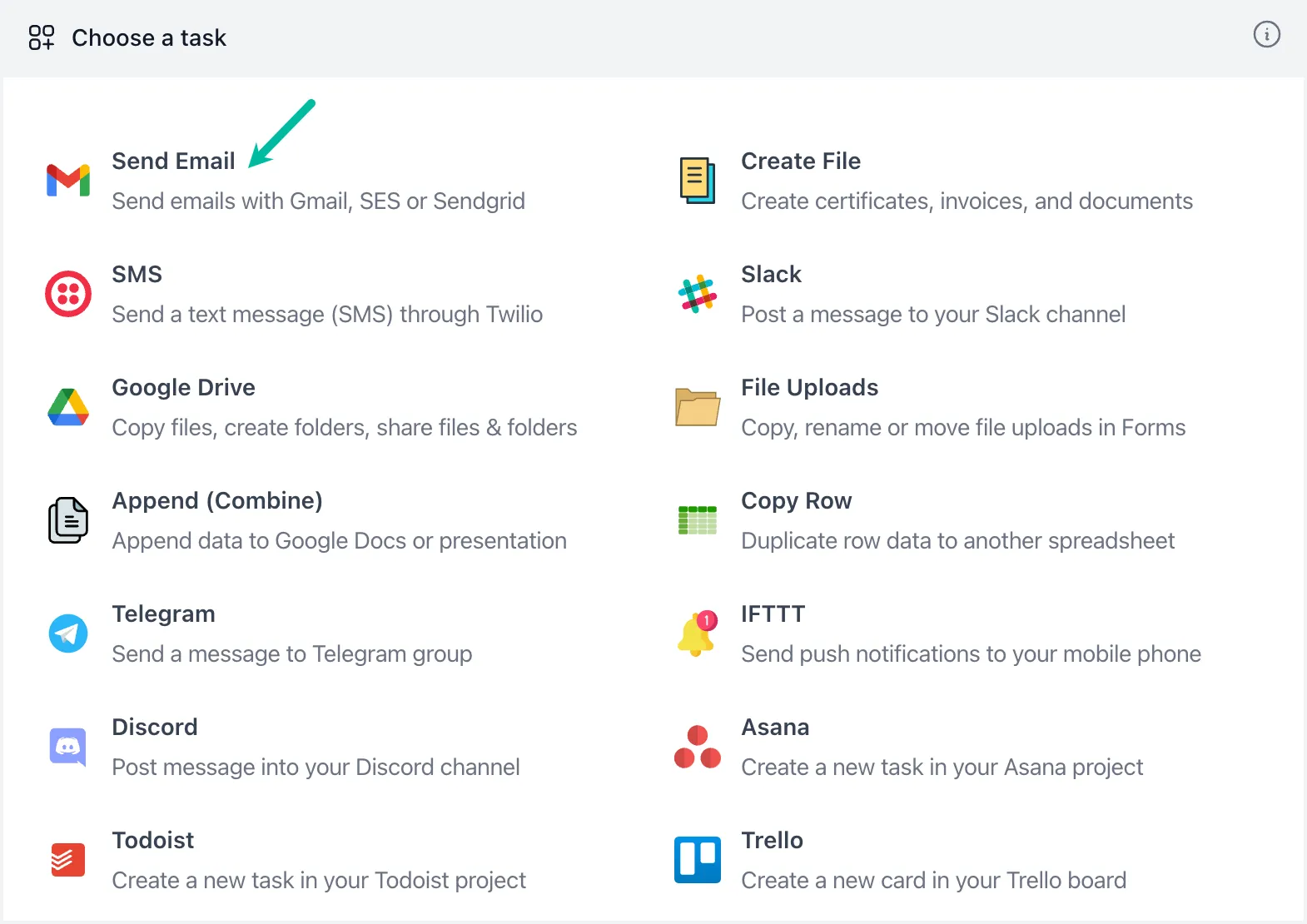
On the tasks screen, choose the Send Email task since we want to send email reminders to the registered attendees. The email task will use the data from the Google Sheet to personalize the email message for each recipient.
Select Gmail as the email service provider though you can also use SendGrid, Amazon SES or any SMTP server for sending emails.
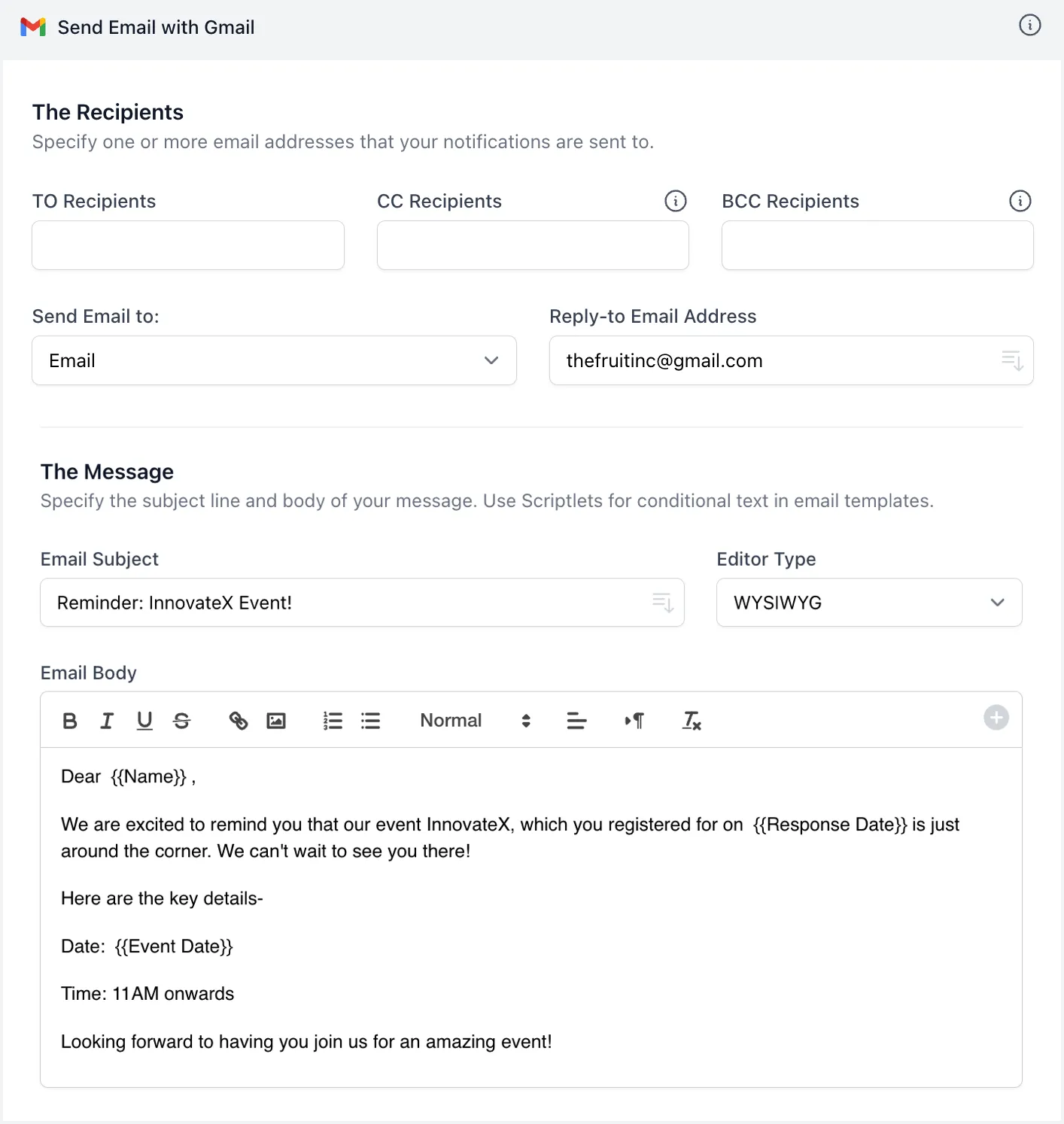
In the Send Email to field of Recipients section, select the question in your Google Form that contains the email addresses of the attendees.
Next, specify the email subject line and message body for your event reminders. You can create a personalized email template by using dynamic markers enclosed in double curly braces. These markers get replaced with actual cell values in the Google Sheet, ensuring each recipient gets a tailored message.
Save the email message and proceed to the next step.
Schedule Email Reminders
On the Trigger screen, uncheck the Run on Form Submit option since we want to schedule the email reminders for a future date and not immediately after the form is submitted.
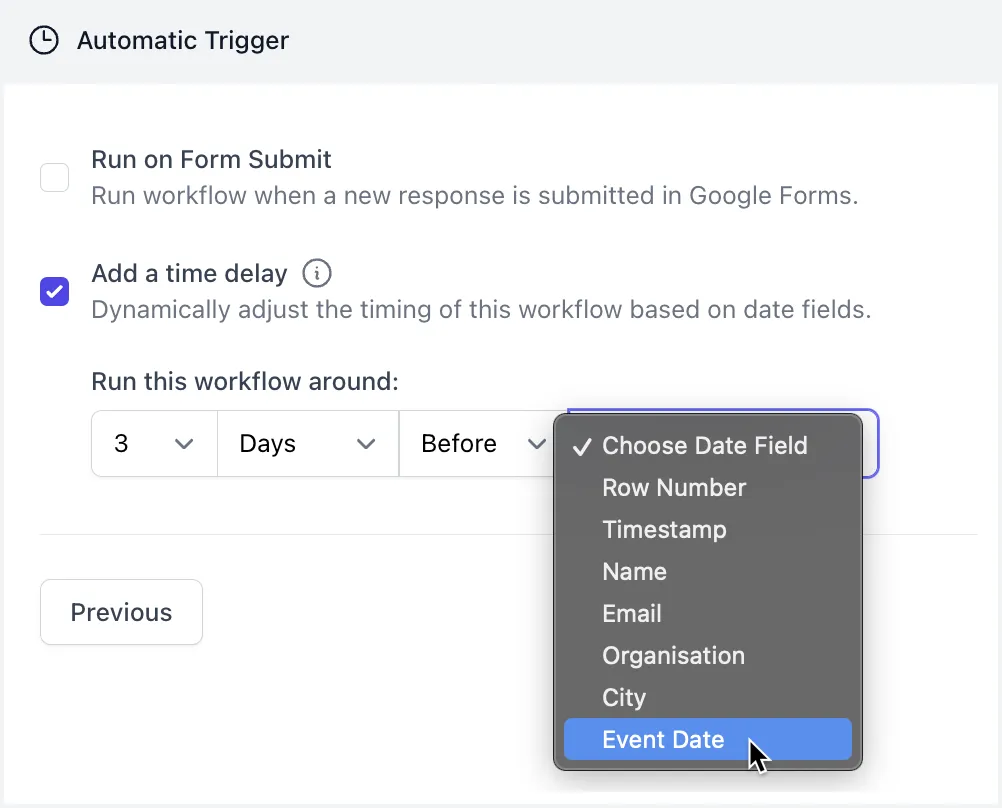
Next, check the Add a time delay option and schedule the workflow accordingly. For this example, we have set the workflow to run 3 days before the event date. It is important that the event date column in your Google Sheets is formatted as a date else the configuration for comparing the event date to the current date may not work.
Click the Save button to activate your workflow. The workflow is now running in the background and will automatically send emails near the scheduled date to all the registered attendees.
Also see:
Author

prakhar@affmantra.com
Related Posts

How to Add Speech Recognition to your Website
Table of Contents 1. Add Voice Recognition to your Website Open the Google website on your desktop computer and you’ll find a...
Read out all
How to Handle OAuth Permissions in Google Add-ons
- 0
- 714 words
Table of Contents 1. How to Check for Required OAuth Scopes 1.1 The “Authorization Catch-22” Problem 1.2 How to Reset the Permissions...
Read out all
How to Recover Permanently Deleted Files and Folders in Google Drive
- 0
- 326 words
Table of Contents When you delete any file or folder in your Google Drive, it is moved to the trash folder. The...
Read out all
Simple URL Tricks for Google Drive You Should Know
- 0
- 374 words
Table of Contents 1. Google Drive URL Tricks 1.1 Google Drive Web Viewer 1.2 Reader Mode for Google Drive Files 1.3 Embed...
Read out all
How to Extract URLs from HYPERLINK Function in Google Sheets
- 0
- 201 words
The HYPERLINK formula of Google Sheets lets you insert hyperlinks into your spreadsheets. The function takes two arguments: The full URL of...
Read out all
Find and Remove Inactive Users in your Google Workspace Domain
- 0
- 388 words
Table of Contents 1. Find the inactive users in Google Workspace domain You can use Google Apps Script to find all the...
Read out all