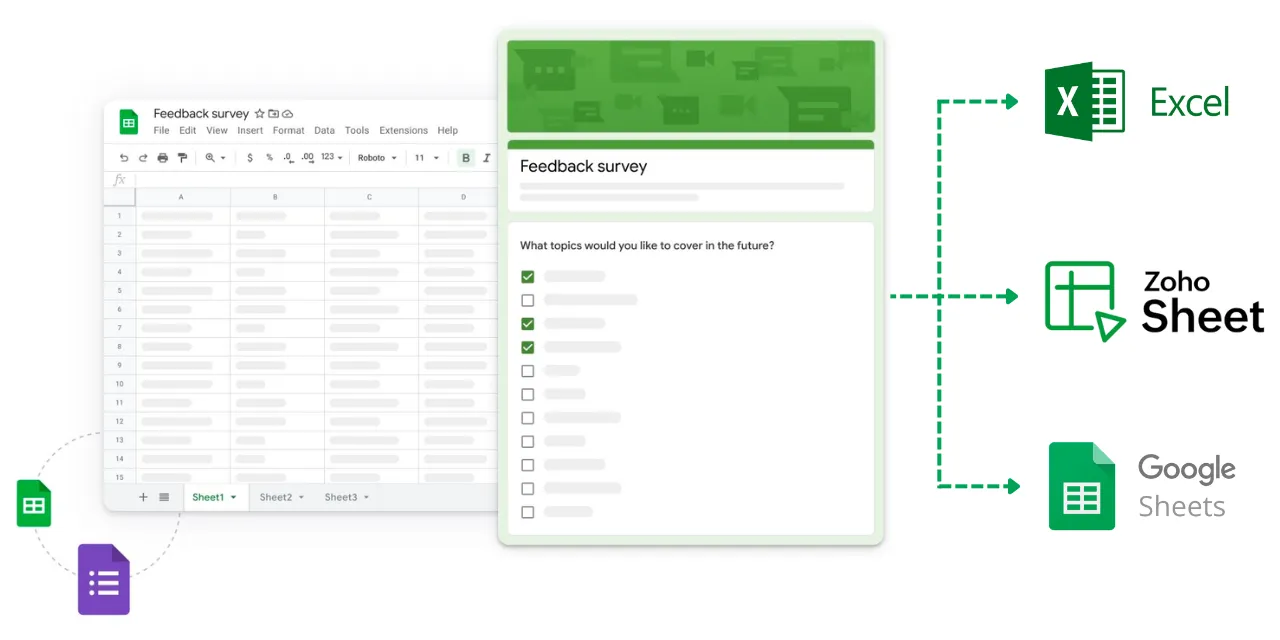
Google Forms is a perfect tool for collecting data, from event registrations to customer feedback. By default, your Google Form responses are added in a Google Sheet that is linked to the form.
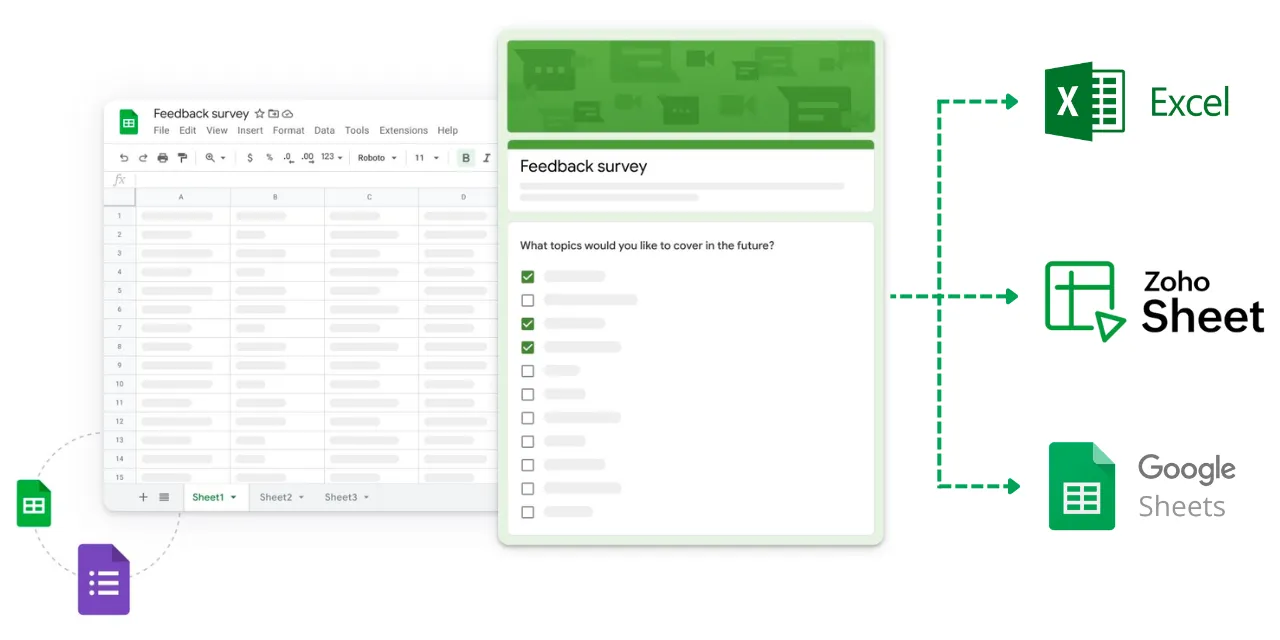
However, there could be scenarios where you may want to store a copy of the form responses in a different location, such as a Microsoft Excel worksheet, a Zoho sheet, or even multiple Google sheets.
The Problem
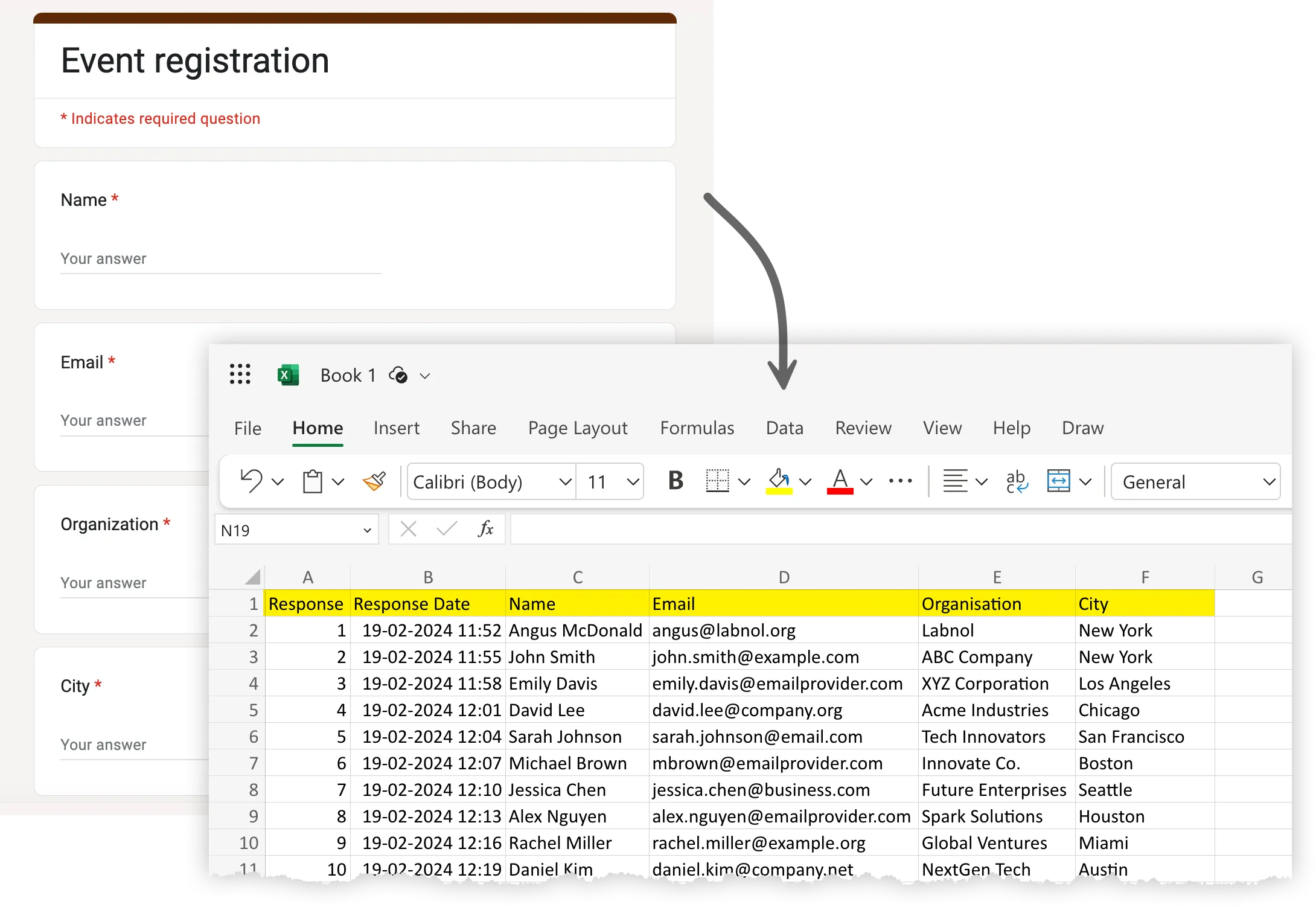
For this example, we have a Google Form where respondents can fill in their name, email address, city and other basic details. When a respondents submits the form, we would like that form response to be stored in an Excel sheet as well in addition to the original Google Sheet.
Let’s see how we can easily automate this with the help of Document Studio.
The Solution
Launch Document Studio inside Google Forms and create a new workflow. Provide the workflow name and move to the Conditions page.
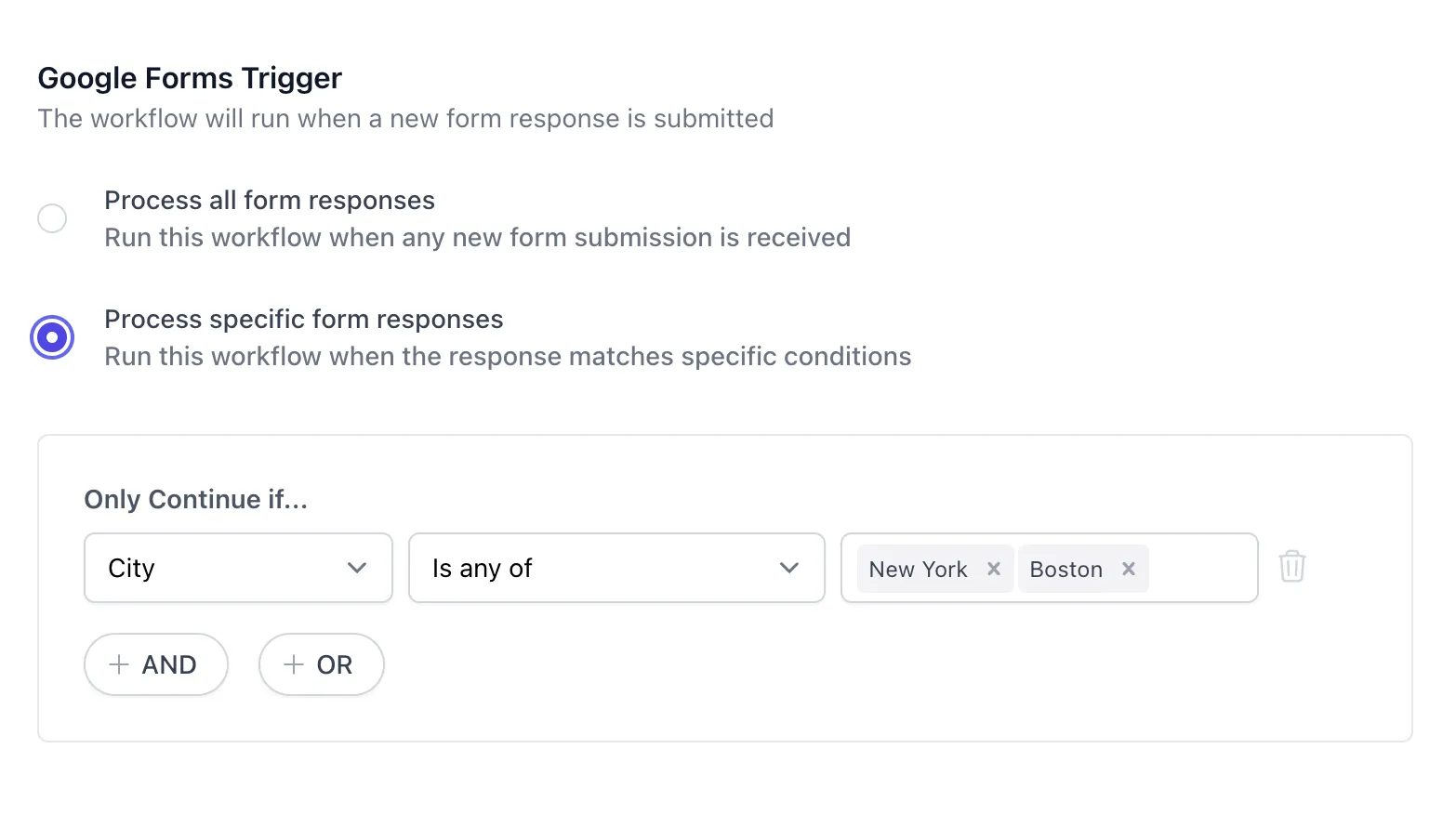
Let’s add some conditions here to filter out the form responses that we don’t want to be saved in the Excel sheet. For instance, you may want to save only the responses where the respondent’s city is either New York or Boston. Any form response that doesn’t meet this condition will be ignored.
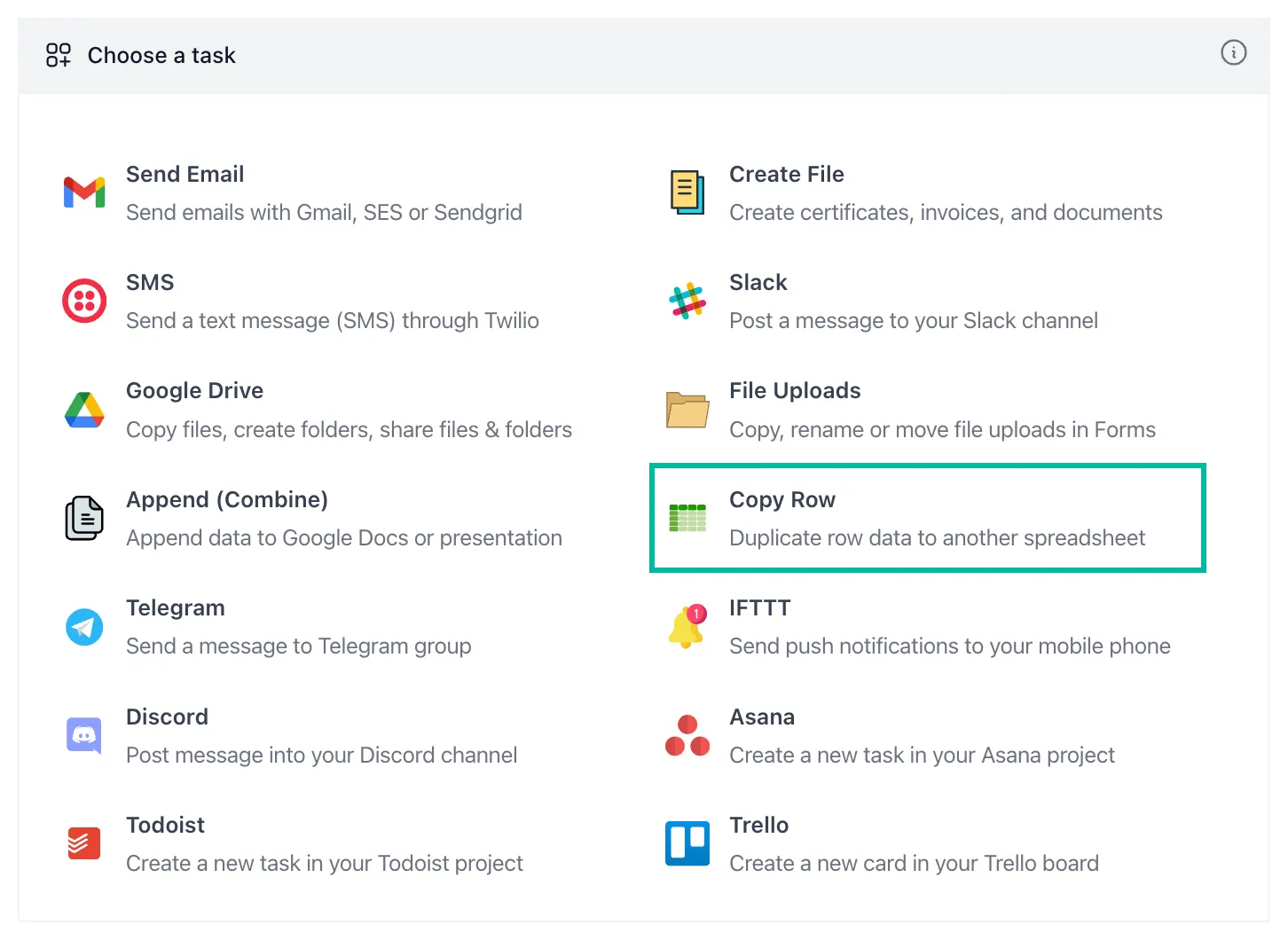
Next, move to the Tasks page and add a new task. Choose Copy Row from the list of available tasks. Here we’ll choose the spreadsheet service the Google Form responses should be stored. You can choose from Google Sheets, Microsoft Excel, or Zoho Sheets.
Connect Microsoft Excel to Google Forms
Select Excel Sheets from the list of available spreadsheet applications, and click on the Link Microsoft Excel button. You’ll be asked to sign in with your Microsoft account and grant permissions to Document Studio to access your Excel files.
Once your Microsoft account has been linked, open the Excel workbook in your browser and copy-paste the spreadsheet URL as shown in the screenshot below. If you would like to copy the form response to a Zoho Sheet, you can choose Zoho Sheets from the list and link your Zoho account.
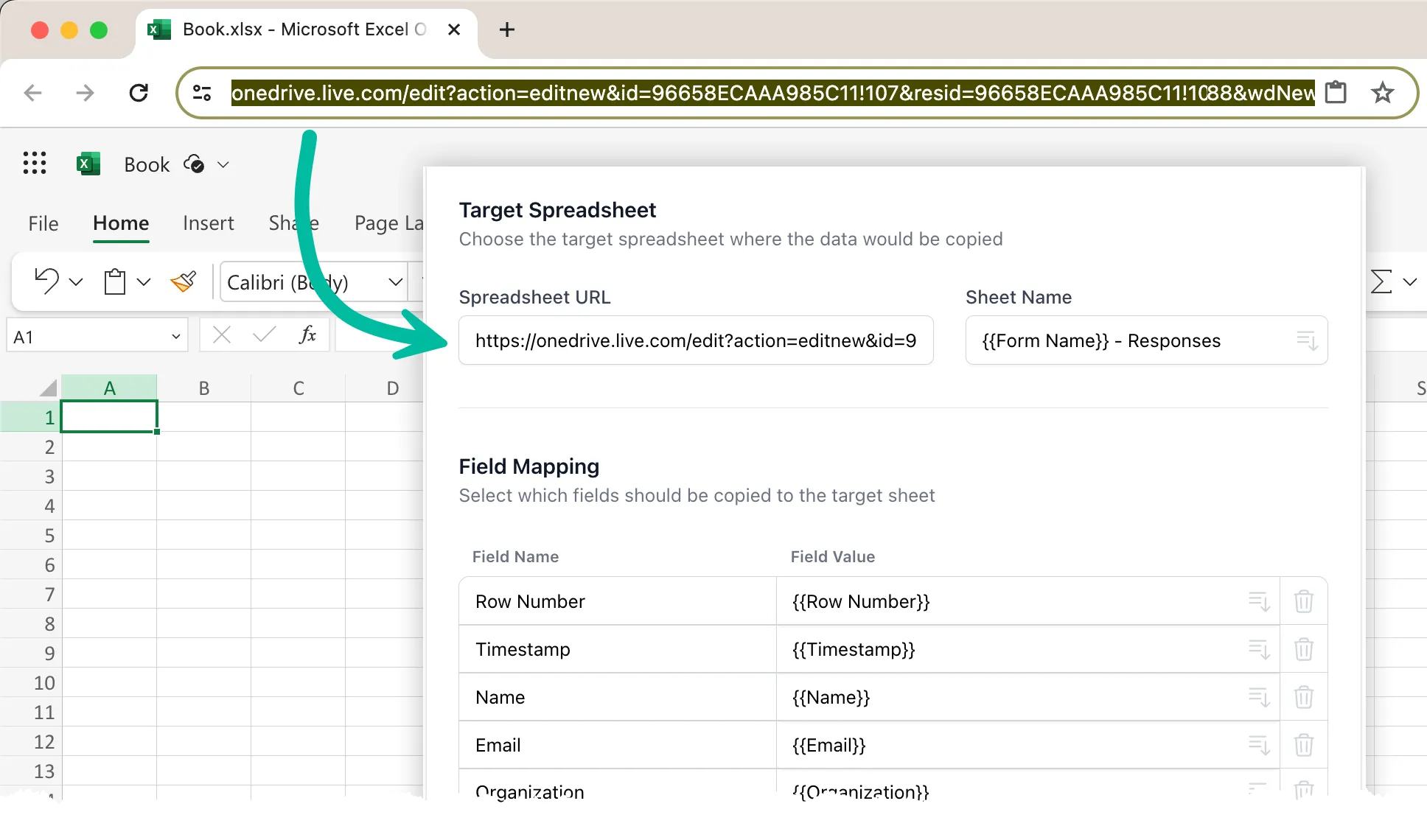
You also need to specify the name of the worksheet where the form responses should be copied. If the sheet doesn’t exist, Document Studio will create a new sheet in Excel with the specified name.
The next section is Field Mapping where you can specify which form fields should be copied to the Excel sheet. You also need to specify the corresponding column names in the Excel sheet where the form responses should be stored.
For instance, if the field in your Google Form is called “Zip Code”, you can map it to the “Postal Code” column in your Excel sheet. Similarly, if the field in your Google Form is “Email”, you can map it to the “Email Address” column in your Excel sheet.
| Google Form Field (Field Name) | Excel Column Name (Field Value) |
|---|---|
| Zip Code | {{ Postal Code }} |
{{ Email Address }} |
Save your task and click on Continue to proceed to the triggers screen. Check the Run on form submit option so that every time a new form response is submitted, the workflow will be triggered, and a new row will be added to the specified Microsoft Excel or Zoho Sheet.
Related Tutorials
Author

prakhar@affmantra.com
Related Posts

How to Add Speech Recognition to your Website
Table of Contents 1. Add Voice Recognition to your Website Open the Google website on your desktop computer and you’ll find a...
Read out all
How to Handle OAuth Permissions in Google Add-ons
- 0
- 714 words
Table of Contents 1. How to Check for Required OAuth Scopes 1.1 The “Authorization Catch-22” Problem 1.2 How to Reset the Permissions...
Read out all
How to Recover Permanently Deleted Files and Folders in Google Drive
- 0
- 326 words
Table of Contents When you delete any file or folder in your Google Drive, it is moved to the trash folder. The...
Read out all
Simple URL Tricks for Google Drive You Should Know
- 0
- 374 words
Table of Contents 1. Google Drive URL Tricks 1.1 Google Drive Web Viewer 1.2 Reader Mode for Google Drive Files 1.3 Embed...
Read out all
How to Extract URLs from HYPERLINK Function in Google Sheets
- 0
- 201 words
The HYPERLINK formula of Google Sheets lets you insert hyperlinks into your spreadsheets. The function takes two arguments: The full URL of...
Read out all
Find and Remove Inactive Users in your Google Workspace Domain
- 0
- 388 words
Table of Contents 1. Find the inactive users in Google Workspace domain You can use Google Apps Script to find all the...
Read out all