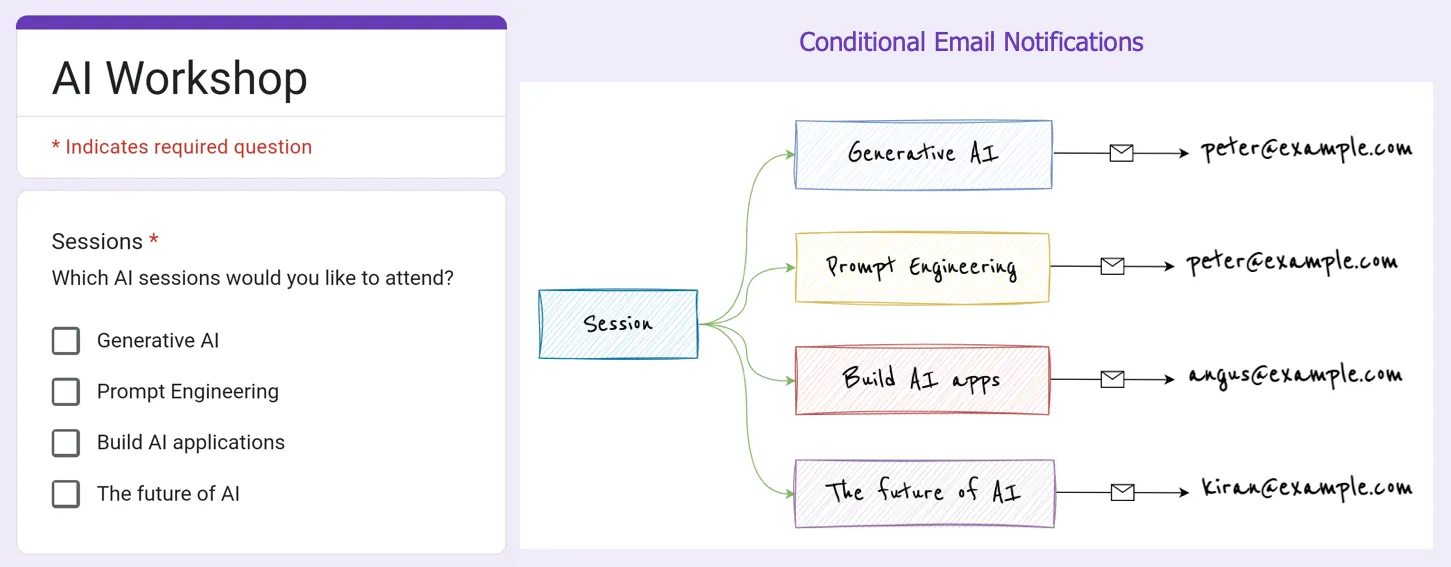
The Google Forms Email Notifications add-on lets you send Google Form responses in an email message as soon as a respondent submits the form. The email template can be customized to include the form answers or the form edit link.
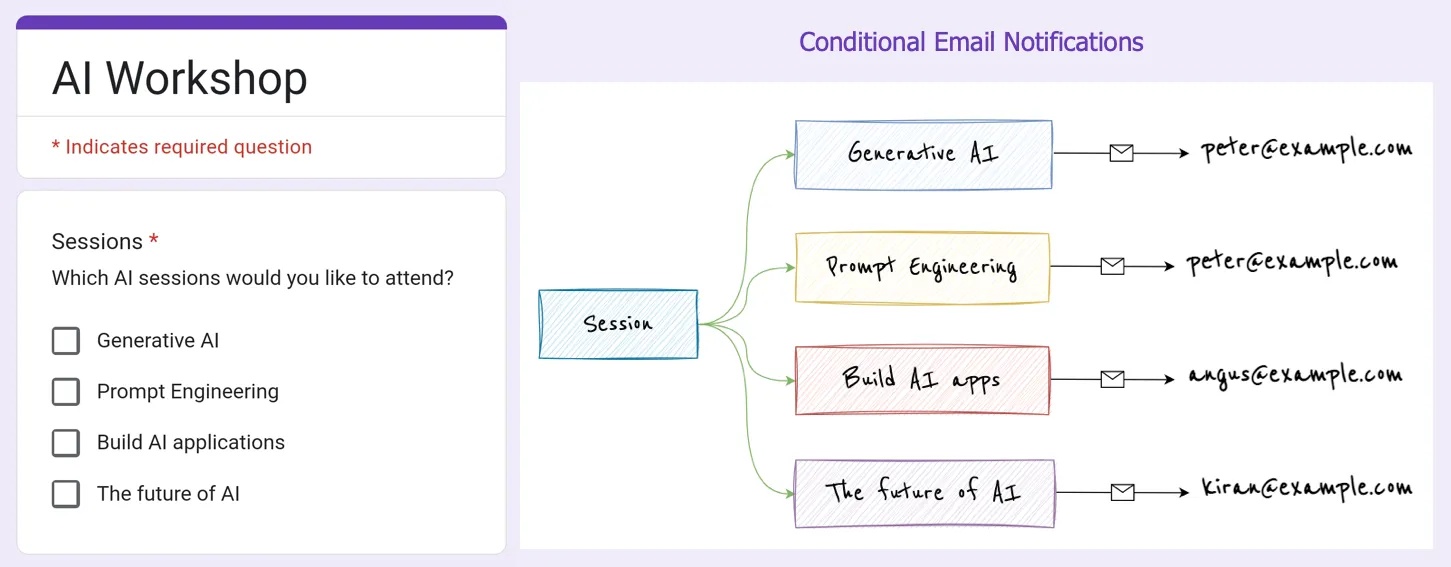
You can also set up conditional email notifications for Google Forms where the form responses are sent to different email addresses based on the form answers filled-in by the respondent.
In the above example, we have a Google Form that asks the respondent to select the sessions they are interested in attending for an AI workshop. It is a mulitple choice checkbox question as the respondent can select one or more sessions. The form responses are then sent to different email addresses based on the sessions selected by the respondent.
Set Up Conditional Email Notifications for Google Forms
Install the Google Forms add-on and setup a new rule. Enable the Conditional Notifications option and add a new condition as shown in the screenshot.
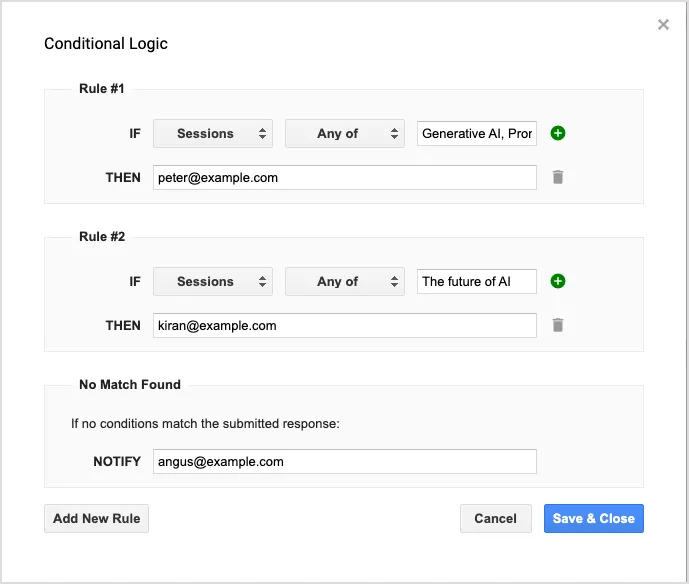
The first rule says that if the respondent has selected either “Generative AI” or “Prompt Engineering” for the Sessions question, the email should be sent to peter@example.com. We thus choose “Any of” as the condition and add the two session options in the condition separated by a comma.
Similarly, if the respondent has selected “The future of AI” as the session, the email should be sent to kiran@example. For all other sessions, the email should be sent to angus@example.com so we’ll put that email address in the “No Match Found” section.
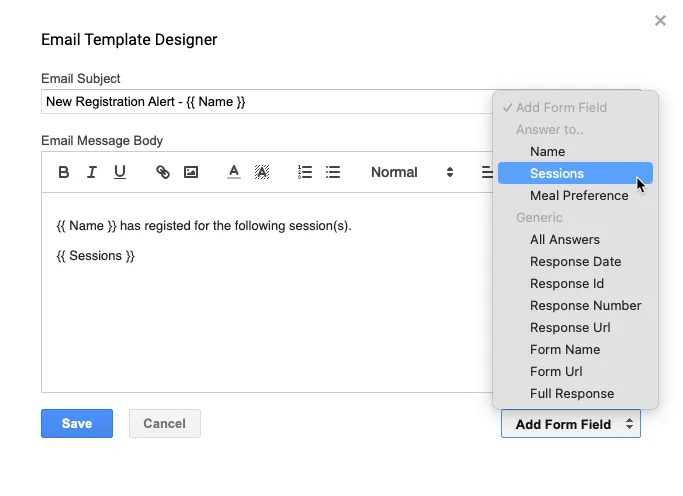
You can also customize the email message that is sent to the respondents. The email message can include individual form answers, images, QR Codes and even files from Google Drive.
Author

prakhar@affmantra.com
Related Posts

How to Create Photo Stickers in Canva
Table of Contents This quick tutorial will walk you through the steps to create your own custom stickers from photos in Canva....
Read out all
How to Add Speech Recognition to your Website
Table of Contents 1. Add Voice Recognition to your Website Open the Google website on your desktop computer and you’ll find a...
Read out all
How to Handle OAuth Permissions in Google Add-ons
- 0
- 714 words
Table of Contents 1. How to Check for Required OAuth Scopes 1.1 The “Authorization Catch-22” Problem 1.2 How to Reset the Permissions...
Read out all
How to Recover Permanently Deleted Files and Folders in Google Drive
- 0
- 326 words
Table of Contents When you delete any file or folder in your Google Drive, it is moved to the trash folder. The...
Read out all
Simple URL Tricks for Google Drive You Should Know
- 0
- 374 words
Table of Contents 1. Google Drive URL Tricks 1.1 Google Drive Web Viewer 1.2 Reader Mode for Google Drive Files 1.3 Embed...
Read out all
How to Extract URLs from HYPERLINK Function in Google Sheets
- 0
- 201 words
The HYPERLINK formula of Google Sheets lets you insert hyperlinks into your spreadsheets. The function takes two arguments: The full URL of...
Read out all