“Tech and AI” – that’s the theme of an upcoming event we are organizing in New York. We have created a Google Form to collect registrations and would like to send a welcome email automatically to each person as they fill the form.
The email should be personalized and include the name of the attendee. We would like also attach a PDF file, with the speaker bios and other details about the event, to the email.
Google Form for Event Registration
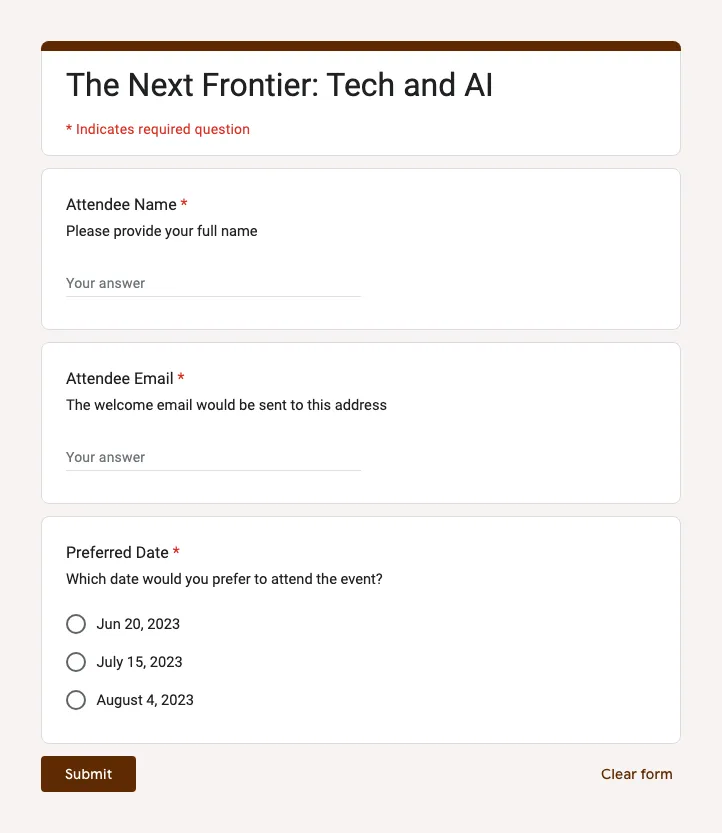
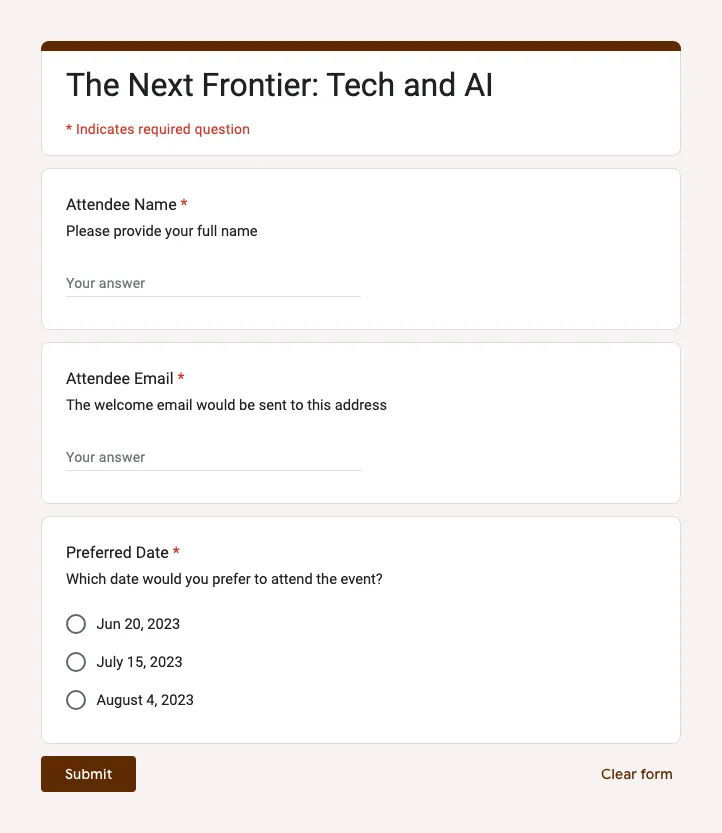
Here’s a sample Google Form that we are using to collect registrations for the event. The form requires attendees to fill in their name, email address and their preferred date to attend the event.
Personalized Welcome Email
Since we would like to send a personalized email to each attendee, we’ll use markers in the email template that will be replaced with the actual values from the Google Form. For instance, if we use the marker {{ Attendee Name }} in the email template, it will be replaced with the actual name of the attendee that is filled in the Google Form.
Here’s how the email template looks like:
Hi {{ Attendee Name }},

Thank you for registering for the Tech and AI event. We are excited to have you join us on {{ Preferred Date }}.

We've attached a PDF file with speaker bios and other details about the event.

Your registration ID is {{ Response ID }}. If you would like to make any changes to your registration, please visit {{ Response URL}}

We look forward to seeing you there!

Sincerely,
Digital Inspiration
The Response ID is a unique identifier for each Google Form response and the Response URL is the link to the Google Form response that the attendee can use to edit their response anytime later.
PDF File with Event Details
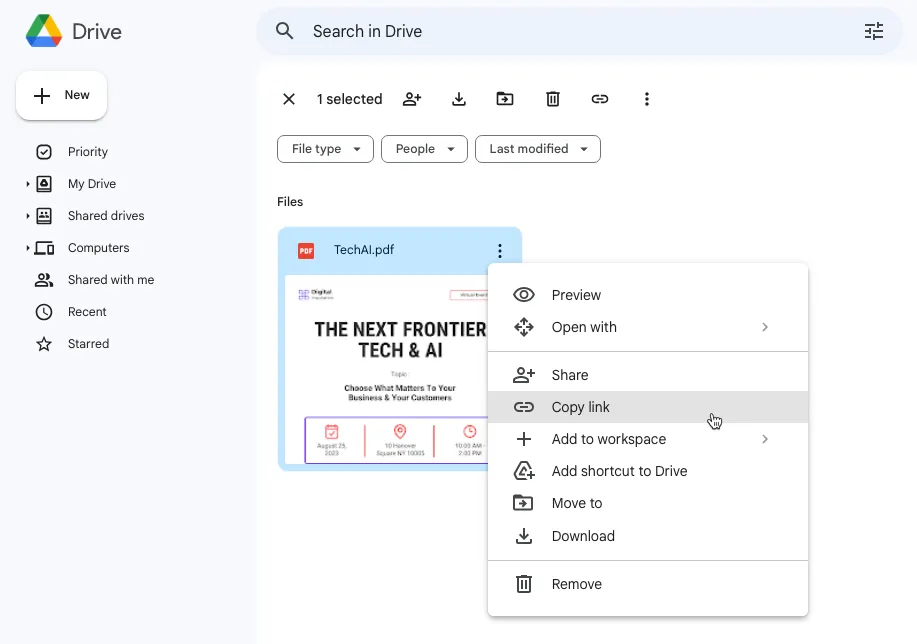
Upload the PDF file that you would like to attach to the email to Google Drive. Share the file with anyone who has the link and copy the link of the PDF file to the clipboard.
Send Automated Emails from Google Forms
Now that we have the Google Form and templates ready, we’ll be using the Email Notifications for Google Forms add-on to send the welcome emails automatically to each attendee.
Launch the add-on inside Google Forms, and click the Create Email Notification button to create a new rule for sending emails.
Give your rule a name, say Welcome Email, and paste the Google Drive File URL in the Attach Files input box. Next, click the Visual Editor button to open the email editor.
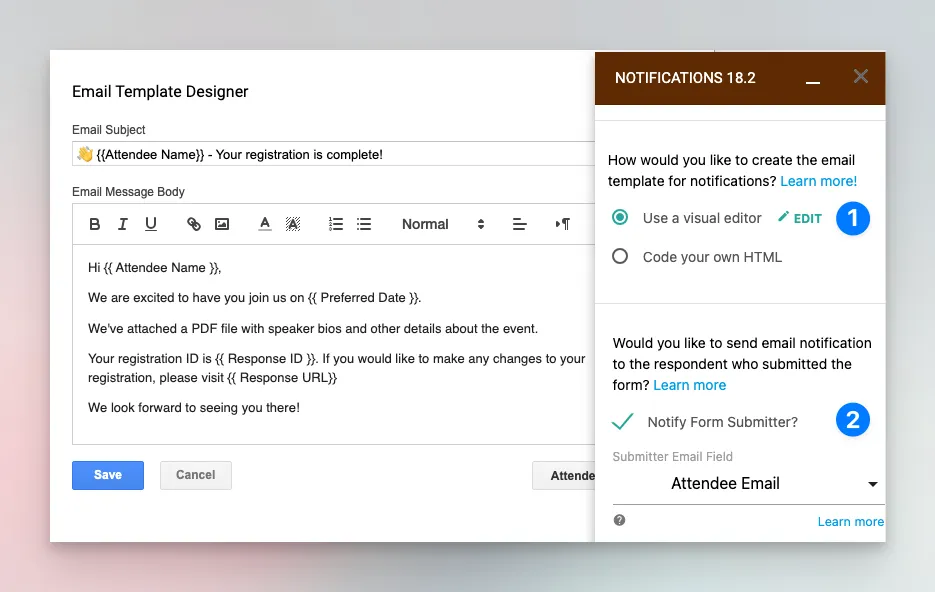
Enter the subject line and the email body containing the markers. You can also add inline images (like your brand’s logo) to the email body.
Send Email to the Form Respondent
The last step is to specify the email address of the person who filled the Google Form. This is the email address that will receive the welcome email.
There are two ways to specify the email address of the form respondent:
-
You can either check the Notify Form Submitter option and select the Email Address question from the drop-down. This will send the welcome email to the email address that the respondent has entered in the Google Form.
-
Alternatively, you may put the question title of the email address field in the Email Addresses to Notify input box. This is useful when you want to send the welcome email to a different email address that is not entered in the Google Form.
Barcode and QR Code in the Email
Tip: If you are using the add-on to generate event passes, you can include the barcode or QR code of the registration ID in the email body. The barcode can be scanned at the event venue to verify the attendee’s identity. Learn more.
Test the Email Notification Rule
That’s it. Click the Save button to enable the rule and it will send the welcome email to the form respondent as soon as they submit the Google Form.
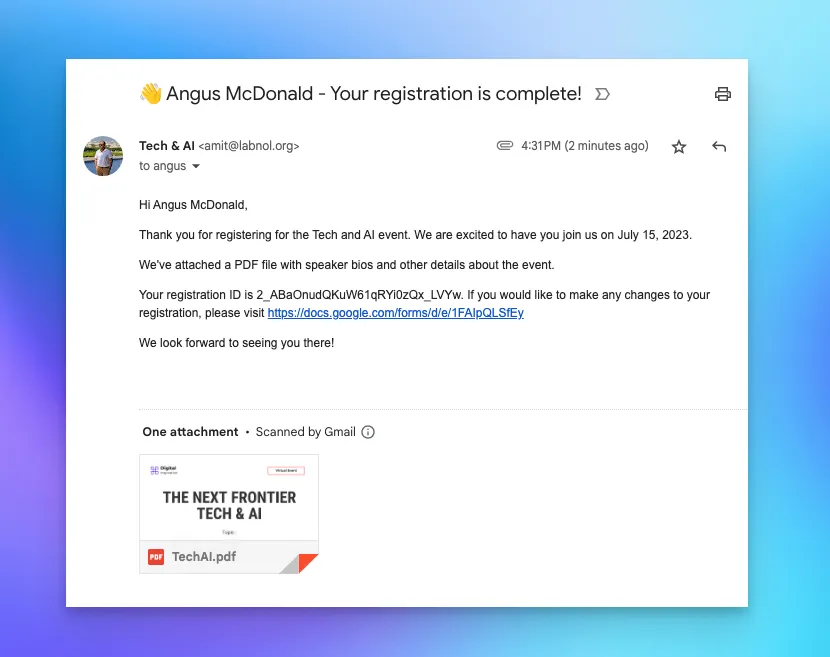
Here’s a sample email that we received after filling the Google Form.
Author

prakhar@affmantra.com
Related Posts

How to Create Photo Stickers in Canva
Table of Contents This quick tutorial will walk you through the steps to create your own custom stickers from photos in Canva....
Read out all
How to Add Speech Recognition to your Website
Table of Contents 1. Add Voice Recognition to your Website Open the Google website on your desktop computer and you’ll find a...
Read out all
How to Handle OAuth Permissions in Google Add-ons
- 0
- 714 words
Table of Contents 1. How to Check for Required OAuth Scopes 1.1 The “Authorization Catch-22” Problem 1.2 How to Reset the Permissions...
Read out all
How to Recover Permanently Deleted Files and Folders in Google Drive
- 0
- 326 words
Table of Contents When you delete any file or folder in your Google Drive, it is moved to the trash folder. The...
Read out all
Simple URL Tricks for Google Drive You Should Know
- 0
- 374 words
Table of Contents 1. Google Drive URL Tricks 1.1 Google Drive Web Viewer 1.2 Reader Mode for Google Drive Files 1.3 Embed...
Read out all
How to Extract URLs from HYPERLINK Function in Google Sheets
- 0
- 201 words
The HYPERLINK formula of Google Sheets lets you insert hyperlinks into your spreadsheets. The function takes two arguments: The full URL of...
Read out all