This guide describes how you can programmatically create user meetings in your Zoom account with the help of Google Apps Script and the official Zoom API.
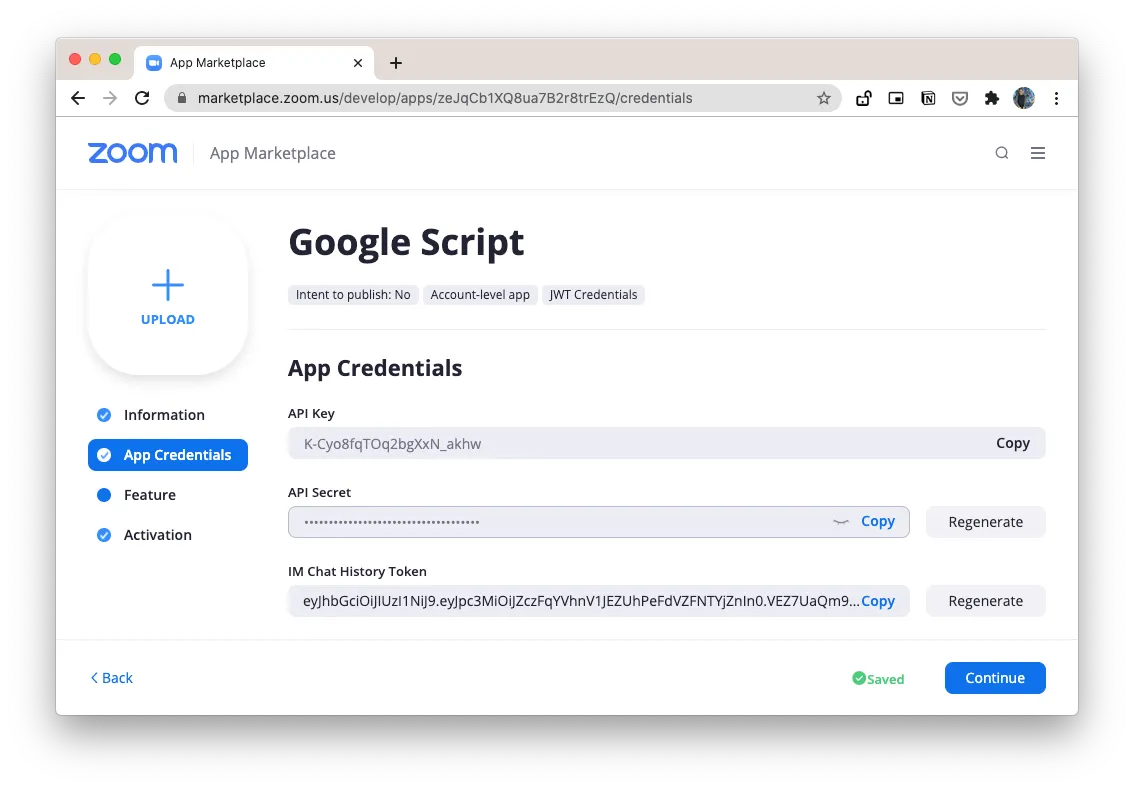
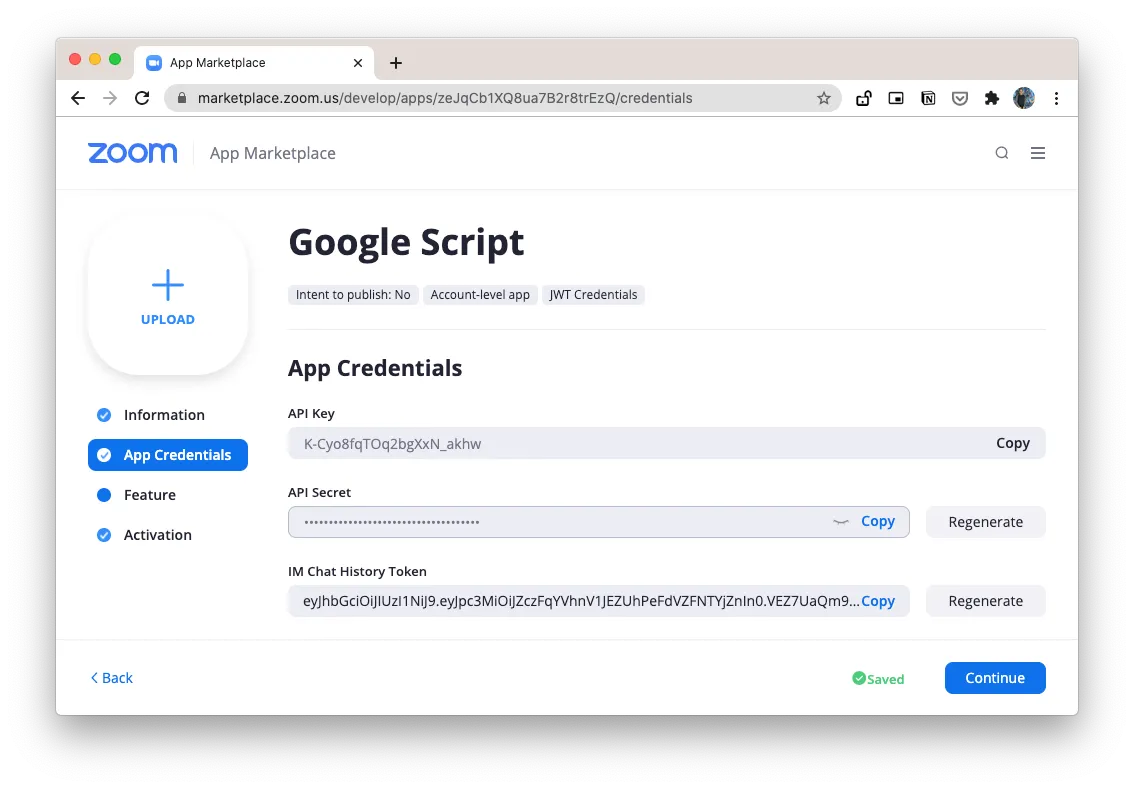
As a first step, go to the Zoom Developer Dashboard and create a new app. Choose JWT as the app type and make a note of the Zoom API key and secret. We can build Zoom apps with the OAuth2 library as well but since this app is only for internal use and will not be publish to the Zoom marketplace, the JWT approach is easier.
The app would involve two step. We’ll connect to the /api.zoom.us/v2/users/ API to get the Zoom ID of current authenticated user. Next, we make a POST request to the /v2/users/<<ZoomUserId>>/meetings endpoint to create the actual Zoom meeting.
Generate the Zoom Access Token
const ZOOM_API_KEY = '<Your Zoom key here>>';
const ZOOM_API_SECRET = '<Your Zoom secret here>';
const ZOOM_EMAIL = '<Your Zoom account email here>';

const getZoomAccessToken = () => {
  const encode = (text) => Utilities.base64Encode(text).replace(/=+$/, '');
  const header = { alg: 'HS256', typ: 'JWT' };
  const encodedHeader = encode(JSON.stringify(header));
  const payload = {
    iss: ZOOM_API_KEY,
    exp: Date.now() + 3600
  };
  const encodedPayload = encode(JSON.stringify(payload));
  const toSign = `${encodedHeader}.${encodedPayload}`;
  const signature = encode(Utilities.computeHmacSha256Signature(toSign, ZOOM_API_SECRET));
  return `${toSign}.${signature}`;
};
Get the Internal User Id of the current user
const getZoomUserId = () => {
  const request = UrlFetchApp.fetch('https://api.zoom.us/v2/users/', {
    method: 'GET',
    contentType: 'application/json',
    headers: { Authorization: `Bearer ${getZoomAccessToken()}` }
  });
  const { users } = JSON.parse(request.getContentText());
  const [{ id } = {}] = users.filter(({ email }) => email === ZOOM_EMAIL);
  return id;
};
Schedule a Zoom Meeting
You can create an Instant meeting or schedule a meeting with a fixed duration. The meeting start time is specified in yyyy-MM-ddThh:mm:ss format with the specified timezone.
The complete list of meeting options is available here while the timezones are available here.
const createZoomMeeting = () => {
  const meetingOptions = {
    topic: 'Zoom Meeting created with Google Script',
    type: 1,
    start_time: '2020-07-30T10:45:00',
    duration: 30,
    timezone: 'America/New_York',
    password: 'labnol',
    agenda: 'Discuss the product launch',
    settings: {
      auto_recording: 'none',
      mute_upon_entry: true
    }
  };

  const request = UrlFetchApp.fetch(`https://api.zoom.us/v2/users/${getZoomUserId()}/meetings`, {
    method: 'POST',
    contentType: 'application/json',
    headers: { Authorization: `Bearer ${getZoomAccessToken()}` },
    payload: JSON.stringify(meetingOptions)
  });
  const { join_url, id } = JSON.parse(request.getContentText());
  Logger.log(`Zoom meeting ${id} created`, join_url);
};
The app can be enhanced to automatically add new participants to a meeting after they register their email address on, say, Google Forms. In that case, a POST request is made to /meetings/{meetingId}/registrants with the email address and first name of the participant in the request body.
Author

prakhar@affmantra.com
Related Posts

How to Create Photo Stickers in Canva
Table of Contents This quick tutorial will walk you through the steps to create your own custom stickers from photos in Canva....
Read out all
How to Add Speech Recognition to your Website
Table of Contents 1. Add Voice Recognition to your Website Open the Google website on your desktop computer and you’ll find a...
Read out all
How to Handle OAuth Permissions in Google Add-ons
- 0
- 714 words
Table of Contents 1. How to Check for Required OAuth Scopes 1.1 The “Authorization Catch-22” Problem 1.2 How to Reset the Permissions...
Read out all
How to Recover Permanently Deleted Files and Folders in Google Drive
- 0
- 326 words
Table of Contents When you delete any file or folder in your Google Drive, it is moved to the trash folder. The...
Read out all
Simple URL Tricks for Google Drive You Should Know
- 0
- 374 words
Table of Contents 1. Google Drive URL Tricks 1.1 Google Drive Web Viewer 1.2 Reader Mode for Google Drive Files 1.3 Embed...
Read out all
How to Extract URLs from HYPERLINK Function in Google Sheets
- 0
- 201 words
The HYPERLINK formula of Google Sheets lets you insert hyperlinks into your spreadsheets. The function takes two arguments: The full URL of...
Read out all