You can bring the power of Google Maps to your Google Sheets using simple formulas with no coding. You don’t need to sign up for the Google Maps API and all results from Google Maps are cached in the sheet so you are unlikely to hit any quota limits.
To give you a quick example, if you have the starting address in column A and the destination address in column B, a formula like =GOOGLEMAPS_DISTANCE(A1, B1, "driving") will quickly calculate the distance between the two points.
Or modify the formula slightly =GOOGLEMAPS_TIME(A1, B1, "walking") to know how long it will take for a person to walk from one point to another.
If you would like to try the Google Maps formulas without getting into the technical details, just make a copy of this Google Sheet and you are all set.
How to Install Google Maps Functions in Google Sheets
To install the Google Maps functions in your Google Sheets, you need to add the functions to your Google Sheet.
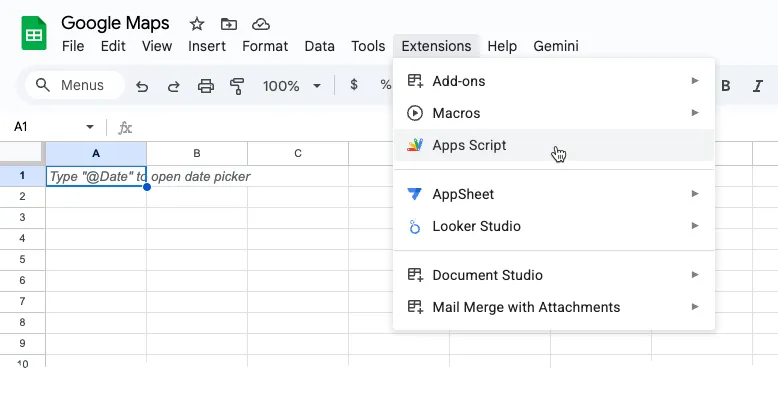
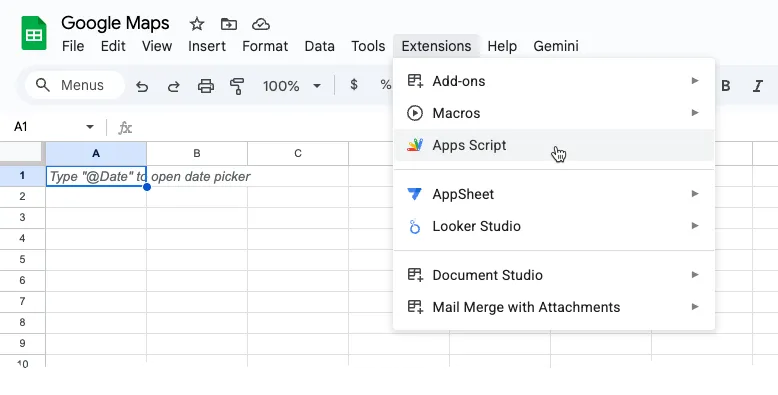
- Open your Google Sheet and click on “Extensions” in the top menu, then select “Apps Script.”
- In the Apps Script editor that opens, replace any existing code with the Google Maps functions below.
Using Google Maps inside Google Sheets
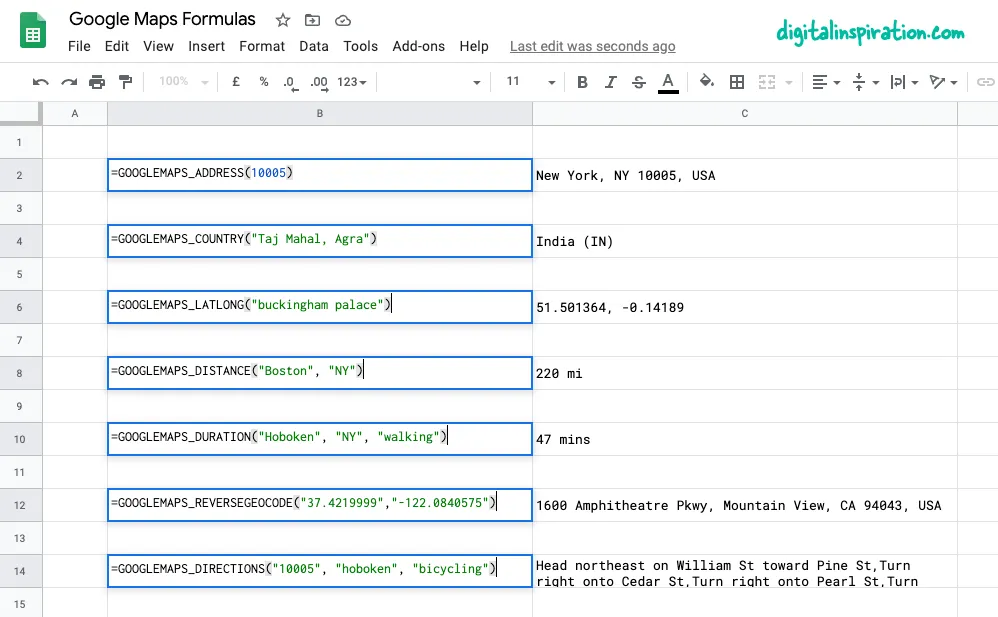
This tutorial explains how you can easily write custom Google Maps functions inside Google Sheets that will help you:
- Calculate distances between two cities or any addresses.
- Calculate the travel time (walking, driving or biking) between two points.
- Get the latitude and longitude co-ordinates of any address on Google Maps.
- Use reverse geocoding to find the postal address from GPS coordinates.
- Print driving directions between any points on earth.
- Get the address from the zip code itself.
1. Calculate Distances in Google Sheets
Specify the origin, the destination, the travel mode (walking or driving) and the function will return the distance between the two points in miles.
=GOOGLEMAPS_DISTANCE("NY 10005", "Hoboken NJ", "walking")
/**
 * Calculate the distance between two
 * locations on Google Maps.
 *
 * =GOOGLEMAPS_DISTANCE("NY 10005", "Hoboken NJ", "walking")
 *
 * @param {String} origin The address of starting point
 * @param {String} destination The address of destination
 * @param {String} mode The mode of travel (driving, walking, bicycling or transit)
 * @return {String} The distance in miles
 * @customFunction
 */
const GOOGLEMAPS_DISTANCE = (origin, destination, mode = "driving") => {
  if (!origin || !destination) {
    return "Origin and destination are required!";
  }
  const { routes: [data] = [] } = Maps.newDirectionFinder()
    .setOrigin(origin)
    .setDestination(destination)
    .setMode(mode)
    .getDirections();

  if (!data) {
    return "No route found!";
  }

  const { legs: [{ distance: { text: distance } } = {}] = [] } = data;
  return distance;
};
2. Reverse Geocoding in Google Sheets
Specify the latitude and longitude and get the full address of the point through reverse geocoding of coordinates.
=GOOGLEMAPS_REVERSEGEOCODE(40.7128, -74.0060)
/**
 * Use Reverse Geocoding to get the address of
 * a point location (latitude, longitude) on Google Maps.
 *
 * =GOOGLEMAPS_REVERSEGEOCODE(latitude, longitude)
 *
 * @param {String} latitude The latitude to lookup.
 * @param {String} longitude The longitude to lookup.
 * @return {String} The postal address of the point.
 * @customFunction
 */

const GOOGLEMAPS_REVERSEGEOCODE = (latitude, longitude) => {
  const { results: [data = {}] = [] } = Maps.newGeocoder().reverseGeocode(latitude, longitude);
  return data.formatted_address;
};
3. Get the GPS coordinates of an address
Get the latitude and longitude of any address on Google Maps.
=GOOGLEMAPS_LATLONG("10 Hanover Square, NY")
/**
 * Get the latitude and longitude of any
 * address on Google Maps.
 *
 * =GOOGLEMAPS_LATLONG("10 Hanover Square, NY")
 *
 * @param {String} address The address to lookup.
 * @return {String} The latitude and longitude of the address.
 * @customFunction
 */
const GOOGLEMAPS_LATLONG = address => {
  const { results: [data = null] = [] } = Maps.newGeocoder().geocode(address);
  if (data === null) {
    return "Address not found!";
  }
  const { geometry: { location: { lat, lng } } = {} } = data;
  return `${lat}, ${lng}`;
};
4. Print the driving directions between addresses
Specify the origin address, the destination address, the travel mode and the function will use the Google Maps API to print step-by-step driving directions.
=GOOGLEMAPS_DIRECTIONS("NY 10005", "Hoboken NJ", "walking")
/**
* Find the driving direction between two
* locations on Google Maps.
*
* =GOOGLEMAPS_DIRECTIONS("NY 10005", "Hoboken NJ", "walking")
*
* @param {String} origin The address of starting point
* @param {String} destination The address of destination
* @param {String} mode The mode of travel (driving, walking, bicycling or transit)
* @return {String} The driving direction
* @customFunction
*/
const GOOGLEMAPS_DIRECTIONS = (origin, destination, mode = "driving") => {
const { routes = [] } = Maps.newDirectionFinder()
.setOrigin(origin)
.setDestination(destination)
.setMode(mode)
.getDirections();
if (!routes.length) {
throw new Error("No route found!");
}
return routes
.map(({ legs }) => {
return legs
.map(({ steps }) => {
return steps
.map(step => {
return step.html_instructions.replace(/<[^>]+>/g, "").replace(/"/g, '"');
})
.join(", ");
})
.join(", ");
})
.join(", ");
};5. Measure the trip time with Google Maps
Specify the origin address, the destination address, the travel mode and the function will measure your approximate trip time between the specified addresses, provided a route exists.
=GOOGLEMAPS_DURATION("NY 10005", "Hoboken NJ", "walking")
/**
 * Calculate the travel time between two locations
 * on Google Maps.
 *
 * =GOOGLEMAPS_DURATION("NY 10005", "Hoboken NJ", "walking")
 *
 * @param {String} origin The address of starting point
 * @param {String} destination The address of destination
 * @param {String} mode The mode of travel (driving, walking, bicycling or transit)
 * @return {String} The time in minutes
 * @customFunction
 */
const GOOGLEMAPS_DURATION = (origin, destination, mode = "driving") => {
  if (!origin || !destination) {
    return "Origin and destination are required!";
  }
  const { routes: [data] = [] } = Maps.newDirectionFinder()
    .setOrigin(origin)
    .setDestination(destination)
    .setMode(mode)
    .getDirections();
  if (!data) {
    return "No route found!";
  }
  const { legs: [{ duration: { text: time } } = {}] = [] } = data;
  return time;
};
6. Find the Elevation of any location
Calculate the elevation of any location on Google Maps.
=GOOGLEMAPS_ELEVATION(37.423021, -122.083739)
/**
 * Calculate the elevation of any location
 * on Google Maps.
 *
 * =GOOGLEMAPS_ELEVATION(37.423021, -122.083739)
 *
 * @param {String} latitude The latitude of the location
 * @param {String} longitude The longitude of the location
 * @return {String} The elevation in meters
 * @customFunction
 */
const GOOGLEMAPS_ELEVATION = (latitude, longitude) => {
  const { results: [data] = [] } = Maps.newElevationSampler().sampleLocation(latitude, longitude);
  if (!data) {
    return "No elevation data found!";
  }
  return data.elevation;
};
Tip: Improve Formula Performance by Caching
The Google Sheets functions internally use the Google Maps API to calculate routes, distances and travel time. Google offers a limited quota for Maps operations and if your sheet performs too many queries in a short duration, you are likely to see errors like “”Service invoked too many times for one day” or something similar.
To get around the quota issue, it is recommended that you use Apps Script’s built-in cache to store results and, if the results of a function already exist in the case, you’ll make one less request to Google Maps.
The Maps functions inside this Google Sheet also use caching and here’s how you can implement it.
// The cache key for "New York" and "new york  " should be same
const md5 = (key = "") => {
  const code = key.toLowerCase().replace(/\s/g, "");
  return Utilities.computeDigest(Utilities.DigestAlgorithm.MD5, code).reduce(
    (str, byte) => str + (byte + 256).toString(16).slice(-2),
    ""
  );
};

const getCache = key => {
  return CacheService.getDocumentCache().get(md5(key));
};

// Store the results for 6 hours
const setCache = (key, value) => {
  const expirationInSeconds = 6 * 60 * 60;
  CacheService.getDocumentCache().put(md5(key), value, expirationInSeconds);
};

/**
 * Calculate the travel time between two locations
 * on Google Maps.
 *
 * =GOOGLEMAPS_DURATION("NY 10005", "Hoboken NJ", "walking")
 *
 * @param {String} origin The address of starting point
 * @param {String} destination The address of destination
 * @param {String} mode The mode of travel (driving, walking, bicycling or transit)
 * @return {String} The time in minutes
 * @customFunction
 */
const GOOGLEMAPS_DURATION = (origin, destination, mode = "driving") => {
  if (!origin || !destination) {
    return "Origin and destination are required!";
  }
  const key = ["duration", origin, destination, mode].join(",");
  const value = getCache(key);
  if (value !== null) return value;
  const { routes: [data] = [] } = Maps.newDirectionFinder()
    .setOrigin(origin)
    .setDestination(destination)
    .setMode(mode)
    .getDirections();
  if (!data) {
    return "No route found!";
  }
  const { legs: [{ duration: { text: time } } = {}] = [] } = data;
  setCache(key, time);
  return time;
};Author

prakhar@affmantra.com
Related Posts

How to Add Speech Recognition to your Website
Table of Contents 1. Add Voice Recognition to your Website Open the Google website on your desktop computer and you’ll find a...
Read out all
How to Handle OAuth Permissions in Google Add-ons
- 0
- 714 words
Table of Contents 1. How to Check for Required OAuth Scopes 1.1 The “Authorization Catch-22” Problem 1.2 How to Reset the Permissions...
Read out all
How to Recover Permanently Deleted Files and Folders in Google Drive
- 0
- 326 words
Table of Contents When you delete any file or folder in your Google Drive, it is moved to the trash folder. The...
Read out all
Simple URL Tricks for Google Drive You Should Know
- 0
- 374 words
Table of Contents 1. Google Drive URL Tricks 1.1 Google Drive Web Viewer 1.2 Reader Mode for Google Drive Files 1.3 Embed...
Read out all
How to Extract URLs from HYPERLINK Function in Google Sheets
- 0
- 201 words
The HYPERLINK formula of Google Sheets lets you insert hyperlinks into your spreadsheets. The function takes two arguments: The full URL of...
Read out all
Find and Remove Inactive Users in your Google Workspace Domain
- 0
- 388 words
Table of Contents 1. Find the inactive users in Google Workspace domain You can use Google Apps Script to find all the...
Read out all