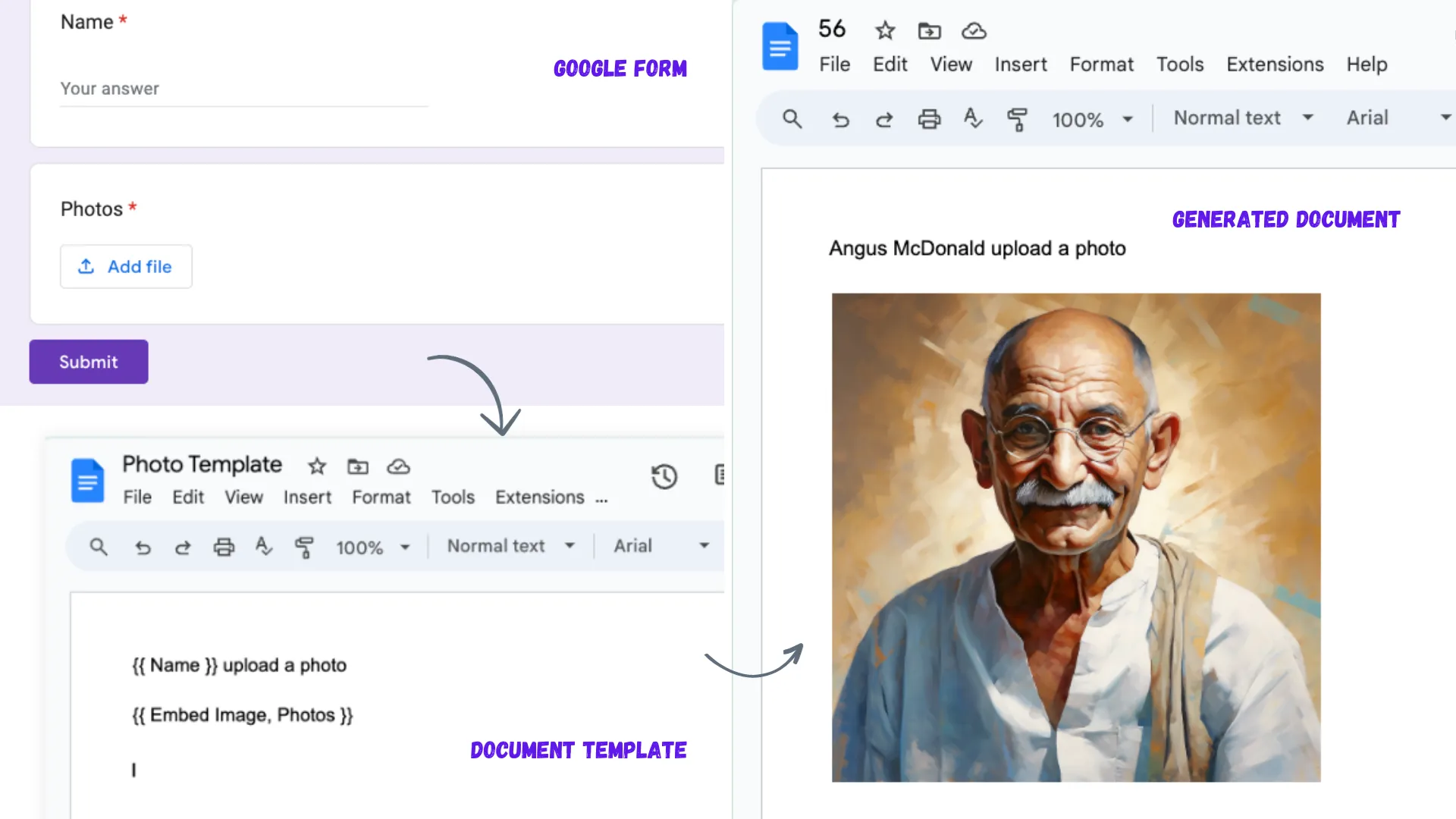
The Document Studio add-on lets you create pixel-perfect documents from your data in Google Sheets and Google Forms. For instance, someone can fill out your Google Form, upload a photo and the add-on will automatically generate a PDF document with the uploaded photo and form answers (tutorial).
Embed Images in Documents
One of the most unique features of Document Studio is that it can embed images in the generated documents. For instance, you could have a Google Form where the respondent uploads an image and these can be embedded inline in the generated PDF document.
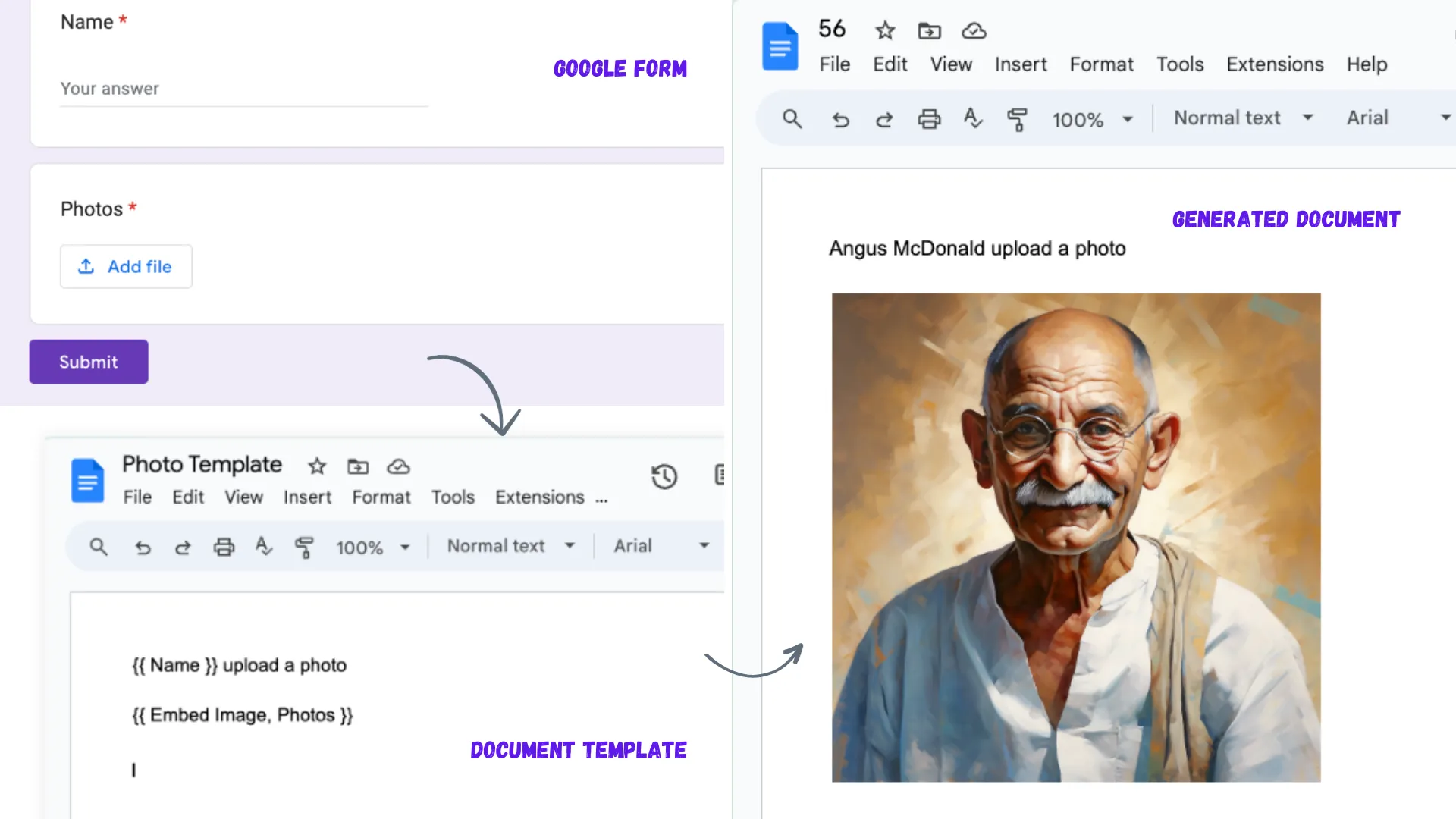
All you have to do is add the following marker in your Google Document template and the add-on will replace it with the uploaded image.
{{ Embed IMAGE, File Upload Question }}You can also resize the image uploaded in Google Forms by specifying the width and height values.
{{ Embed IMAGE, File Upload Question, width=300 }}Embed Multiple Images in Documents
The above example works great if you have a single image upload question in your Google Form. What if the file upload question in your Google Form allows multiple images to be uploaded and you wish to embed all the images in the generated document?
Document Studio can only embed a single image in a single marker, but there’s a workaround to embed multiple images uploaded in Google Forms in the generated document.
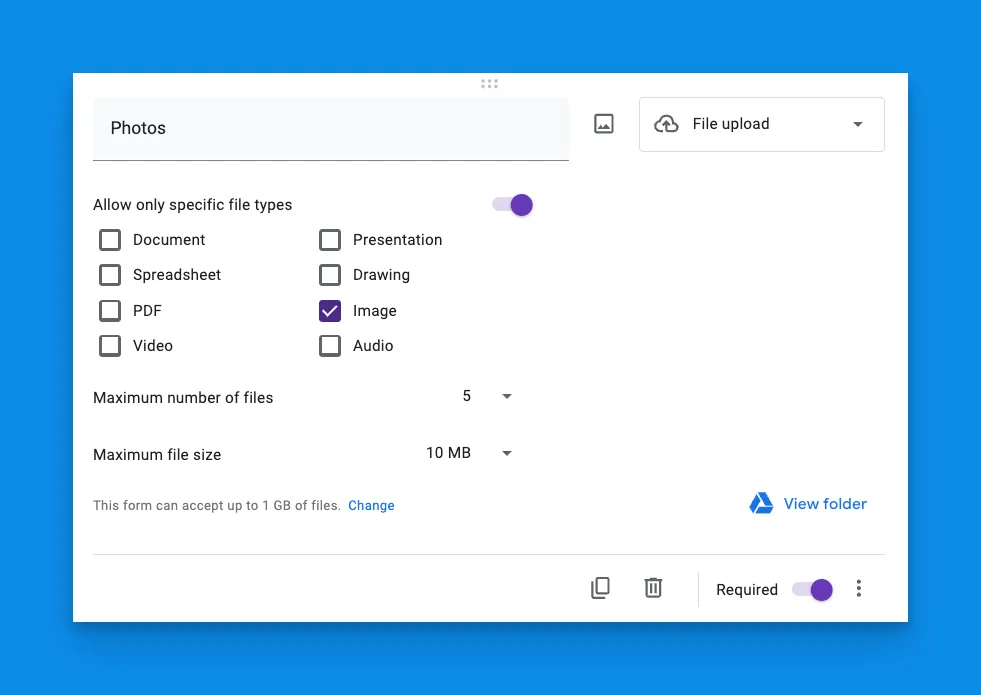
Here we have a question in Google Forms that allows the user to upload multiple images. The question is named Photos and it allows the user to upload up to 5 images in their Google Drive.
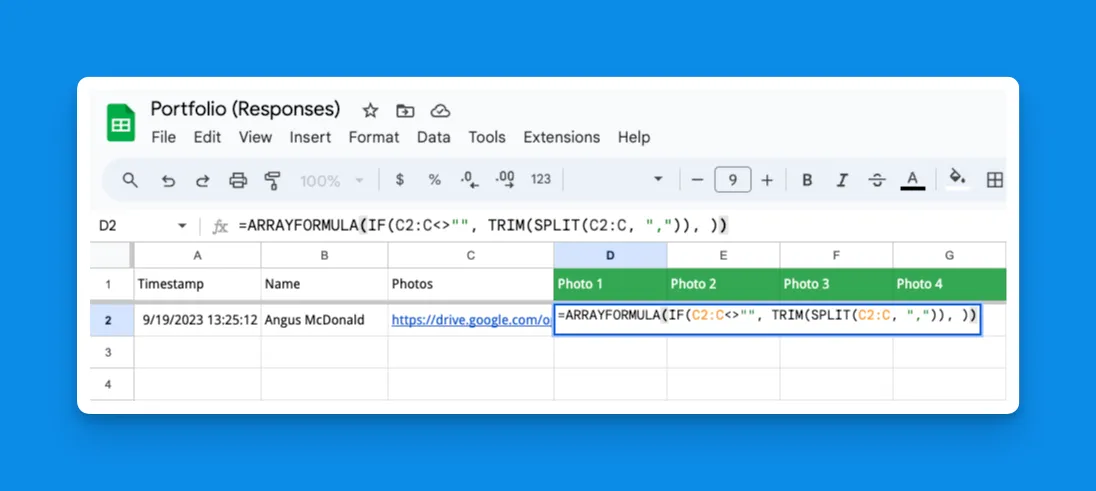
When a respondent uploads multiple files and submits the form, a new row is added in Google Sheets and the file URLs are stored in the column as comma-separated values.
Go to the Google Sheet that is storing the form responses and add 5 new columns next to the column that is storing the file URLs. Give each column a name like Photo 1, Photo 2 and so on.
=ARRAYFORMULA(IF(C2:C<>"", TRIM(SPLIT(C2:C, ",")), ))Next, put the above SPLIT formula with ARRAYFORMULA in the first photo column to split the comma-separated values in the file URL column into multiple columns.
The next step is to add the {{ Embed IMAGE }} marker in your Google Document template but this time, instead of using the file upload question, we’ll use the new columns that we have created in the Google Sheet.
{{ Embed IMAGE, Photo 1 }}
{{ Embed IMAGE, Photo 2 }}
{{ Embed IMAGE, Photo 3 }}
{{ Embed IMAGE, Photo 4 }}
{{ Embed IMAGE, Photo 5 }}
Related Tutorials:
- Generate personalized images from Google Forms
- Create business cards from Google Sheets
- Using Formulas with Google Forms Sheets
Author

prakhar@affmantra.com
Related Posts

How to Add Speech Recognition to your Website
Table of Contents 1. Add Voice Recognition to your Website Open the Google website on your desktop computer and you’ll find a...
Read out all
How to Handle OAuth Permissions in Google Add-ons
- 0
- 714 words
Table of Contents 1. How to Check for Required OAuth Scopes 1.1 The “Authorization Catch-22” Problem 1.2 How to Reset the Permissions...
Read out all
How to Recover Permanently Deleted Files and Folders in Google Drive
- 0
- 326 words
Table of Contents When you delete any file or folder in your Google Drive, it is moved to the trash folder. The...
Read out all
Simple URL Tricks for Google Drive You Should Know
- 0
- 374 words
Table of Contents 1. Google Drive URL Tricks 1.1 Google Drive Web Viewer 1.2 Reader Mode for Google Drive Files 1.3 Embed...
Read out all
How to Extract URLs from HYPERLINK Function in Google Sheets
- 0
- 201 words
The HYPERLINK formula of Google Sheets lets you insert hyperlinks into your spreadsheets. The function takes two arguments: The full URL of...
Read out all
Find and Remove Inactive Users in your Google Workspace Domain
- 0
- 388 words
Table of Contents 1. Find the inactive users in Google Workspace domain You can use Google Apps Script to find all the...
Read out all