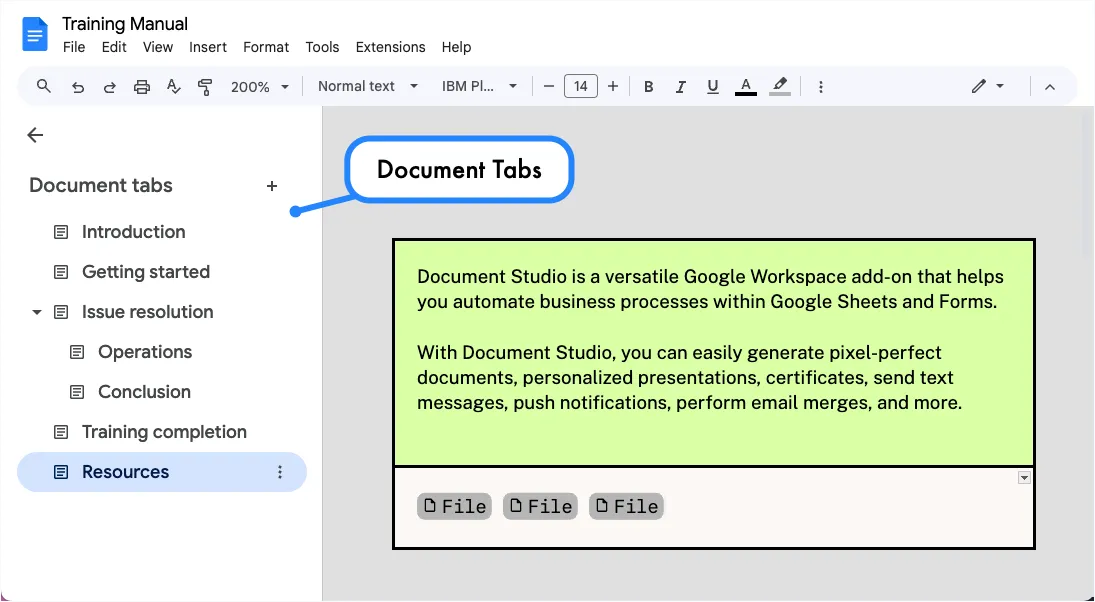
Google Docs now lets you organize your documents into tabs and sub-tabs. This change is particularly useful for managing long documents like employee handbooks and training manuals. Because the document is now divided into multiple sections, the navigation through the document is more intuitive and easier.
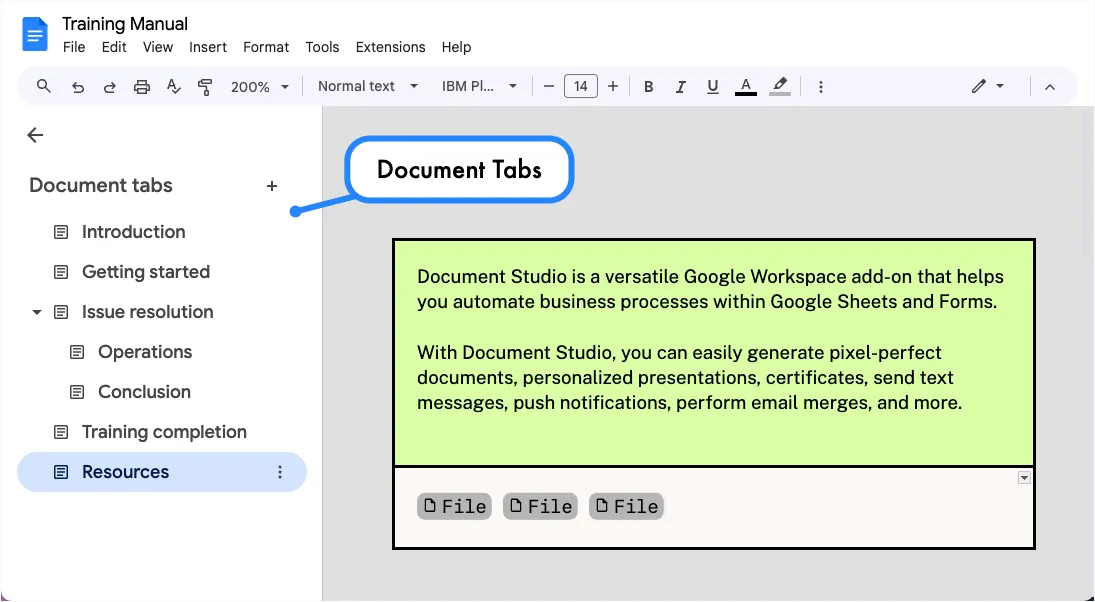
However, this structural change significantly impacts how we work with documents through the DocumentApp service of Google Apps Script.
Previously, Google Docs treated the entire document as a single entity. With the new tabbed structure, each tab is now a document itself with its own body, header, footer, and footnotes. Your Google Apps Script code will need to be updated to work with the new document structure.
Let me explain with some examples:
Finding and Replacing Text
In the non-tabbed version of Google Docs, you could get the body of the document and use the findText method to find and replace text.
const findAndReplaceText = (searchText, replaceText) => {
  const document = DocumentApp.getActiveDocument();
  const documentBody = document.getBody();

  const searchResult = documentBody.findText(searchText);

  if (searchResult !== null) {
    const startIndex = searchResult.getStartOffset();
    const endIndex = searchResult.getEndOffsetInclusive();
    const textElement = searchResult.getElement().asText();
    textElement.deleteText(startIndex, endIndex);
    textElement.insertText(startIndex, replaceText);
  }
};
Working with Multiple Tabs
The above code will still work in the tabbed version of Google Docs. However, it would only work on the first (default) tab or the tab that is currently active. If you have a document with multiple tabs, you would need to apply the same operations to each tab to find and replace text in the entire document.
Get the List of Document Tabs
To work with all tabs in a document, we first need a function to retrieve all tabs in a document.
const getDocumentTabs = document => {
  const allTabs = [];

  const collectTabs = (tabs = []) => {
    tabs.forEach(tab => {
      if (tab.getType() === DocumentApp.TabType.DOCUMENT_TAB) {
        allTabs.push(tab);
        collectTabs(tab.getChildTabs());
      }
    });
  };

  collectTabs(document.getTabs());
  return allTabs;
};
Find and Replace Text in Document Tabs
Now that you have an array of all tabs (main tabs and sub-tabs), you can apply the search and replace operations to each tab.
const findAndReplaceTextInAllTabs = (searchText, replaceText) => {
  const document = DocumentApp.getActiveDocument();
  const allTabs = getDocumentTabs(document);
  allTabs.forEach(tab => {
    findAndReplaceTextInTab(searchText, replaceText, tab);
  });
  document.saveAndClose();
};

const findAndReplaceTextInTab = (searchText, replaceText, tab) => {
  const tabBody = tab.getBody();
  const searchResult = tabBody.findText(searchText);

  if (searchResult !== null) {
    const startIndex = searchResult.getStartOffset();
    const endIndex = searchResult.getEndOffsetInclusive();
    const textElement = searchResult.getElement().asText();
    textElement.deleteText(startIndex, endIndex);
    textElement.insertText(startIndex, replaceText);
  }
};
Export Google Docs to PDF
Let’s look at another example where you want to export a Google Docs document to a PDF or a Word document.
In the non-tabbed version of Google Docs, you could use the Google Drive API to export the entire Google Docs document to another format.
const exportGoogleDocumentToPdf = () => {
  const document = DocumentApp.getActiveDocument();
  const fileId = document.getId();
  const exportMime = "application/pdf";
  const baseUrl = "https://www.googleapis.com/drive/v3/files";
  const apiUrl = `${baseUrl}/${fileId}/export?mimeType=${encodeURIComponent(exportMime)}`;
  const response = UrlFetchApp.fetch(apiUrl, {
    headers: {
      Authorization: `Bearer ${ScriptApp.getOAuthToken()}`,
    },
  });
  const blob = response.getBlob();
  const fileName = `${document.getName()}.pdf`;
  const file = DriveApp.createFile(blob);
  Logger.log(`Exported Google document to PDF: ${file.getUrl()}`);
};
The export function will continue to work in the new tabbed version of Google Docs. However, it will export the entire document as a single PDF or Word document. If you want to export each tab as a separate document, you would have to make some changes to the code.
Export Specific Google Tabs as PDF
We’ve previous written a function to get the list of tabs in a Google Docs document. You can further expand this code to get the list of all tab IDs and their names.
const getDocumentTabIds = document => {
  const allTabs = getDocumentTabs(document);
  return allTabs.map(tab => tab.getId());
};
You can then use the tab IDs to export each tab as a separate PDF or Word document. Please note that our export endpoint will change since the Drive API does not support exporting individual tabs.
const exportDocumentTabsToPdf = (documentId, tabId) => {
  const baseUrl = "https://docs.google.com/document/export";
  const exportUrl = `${baseUrl}?id=${documentId}&exportFormat=pdf&tabId=${tabId}`;
  const response = UrlFetchApp.fetch(exportUrl, {
    headers: {
      Authorization: `Bearer ${ScriptApp.getOAuthToken()}`,
    },
  });
  const blob = response.getBlob();
  const file = DriveApp.createFile(blob);
  Logger.log(`Exported tab ${tabId} to PDF: ${file.getUrl()}`);
};
The same applies to headers and footers in Google Docs.
The document.getHeader() and document.getFooter() methods will now return the header and footer of the current tab. To modify headers and footers across all tabs, you’ll need to apply changes to each tab individually.
Document Studio Integration
The Document Studio addon lets you create personalized documents from Google Document templates. You can even combine multiple documents into a single document. The addon is now compatible with the tabbed version of Google Docs.
Author

prakhar@affmantra.com
Related Posts

How to Add Speech Recognition to your Website
Table of Contents 1. Add Voice Recognition to your Website Open the Google website on your desktop computer and you’ll find a...
Read out all
How to Handle OAuth Permissions in Google Add-ons
- 0
- 714 words
Table of Contents 1. How to Check for Required OAuth Scopes 1.1 The “Authorization Catch-22” Problem 1.2 How to Reset the Permissions...
Read out all
How to Recover Permanently Deleted Files and Folders in Google Drive
- 0
- 326 words
Table of Contents When you delete any file or folder in your Google Drive, it is moved to the trash folder. The...
Read out all
Simple URL Tricks for Google Drive You Should Know
- 0
- 374 words
Table of Contents 1. Google Drive URL Tricks 1.1 Google Drive Web Viewer 1.2 Reader Mode for Google Drive Files 1.3 Embed...
Read out all
How to Extract URLs from HYPERLINK Function in Google Sheets
- 0
- 201 words
The HYPERLINK formula of Google Sheets lets you insert hyperlinks into your spreadsheets. The function takes two arguments: The full URL of...
Read out all
Find and Remove Inactive Users in your Google Workspace Domain
- 0
- 388 words
Table of Contents 1. Find the inactive users in Google Workspace domain You can use Google Apps Script to find all the...
Read out all