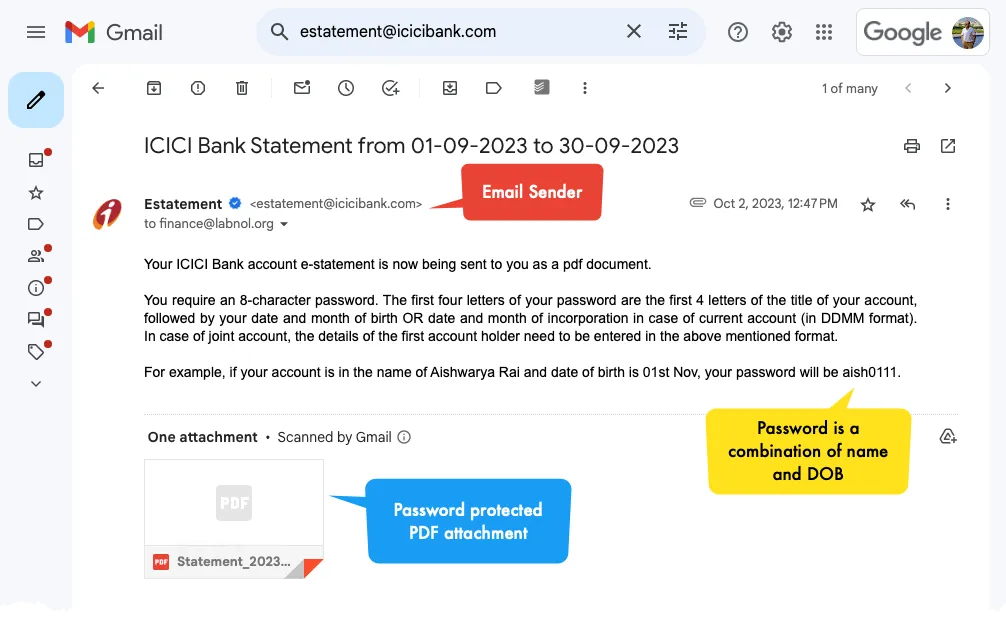
Credit card companies and banks often send their financial statements in the form of password-protected PDF files. These PDF attachments may be encrypted with passwords derived from the last four digits of your Social Security number, your birthdate, or any unique combination.
If you are to open these password-protected PDF files, you’ll have to enter the password every time. You can permanently remove passwords from PDF files using Google Chrome but that’s a manual and time-consuming process especially if you have a large number of password-protected PDF attachments in your Gmail inbox.
Important Note – This tutorial will only help you decrypt password-protected PDF files for which you know the password. You cannot use this method to unlock PDF files where you don’t know the password.
Imagine the convenience of having an automated method to download all your password-protected PDF attachments from Gmail directly to Google Drive as unencrypted PDF documents. This would completely eliminate the need to enter passwords to view your PDF files. The other advantage is that your PDF files will become searchable in Google Drive.
Save Password Protected PDF Files to Google Drive
We’ll use the Gmail to Google Drive add-on for Google Sheets to automatically download password-protected PDF attachments from Gmail to Google Drive.
1. Build the Gmail Search Query
After the addon is installed, go your sheet.new in the browser and choose Extensions > Save Emails and Attachments > Open App. Create a new workflow and provide the Gmail search query that will help you find all the password-protected PDF files in your Gmail mailbox.
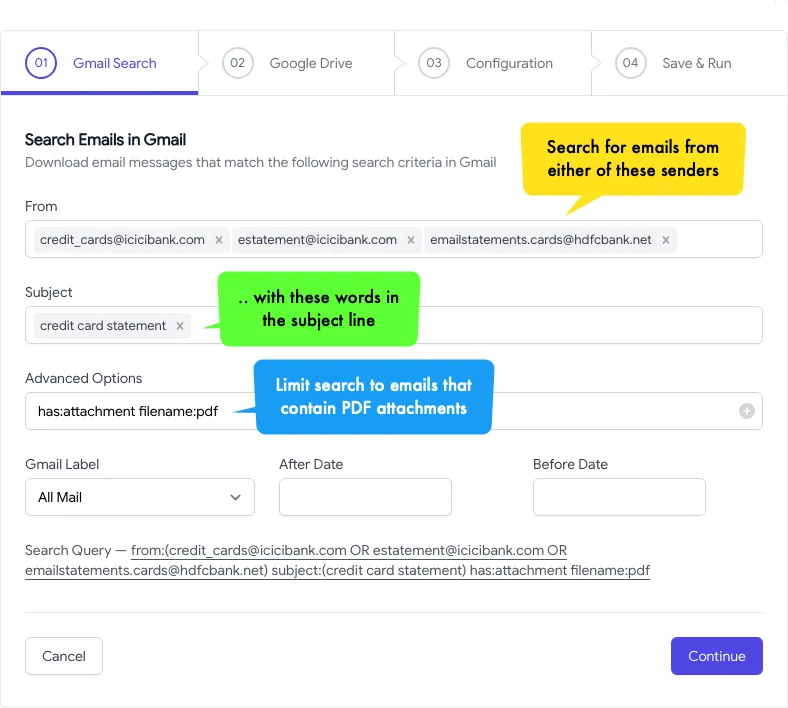
The search query can be of the form filename:pdf has:attachment from:bank.com where you can replace bank with the name of your bank or credit card company.
2. Choose the Google Drive Folder
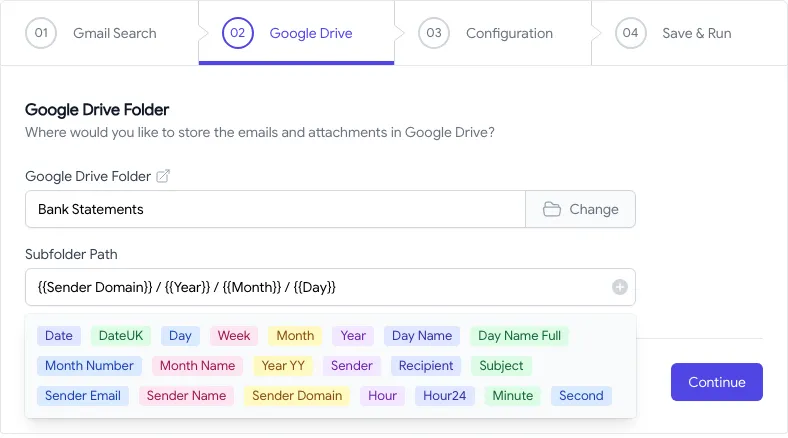
On the next screen, select the folder in your Google Drive where you wish to save the decrypted PDF files. You can also choose to save the PDF files in a sub-folder of your Google Drive or even Shared Drives.
In our example, we have set the sub-folder for downloading emails as {{Sender Domain}} / {{Year}} / {{Month}} / {{Day}} so the PDF files would be saved in a folder structure like bank.com/2024/01/15.
3. Unencrypt PDF Attachments
On the next screen, enable the option that says Save Attachments and choose PDF for the Allow file extensions list. Thus, only PDF files will be saved to Google Drive and all other email attachments will be ignored.
Next, enable the option that says Save PDF Attachments without password and provide the password that you use to open the PDF files. This is the password that you would normally enter when opening the PDF files in Adobe Acrobat or Google Chrome.
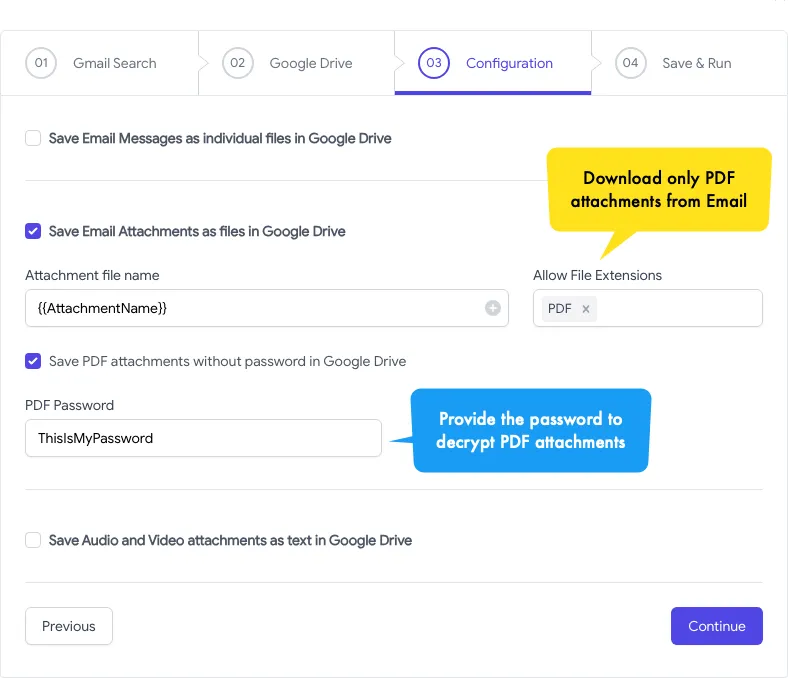
That’s it. Click the Save button to create the workflow and the add-on will now run in the background and save all your password-protected PDF attachments from Gmail to Google Drive as decrypted PDF files that can be opened without entering the password.
Author

prakhar@affmantra.com
Related Posts

How to Create Photo Stickers in Canva
Table of Contents This quick tutorial will walk you through the steps to create your own custom stickers from photos in Canva....
Read out all
How to Add Speech Recognition to your Website
Table of Contents 1. Add Voice Recognition to your Website Open the Google website on your desktop computer and you’ll find a...
Read out all
How to Handle OAuth Permissions in Google Add-ons
- 0
- 714 words
Table of Contents 1. How to Check for Required OAuth Scopes 1.1 The “Authorization Catch-22” Problem 1.2 How to Reset the Permissions...
Read out all
How to Recover Permanently Deleted Files and Folders in Google Drive
- 0
- 326 words
Table of Contents When you delete any file or folder in your Google Drive, it is moved to the trash folder. The...
Read out all
Simple URL Tricks for Google Drive You Should Know
- 0
- 374 words
Table of Contents 1. Google Drive URL Tricks 1.1 Google Drive Web Viewer 1.2 Reader Mode for Google Drive Files 1.3 Embed...
Read out all
How to Extract URLs from HYPERLINK Function in Google Sheets
- 0
- 201 words
The HYPERLINK formula of Google Sheets lets you insert hyperlinks into your spreadsheets. The function takes two arguments: The full URL of...
Read out all