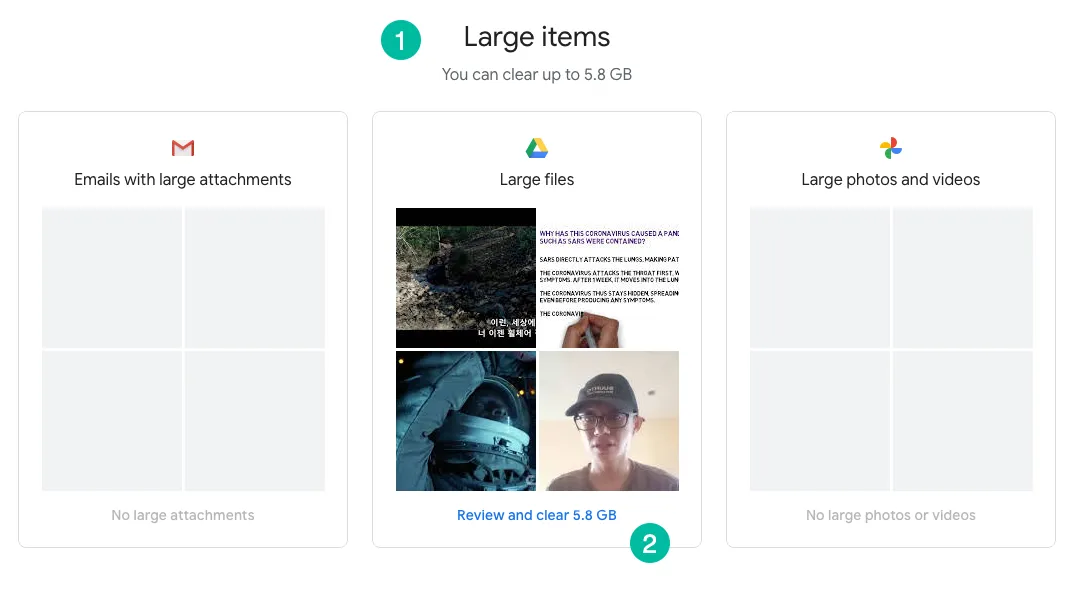
Your Google account storage is shared between Gmail, Google Drive, and Google Photos. What do you do when your Google account is running out of storage space? You either buy more storage from Google or the inexpensive option is that you spend some time spring-cleaning your account and delete the emails and files that could be hogging up the storage space.
Recover Spaces in Google Drive
First things first. Go to google.com/settings/storage and click on the “View Details” link to know the total available disk space and see exactly how much storage space is used by the email and drive service.
Gmail offers the size search operator so you can easily find emails that have large attachments and delete them to reclaim space. For instance, a query like size:5MB older_than:1y will show all emails older than a year and that take up more than 5 MB of space in your Google account. See more Gmail search operators
Unlike Gmail, there’s no easy way to find large files by size in Google Drive but there’re some easy workarounds to find the big files in your Google account.
For Gmail accounts
If you have a @gmail Google account, go to one.google.com and click the “review” link under Large Files.
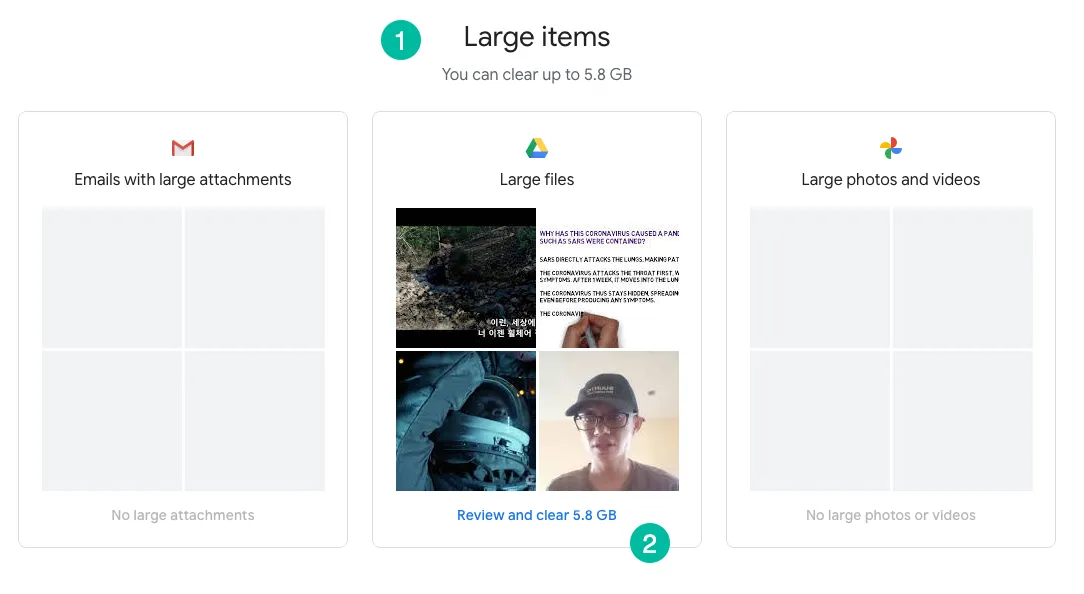
You’ll get a sorted list view of all files in your Google Drive, sort by size. Select the ones you no longer need and hit the delete button to instantly recover space.
Please note that files deleted from the Storage manage inside Google One are permanently deleted and can no longer be recovered.
For Google Workspace accounts
To reclaim space in Google Drive for Google Drive accounts, open this link drive.google.com/drive/quota and you’ll get a list of all files in your Google Drive arranged from largest to smallest size
You can remove the files that you no longer need but there’s one extra step. Google Drive will move the files to the trash bin so you’ll have to empty the bin as well to reclaim space.
The Google Drive files list only includes non-native file formats since the native Google files – like Google Documents or Google Sheets – do not take any storage space on your Google Drive.
Tip: Use the Drive Auditor to get a detailed report of all Google Drive files that can be sorted by size in Google Sheets.
Delete App Backups
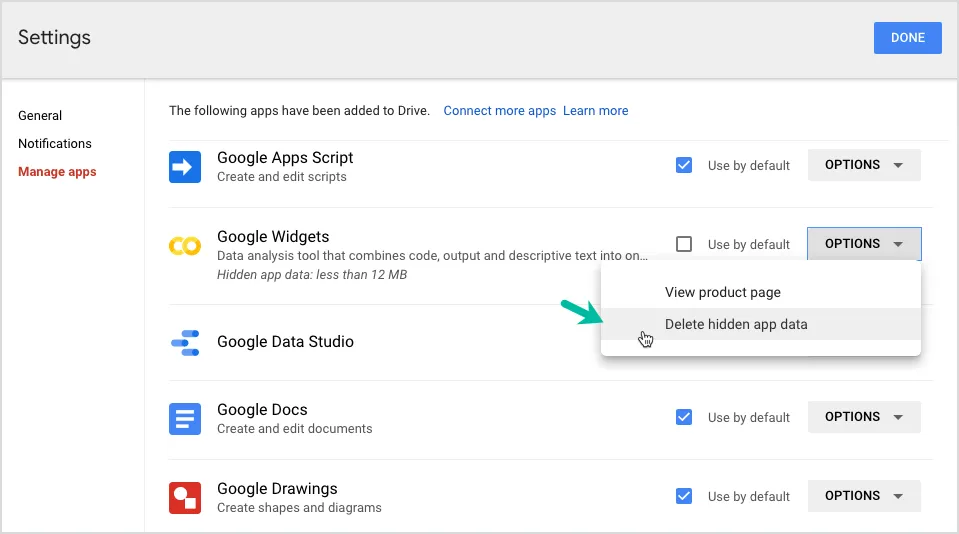
In addition to binary files, certain apps may be using your Drive Storage for storing files and app settings. You cannot explore the individual files that are stored by apps in your Google Drive but you do have an option to delete the data stored by them in your Drive.
Inside Google Drive, go to settings, and choose Manage Apps. Click the options button against the app name and choose “Delete hidden data”.
You may also want to check the Backups section in your Google Drive (google.com/drive/backups) that stores backup of your Android phone, app settings and WhatsApp messages. They take up space as well but Google Drive doesn’t specify the exact size of backups.
Also see: Save Gmail to Google Drive
Author

prakhar@affmantra.com
Related Posts

How to Add Speech Recognition to your Website
Table of Contents 1. Add Voice Recognition to your Website Open the Google website on your desktop computer and you’ll find a...
Read out all
How to Handle OAuth Permissions in Google Add-ons
- 0
- 714 words
Table of Contents 1. How to Check for Required OAuth Scopes 1.1 The “Authorization Catch-22” Problem 1.2 How to Reset the Permissions...
Read out all
How to Recover Permanently Deleted Files and Folders in Google Drive
- 0
- 326 words
Table of Contents When you delete any file or folder in your Google Drive, it is moved to the trash folder. The...
Read out all
Simple URL Tricks for Google Drive You Should Know
- 0
- 374 words
Table of Contents 1. Google Drive URL Tricks 1.1 Google Drive Web Viewer 1.2 Reader Mode for Google Drive Files 1.3 Embed...
Read out all
How to Extract URLs from HYPERLINK Function in Google Sheets
- 0
- 201 words
The HYPERLINK formula of Google Sheets lets you insert hyperlinks into your spreadsheets. The function takes two arguments: The full URL of...
Read out all
Find and Remove Inactive Users in your Google Workspace Domain
- 0
- 388 words
Table of Contents 1. Find the inactive users in Google Workspace domain You can use Google Apps Script to find all the...
Read out all